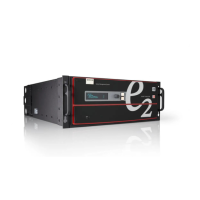
R5906167 /00 ImagePRO–4K Video Processor
31
• SMPTE Bars can be used to determine if the signal chain has a full or reduced range.
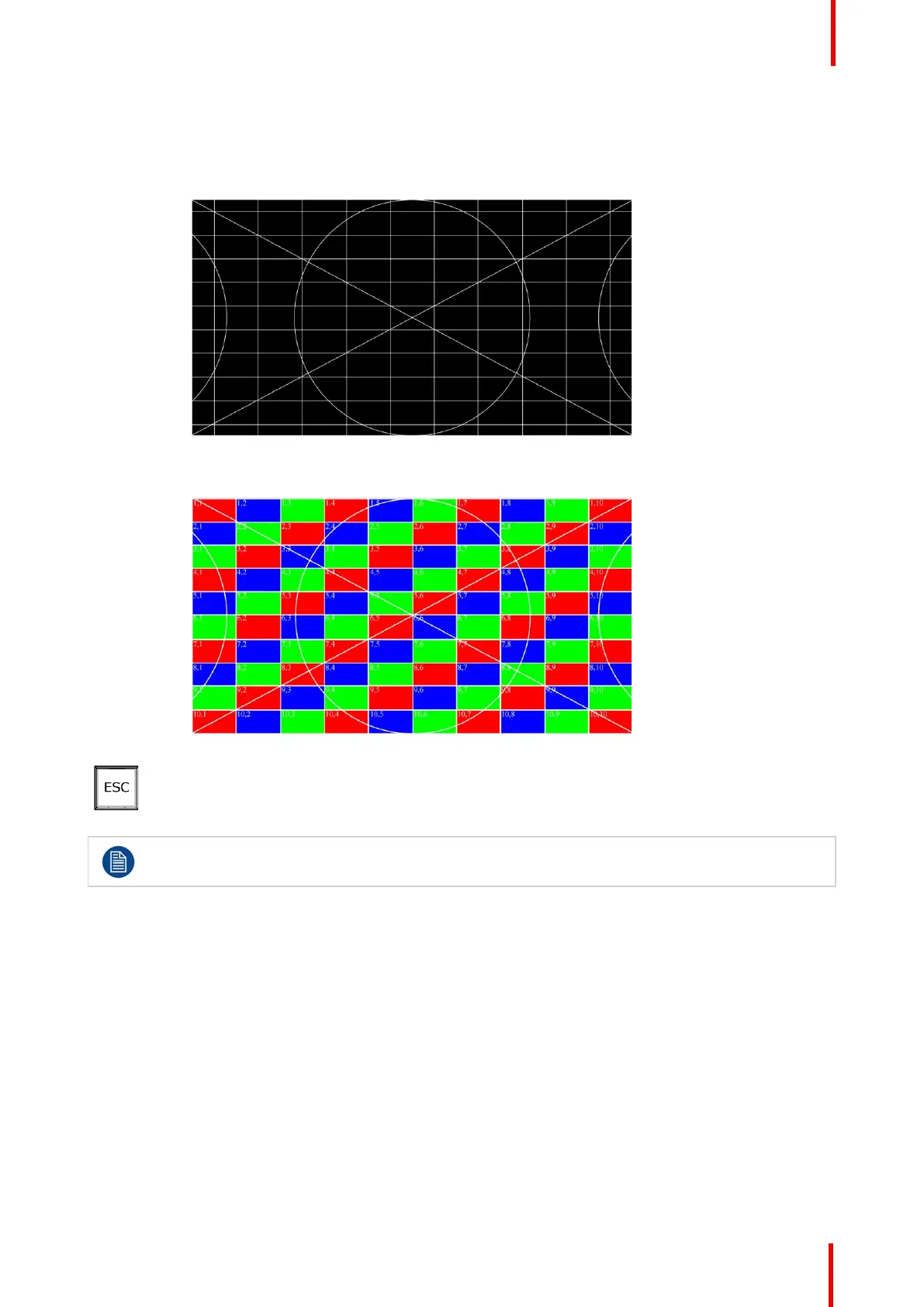
• Circle Alignment can be used to determine if the signal chain is horizontally or vertically
scaled. The horizontal and vertical grid spacing, grid color, grid orientation, and grid width can
all be adjusted.
Image 5-5: Circle Alignment test pattern
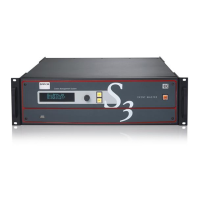
Circle Alignment also has an LED mode.
Image 5-6: Circle Alignment test pattern in LED mode
ESC key
1. Press the ESC (escape) menu key to deactivate a selection, to move back one level in a
menu, or to exit a menu.
Press the Adjust knob to enter the Setup menu.
1. Factory reset—If you are using the ImagePRO–4K for the first time, or if you are using an ImagePRO–4K
that has just returned from another event, perform a full factory reset to restore default system
configurations.
Press the Adjust knob to enter the Setup menu, then select Reset / Factory on the display screen. Reset /
Soft Reset keeps the user settings.
2. Native Rate—On the front panel, press the Adjust knob to enter the Setup menu, then select Setup /
System menu and select the desired Native Rate.
The Native Rate should be set to the frame rate in frames per second of the main output.
3. Assign primary output—If the primary output is DP, proceed to the next step.
If your primary output is HDMI/SDI, go to Setup / Output (AUX) / Primary Output and update the primary
output.
4. Adjust output format—Go to Setup / Output (AUX) / Aux Adjustment and update the output format.
5. Test output—Turn on a test pattern, verify that you have an image, and make any necessary adjustments.
When complete, turn off the test pattern.
6. Position and adjust the image— Use the LED Setup Menu to position the image on the LED wall or other
display device, scale the image, adjust Pan and Zoom settings, and save your view.
Setup and operation


 To Next Page