16
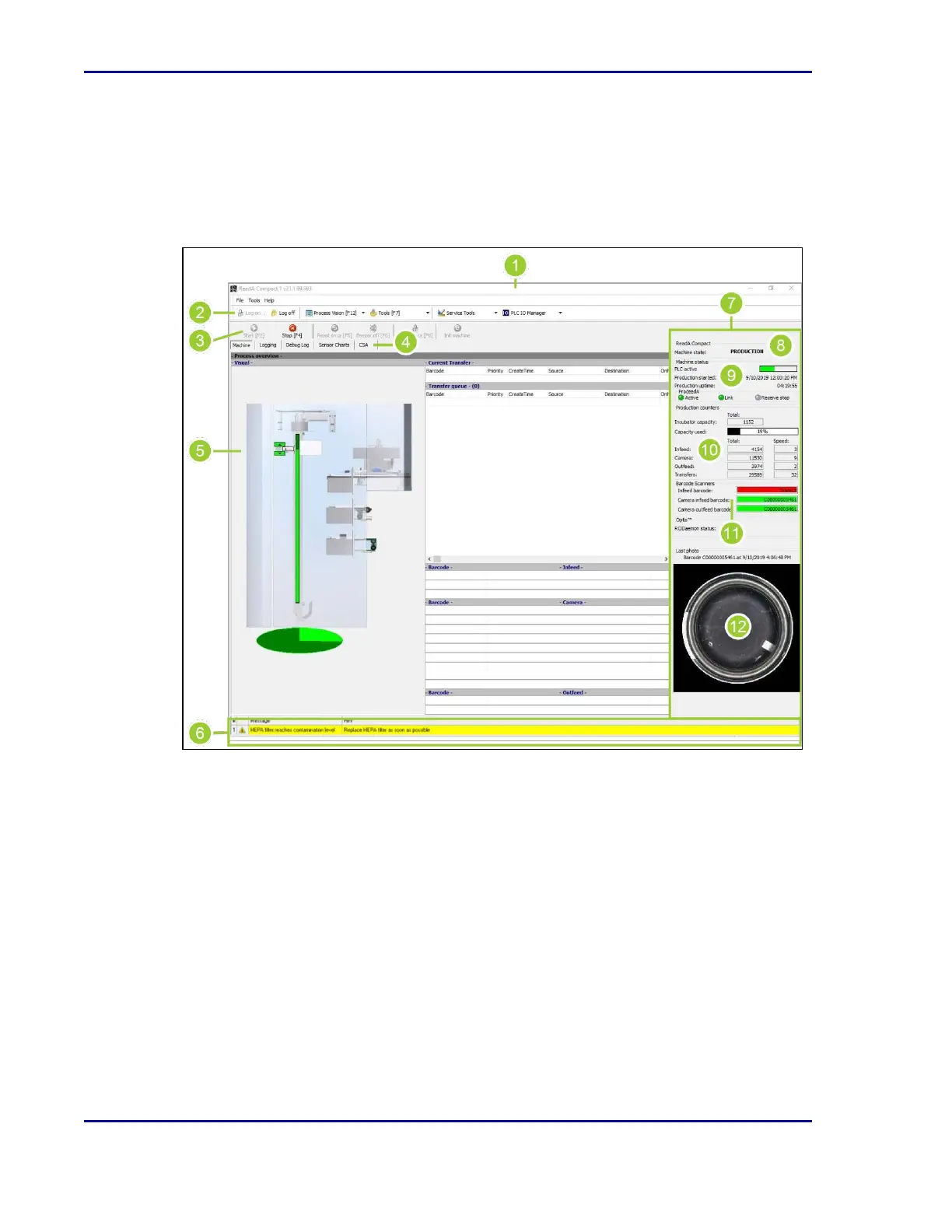
ReadA application main window
The ReadA application is divided into six main areas: the title bar, toolbar, button bar, tab
menu, tab content area, and the general module status area. If a user level is not configured to
have access to a particular item, it will not be visible.
Figure 4 - ReadA main window
1. The title bar (1) shows the name and version of the application, and provides the ability to
minimize, maximize, or close the application.
2. The toolbar (2) provides access to a number of tools and commands.
3. The button bar (3) provides quick access to commonly used options.
4. The tab menu (4) provides access to functionality needed to run the ReadA module.
5. The tab content area (5) contains information for the tab selected.
6. Error and warning messages are shown at the bottom of the screen (6) and describe where
the error or warning has occurred, and a hint on how to resolve it.
BD Kiestra™ ReadA User's Manual



 To Next Page