7. The right side of the tab content area (7) displays general module status, and is always
displayed regardless of which tab is selected:
l
Machine state (8): E.g., Production, Stopped, Initializing
l
Machine status (9): Shows the PLC activity, the production start time, length of the
current production run, and communication with other devices
l
Production counters (10): Shows incubator capacity and the number of plates
processed at the various transit points
l
Barcode Scanners (11): Displays the most recently scanned barcodes at the various
transfer points
l
Image (12): Displays the most recent plate image
2.3.3.2 Application toolbar
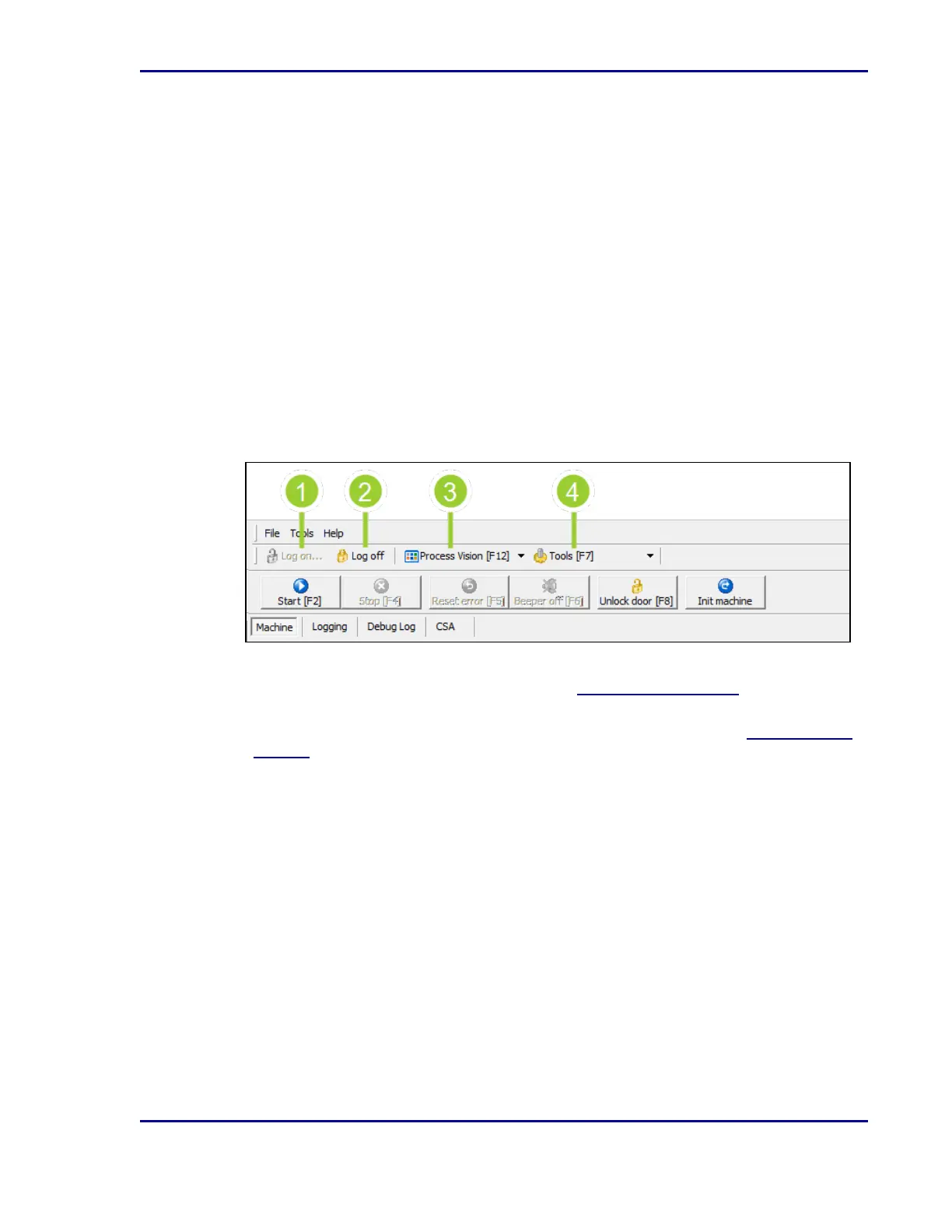
A toolbar option can only be selected when a user is logged in and the option is enabled (i.e.,
text is clearly visible and icon is colored).
Figure 5 - Toolbar options
1. Select Log on to log in to the application. If it appears disabled (text and icon are grayed
out), that means you are already logged in. See 4.2Signing in and out.
2. Select Log Off to log out of the application. If it appears disabled (text and icon are grayed
out), that means you are not logged in, and therefore cannot log out. See 4.2Signing in
and out.
3. Select Process Vision [F12] to get an overview of current processes. Additional
operations are available for advanced users in this view.
4. Select Tools [F7] to expand the Tools menu. In some cases, the module needs to be
stopped or started for the option to become available.
17
2 - Introduction



 To Next Page