20
2.3.3.3 Application button bar
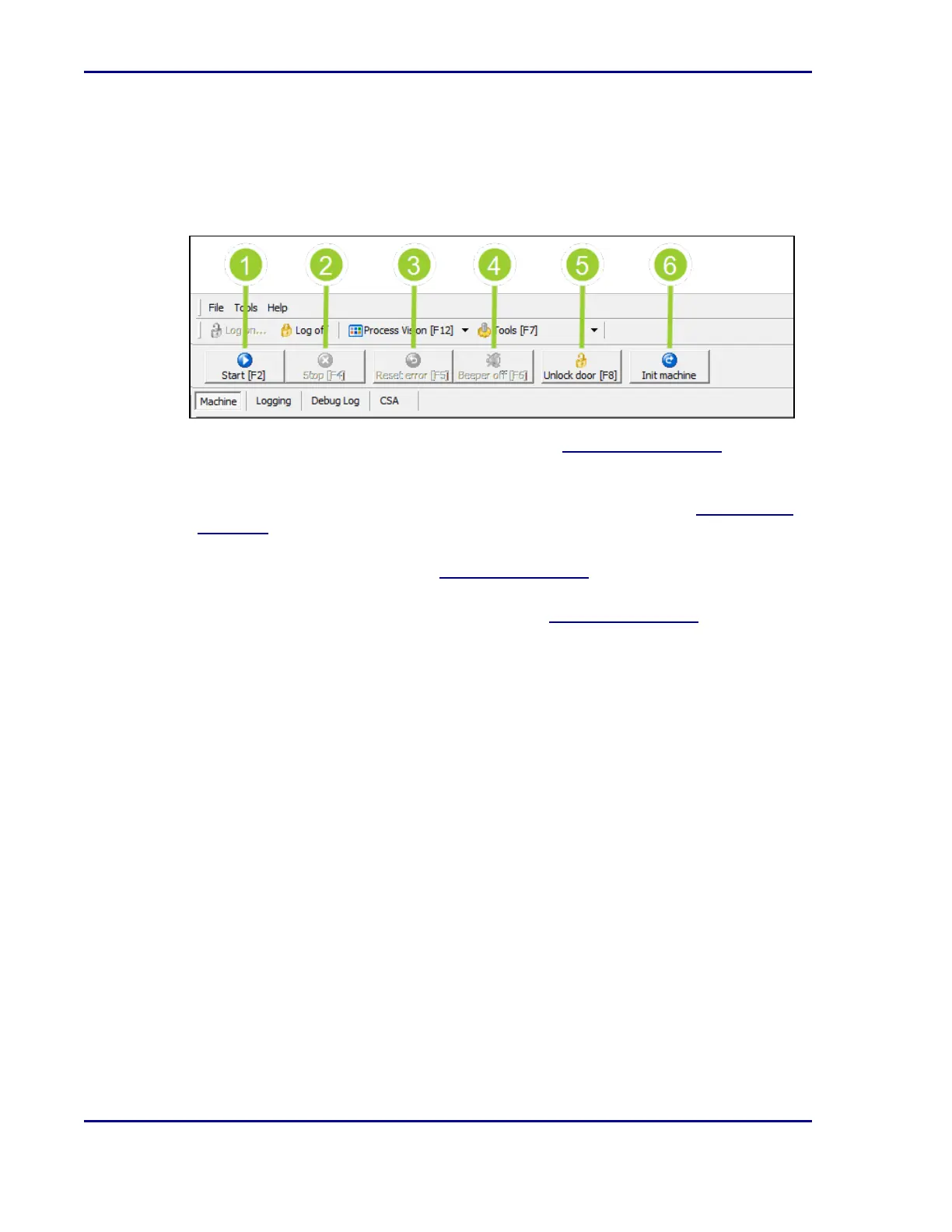
A button can only be selected when a user is logged in and the button is enabled (i.e., text is
clearly visible and icon is colored).
Figure 6 - Button bar options
1. Select Start [F2] to start operation of the ReadA. See 4.3Startingoperation for more
information on when you might use it.
2. Select Stop [F4] to stop the ReadA. This will not stop the incubator or the PC. The camera
compartment will be emptied and all plates moved into the incubator. See 4.4Stopping
operation for more information on when you might use this option.
3. Select Reset error [F5] to reset the error if an error has occurred and has been resolved.
An Error log dialog will appear. See 6.1Resolving errors
4. Select Beeper off [F6] if an error occurs and an audible alarm is activated. While resolving
the error, select the button to turn off the alarm. See 6.1Resolving errors
5. Select Unlock door [F8] to unlock the incubator door and the cover over the camera unit.
Select the button again to lock the door and the cover.
6. Select Init machine if the ReadA does not start up after selecting Start [F2] and no error is
indicated. A pop-up dialog appears, asking if you really want to do this. Select OK to
confirm, or select Cancel.
BD Kiestra™ ReadA User's Manual



 To Next Page