14
Clinician's Guide
Opening an Existing Patient Account
1. From the Main Menu screen, press the Patient Training Menu button. See Figure 4-4. This will
open the Patient Menu screen.
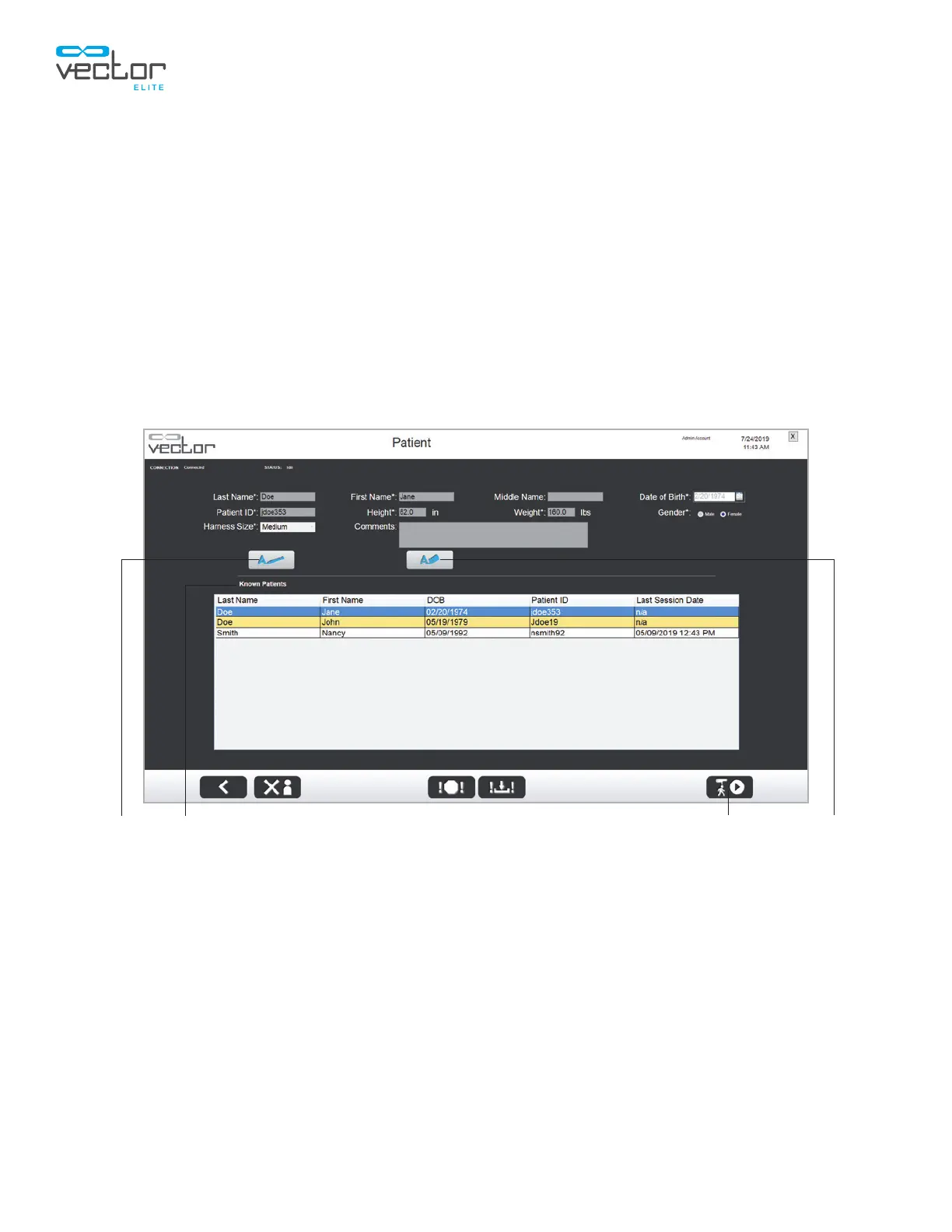
2. The screen will display patients currently in the database under the Known Patients list.
3. Select the desired patient by pressing the row containing the name. Scroll up/down or start
typing in the patient’s name in the blank fields to filter the database results.
4. Once the patient has been selected, the data fields will auto-fill with the patient’s information. Edit
the patient’s information by pressing the Edit button. Press the Clear button to clear data from all
of the field. See Figure 5-2.
5. Press the Start Training button to open the Training Session screen. See Figure 5-2.
Figure 5-2: Selecting an Existing Patient
Edit
Clear
Start Training
Known Patients List



 To Next Page