76
Clinician's Guide
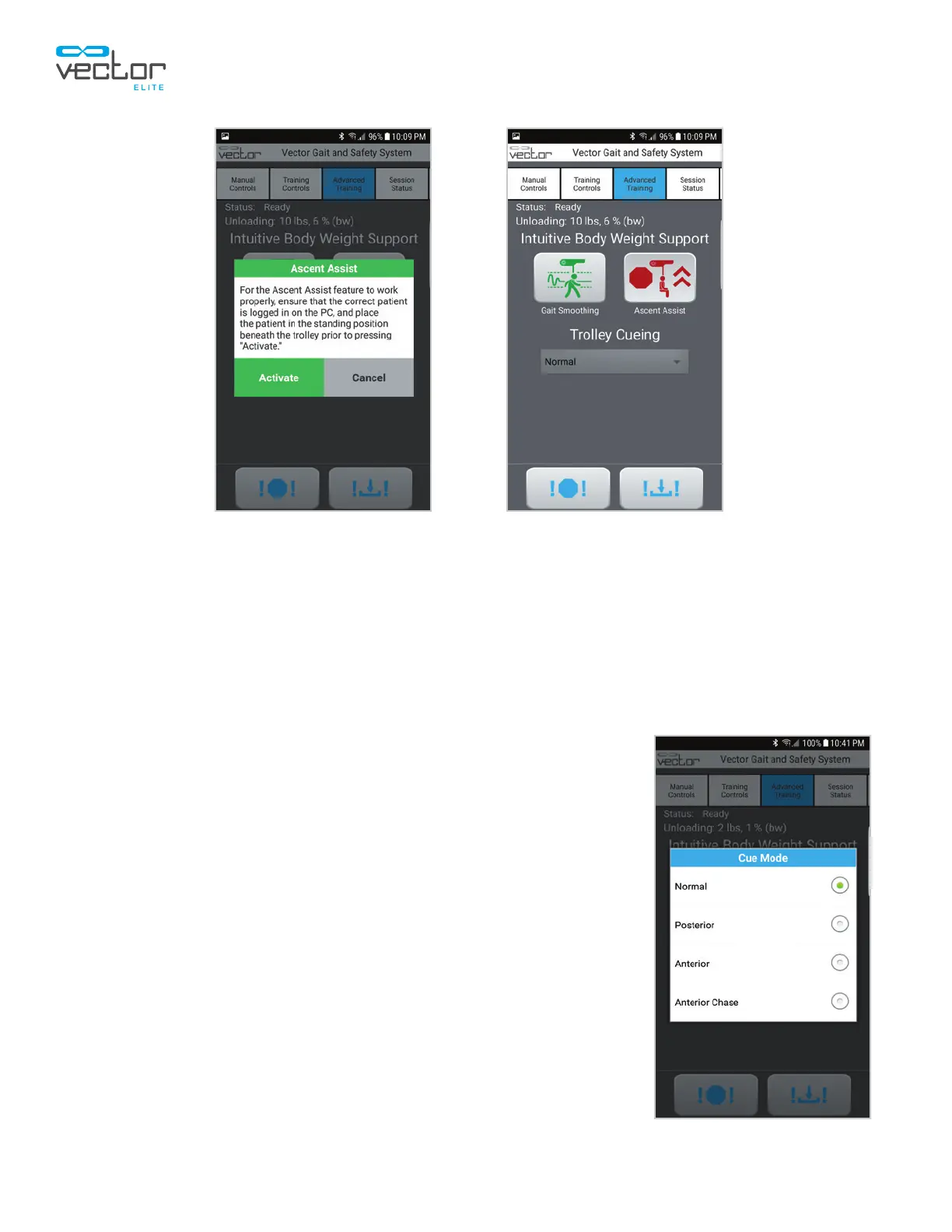
4. When Ascent Assist is enabled, the button will turn red. See Figure 9-26.
5. When finished with the Ascent Assist feature, press the red Ascent Assist button to disable it.
When disabled, the button will turn green again.
Trolley Cue
Posterior Cue & Anterior Cue: Cuing can be enabled using
the Vector Remote. Adjustments including disabling Homing or
changing the Cue Angle can be made using the Vector PC.
1. Select the Advanced Training tab to display the Trolley Cue
controls. The Cuing drop-down will be displayed.
2. Open the drop-down menu and select the Posterior Cue or
Anterior Cue mode. See Figure 9-27.
3. Select Normal to disable the Trolley Cue and return to normal
Trolley Tracking.
Note: The Homing option is enabled when the Vector Remote is in
use without the Vector PC.
Anterior Chase: To enable Anterior Chase, begin a Training
Session while logged in with the correct Patient Profile. Alternatively,
the patient weight may be entered with the Vector Remote, but it
must be entered every time Ascent Assist is enabled.
Figure 9-25 Figure 9-26
Figure 9-27



 To Next Page