26
Clinician's Guide
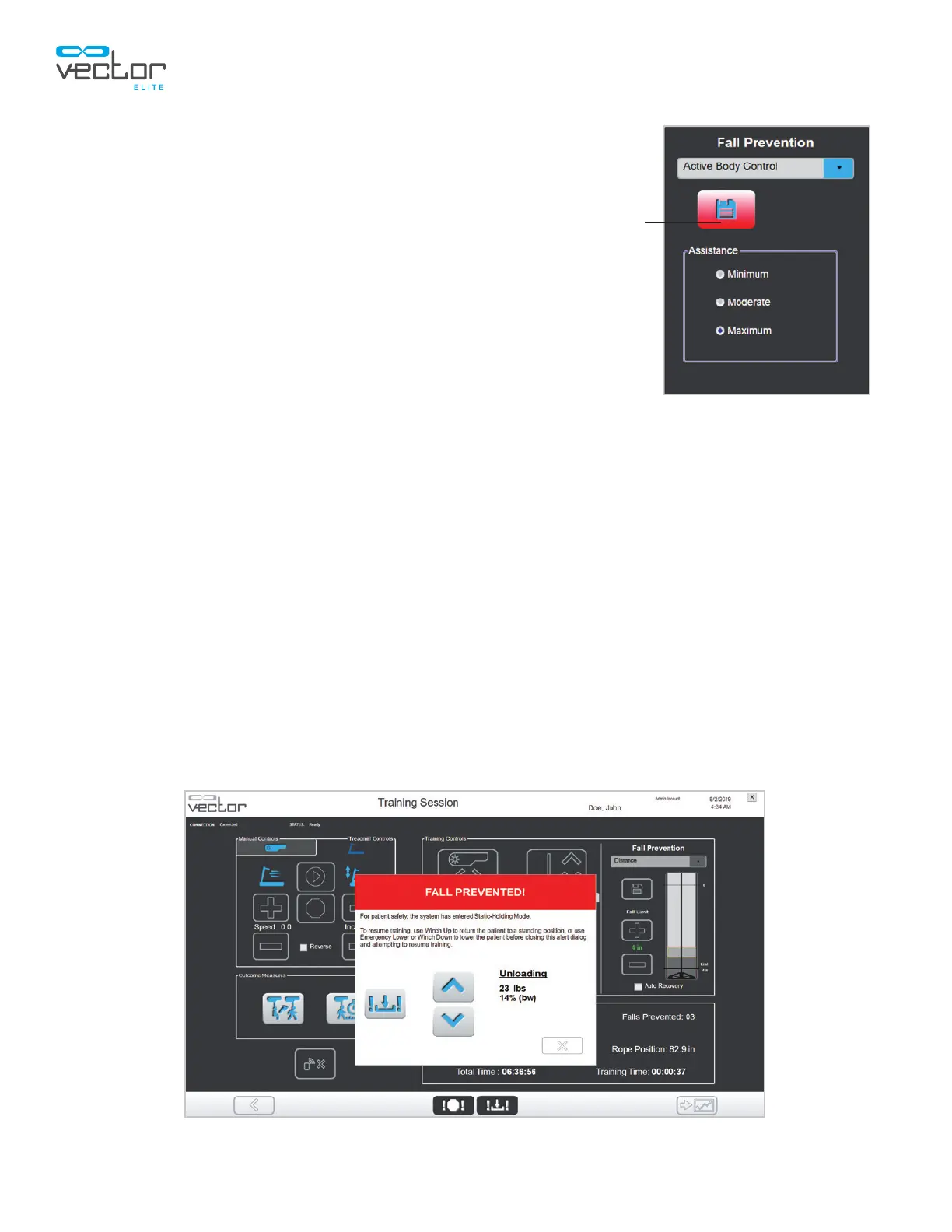
Changing the Assistance Level During an Active
Body Control Session
During a training session, change the level of assistance with Active
Body Control Fall Prevention.
1. Select the desired assistance level in the Assistance
radio button's selection: minimum, moderate, maximum.
The Save button will turn red.
2. Press the Save button to save the revised assistance level.
See Figure 5-17.
Fall Limit Detection
The Vector Elite system can detect and prevent a fall when the fall distance from the Zero Point is equal
to or greater than the set Fall Limit setting or when the saved Active Body Control assistance level is
exceeded. When the system detects and prevents a fall, the trolley locks and goes into Static Unload
mode.
1. When the Vector Elite system software detects a fall, the Fall Prevented window will appear. See
Figure 5-18.
2. When Auto Recovery mode is not active, press the winch up button, to bring the patient to the
desired position. If necessary, use the Emergency Lower button to lower the patient to the ground.
3. Press the X button to close the Fall Prevented window. If the patient is in a standing position,
press the DBWS button and (if applicable) the Trolley Tracking button to resume the training
session. There must be at least 10 lbs. (4.5 kgs.) of unloading in order to activate DBWS or
Trolley Tracking.
Figure 5-18: Fall Prevented Window
Clinician's Guide
Figure 5-17: Fall Prevention
Active Body Control
Save
Button



 To Next Page