75
Chapter 9 - Vector Elite Remote Control
Intuitive Body Weight Support
Gait Smoothing and Ascent Assist can be enabled independently or simultaneously with each other.
For these features to operate, DBWS must be enabled from the Training Controls screen.
Gait Smoothing: To enable the Gait Smoothing feature, begin a
Training Session while logged in with the correct Patient Profile.
Alternatively, the patient weight may be entered with the Vector
Remote, but it must be entered every time Gait Smoothing is
enabled.
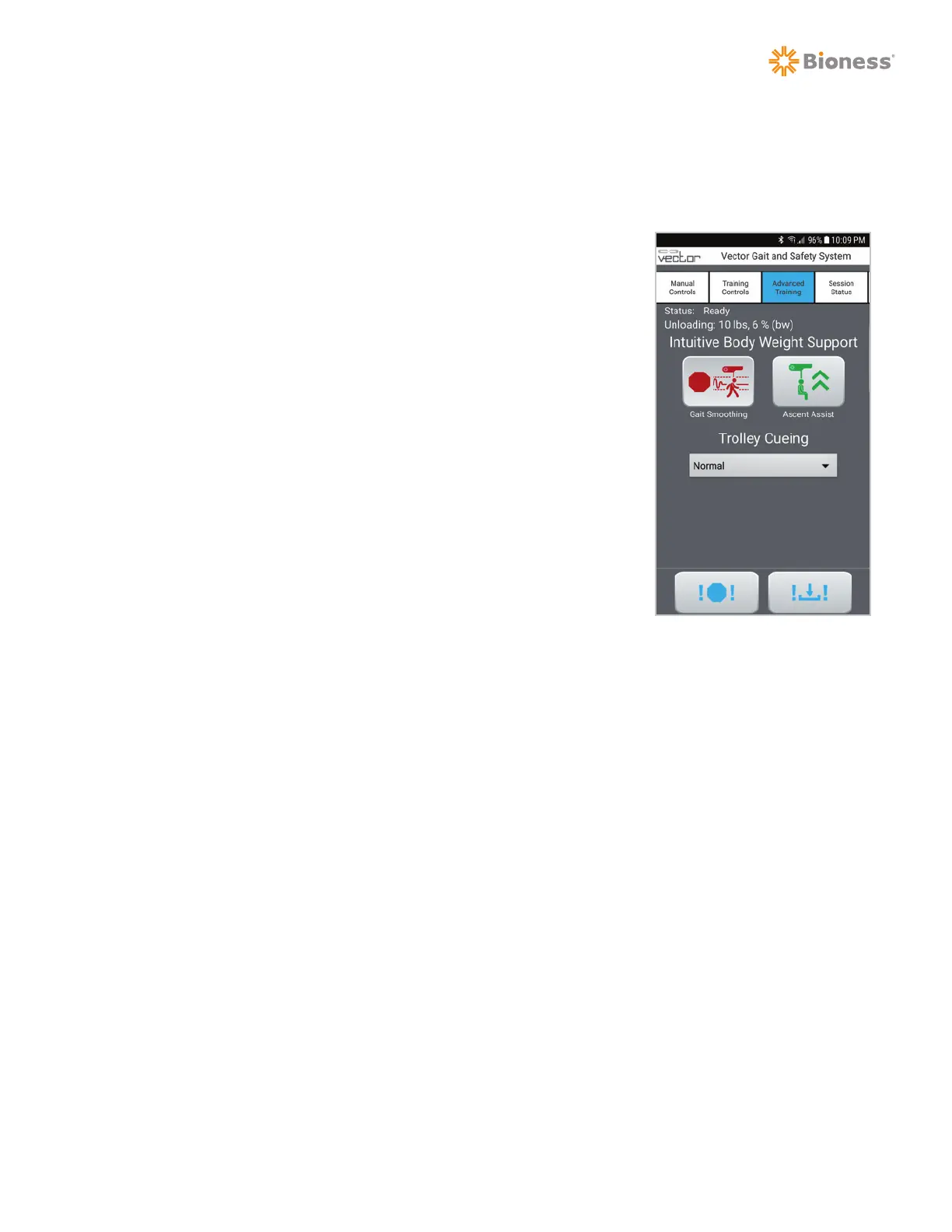
1. Select the Advanced tab to display the Intuitive Body Weight
Support controls. The Gait Smoothing button will be displayed.
Note: Gait Smoothing can be enabled independent of DBWS and
Trolley Tracking.
2. Press the Gait Smoothing button to enable it. When Gait
Smoothing is enabled, the button will turn red. See Figure 9-24.
3. When finished with the Gait Smoothing feature, press the red
Gait Smoothing button to disable it. When disabled, the button
will turn green again.
Note: Gait smoothing will remain enabled until it is manually
disabled, even if DBWS is not enabled.
Ascent Assist: To enable the Ascent Assist feature, begin a Training Session while logged in with the
correct Patient Profile. Alternatively, the patient weight may be entered with the Vector Remote, but it
must be entered every time Ascent Assist is enabled.
1. Select the Advanced tab to display the Intuitive Body Weight Support controls. The Ascent Assist
button will be displayed.
2. Ensure DBWS is enabled and that the patient is standing, and press the Ascent Assist button.
3. A popup message will be displayed with instructions for verifying patient weight and ensuring that
the patient is standing. If the displayed weight is incorrect, it must be updated prior to using this
feature. See Figure 9-25.
Figure 9-24



 To Next Page