88
Clinician's Guide
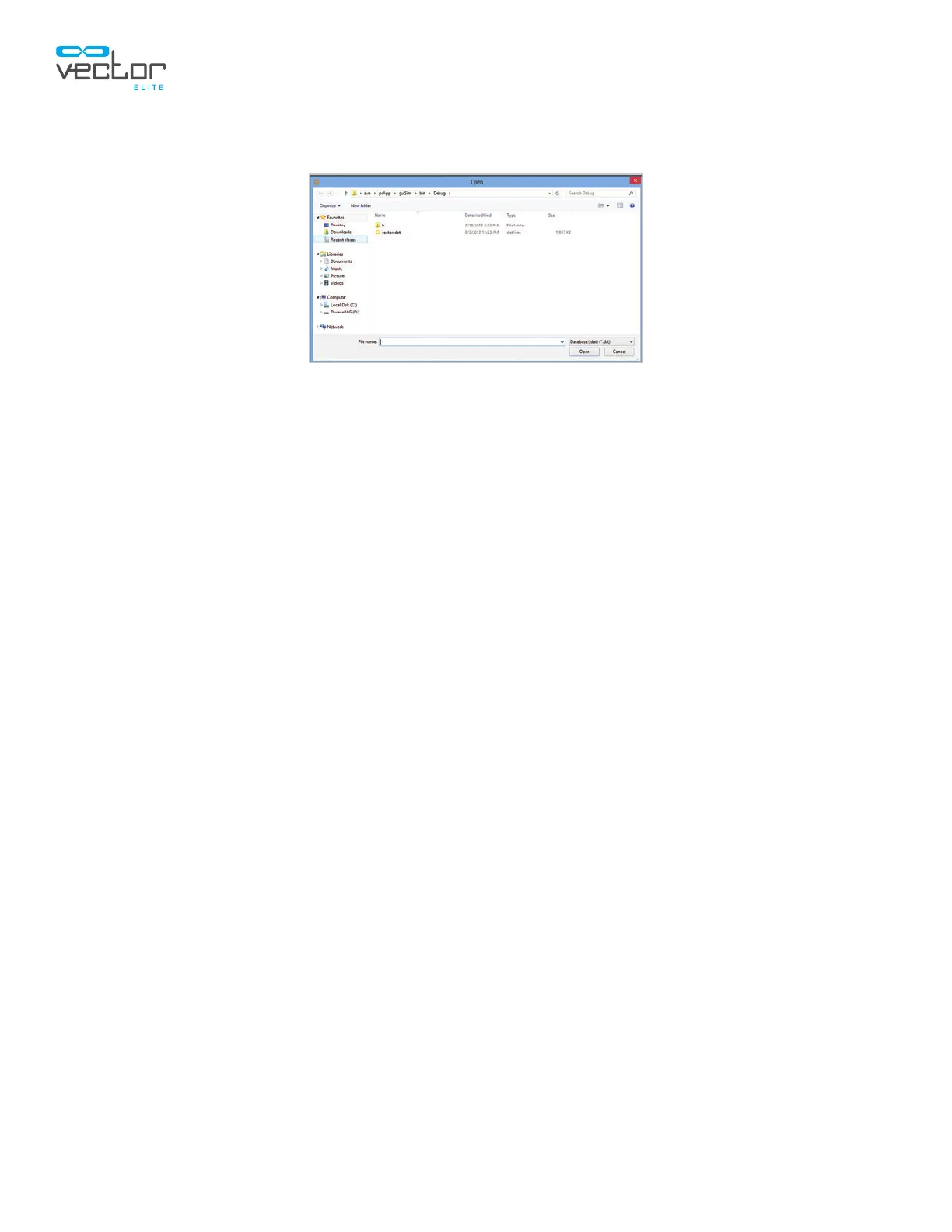
2. An Open File Window will appear. Find the database file and press the Open button. See Figure
11-8.
Figure 11-8: Restore Database Open Window
Note: The restore function should only be used in the event of a database error or if advised to do so
by Bioness Technical Support.
Troubleshooting Menu
The Troubleshooting menu displays frequently asked troubleshooting questions with solutions.
System Settings Menu
The System Settings menu is used by the administrator to change the language settings, formatting,
measurement units, enter clinic information, and activate software modules. The System Settings menu
also lists the version of Vector Elite software that is installed. See Figure 11-9.
Tracking Responsiveness
This feature allows the clinician to adjust how responsive the trolley is to patient movements. Depending
on patient capability and mobility level, the clinician may increase or decrease the speed at which the
trolley responds to patient movement.
High: This high-performance setting is designed to reduce trolley lag as much as possible and keep the
angle of the rope vertical. The Vector trolley will be very sensitive to patient movements at this setting.
Normal: The is the ideal setting for patients. Trolley lag is very low, and the trolley provides a high level
of control.
Low: This setting may be preferable for very low-level patients. Patients may perceive some backward
forces as they walk.
1. Navigate to the System Settings Menu.
2. To change the Tracking Responsiveness, select Low, Normal, or High. See Figure 11-9.



 To Next Page