35
Chapter 6 - Advanced Training Features
Enabling Ascent Assist
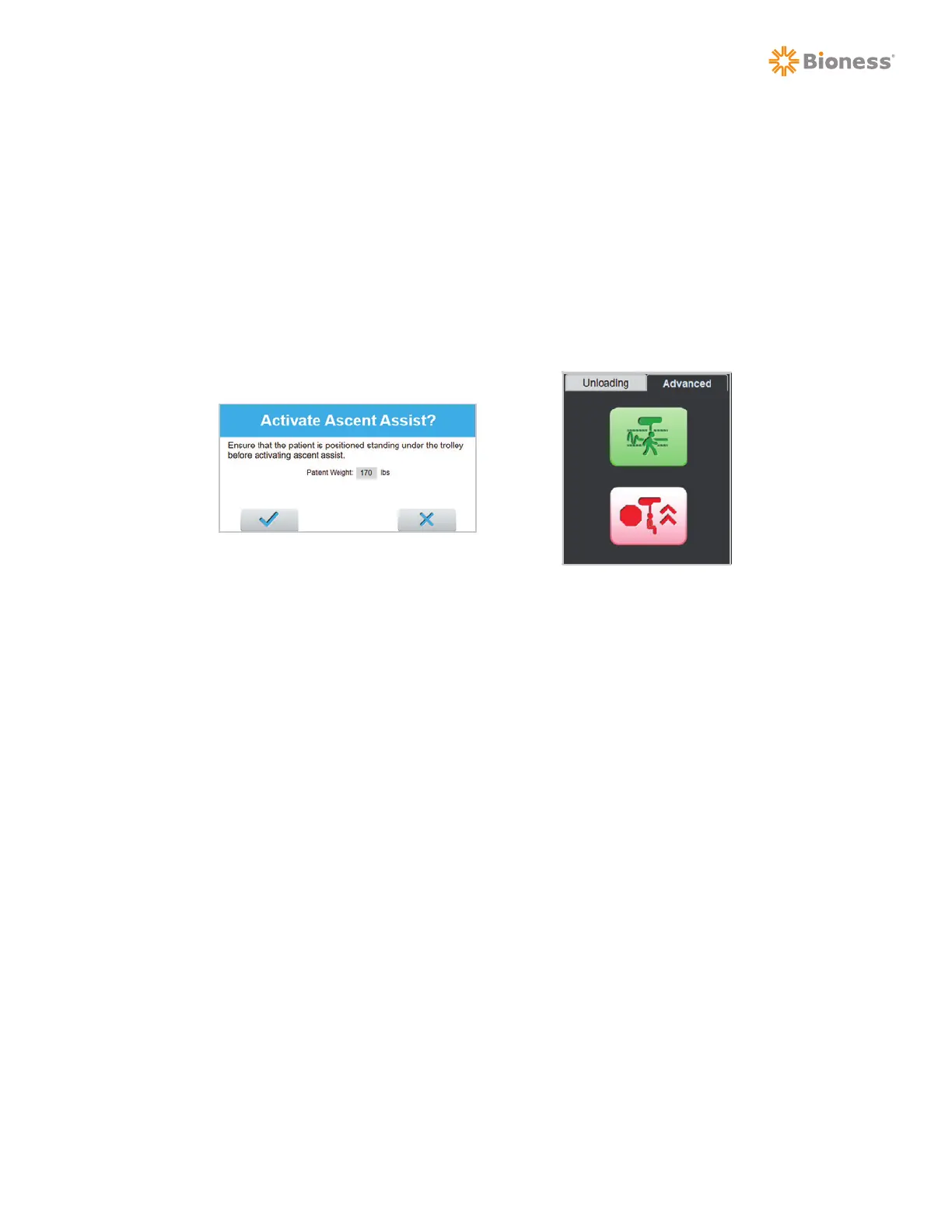
1. Select the Advanced tab. The button for Ascent Assist will be displayed. See Figure 6-7.
2. Ensure DBWS is enabled and that the patient is standing, and press the Ascent Assist button. See
Figure 6-7.
3. A popup message will be displayed with instructions for confirming patient weight and ensuring
that the patient is standing. If the displayed weight is incorrect, it must be updated prior to using
this feature. See Figure 6-8.
4. When Ascent Assist is enabled, the button will turn red. See Figure 6-9.
5. When finished with the Ascent Assist feature, press the red Ascent Assist button to disable it.
When disabled, the button will turn green again.
Figure 6-10:
Ascent Assist Active
Figure 6-9:
Patient Weight Confirmation
Treadmill Integration with the Vector Elite Software
The Vector Elite System can be used in combination with body weight supported treadmill training.
Once integrated, the Vector software can be used to control the speed, incline, and belt direction of
the treadmill from the PC and Remote Control devices.
Note: Treadmill integration requires a compatible treadmill. Consult your Bioness representative to
determine if the Vector software is compatible with your treadmill.
Connecting the Treadmill to the Vector Elite System
1. Power on the treadmill as instructed by its associated user manual.
2. Connect the provided USB cable into the PC and treadmill. See Figure 6-11.



 To Next Page