65
Chapter 9 - Vector Elite Remote Control
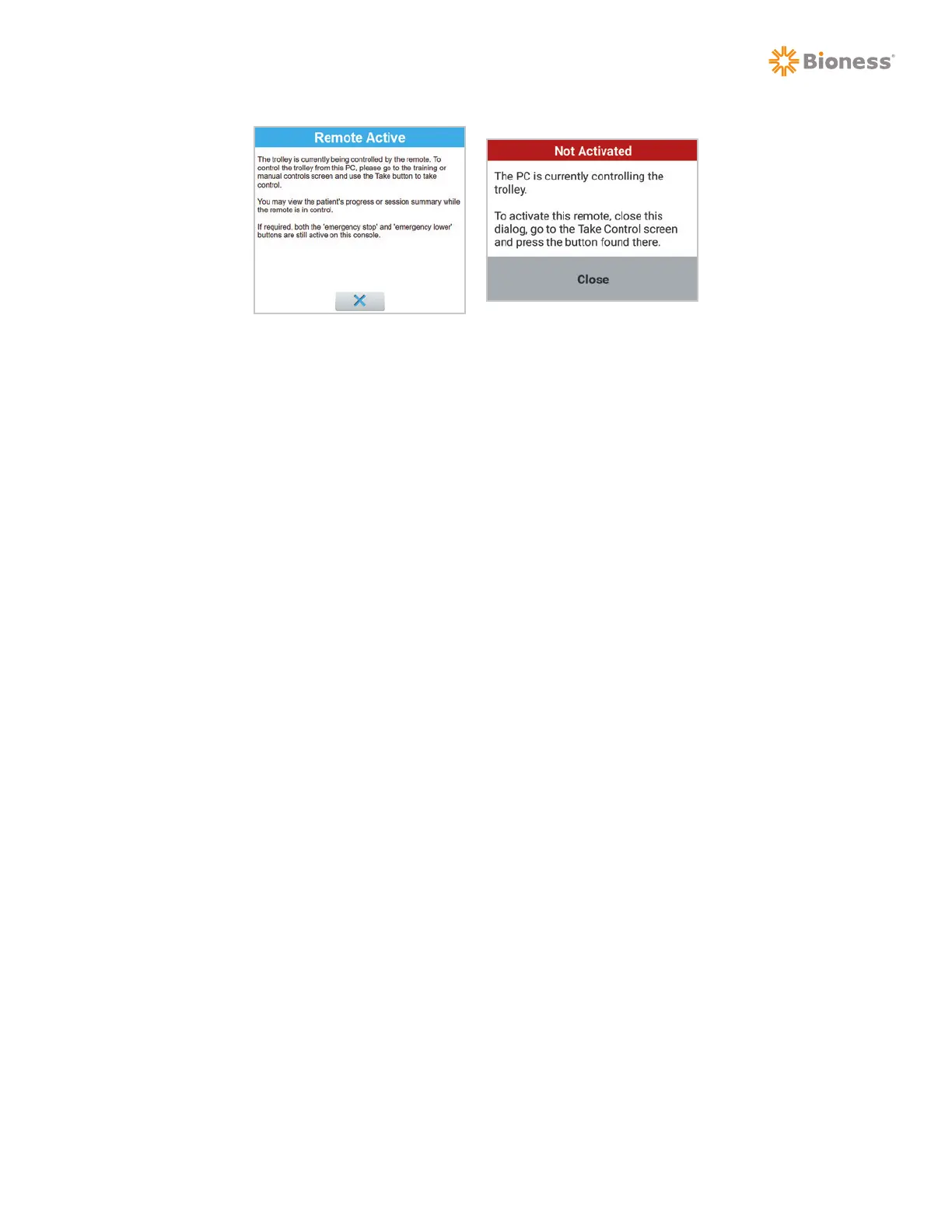
Figure 9-8: Message Window on PC (Left) and on Remote Control (Right)
Using the Remote Control for a Patient Training Session
A patient training session has to always be started from the PC in order for the Vector Elite system to
capture patient data.
1. Select a patient from the Patient Menu screen. See “Patient Training Menu” section of this guide.
2. Press the Start Training button to open the Training Session screen. See “Training Session
Screen” section of this guide.
3. Turn on the remote control, press the Take Control tab.
4. To transfer system control from the PC to the remote control, press the Take Control button
5. Once the remote control establishes connection with the Vector Elite trolley the status display will
state “Ready” and the Take Control button will be disabled.
6. Press the Training Controls tab.
7. If needed, adjust the Dynamic Unloading setting and/or Fall Limit setting.
8. Press the Trolley Tracking and/or DBWS buttons to start the patient training session.
Adjusting the Dynamic Unloading Value During a Training Session:
The Dynamic Unloading value can be adjusted while the DBWS feature is active.
1. To adjust the Dynamic Unloading setting, use the up arrow button to increase or the down arrow
button to decrease the amount of unloading. The new setting will appear in the text between the
buttons. The adjustment will be instantaneous and will take effect while the patient is actively
training.



 To Next Page