72
Clinician's Guide
Using the Remote Control for an Outcome Measures Test
To capture patient data, a training system must be started from the PC.
Please refer to Chapter 6, Vector Outcome Measures.
TUG Test
1. On the remote control, select the Take Control tab and press the Take Control button.
2. Select the TUG Test tab.
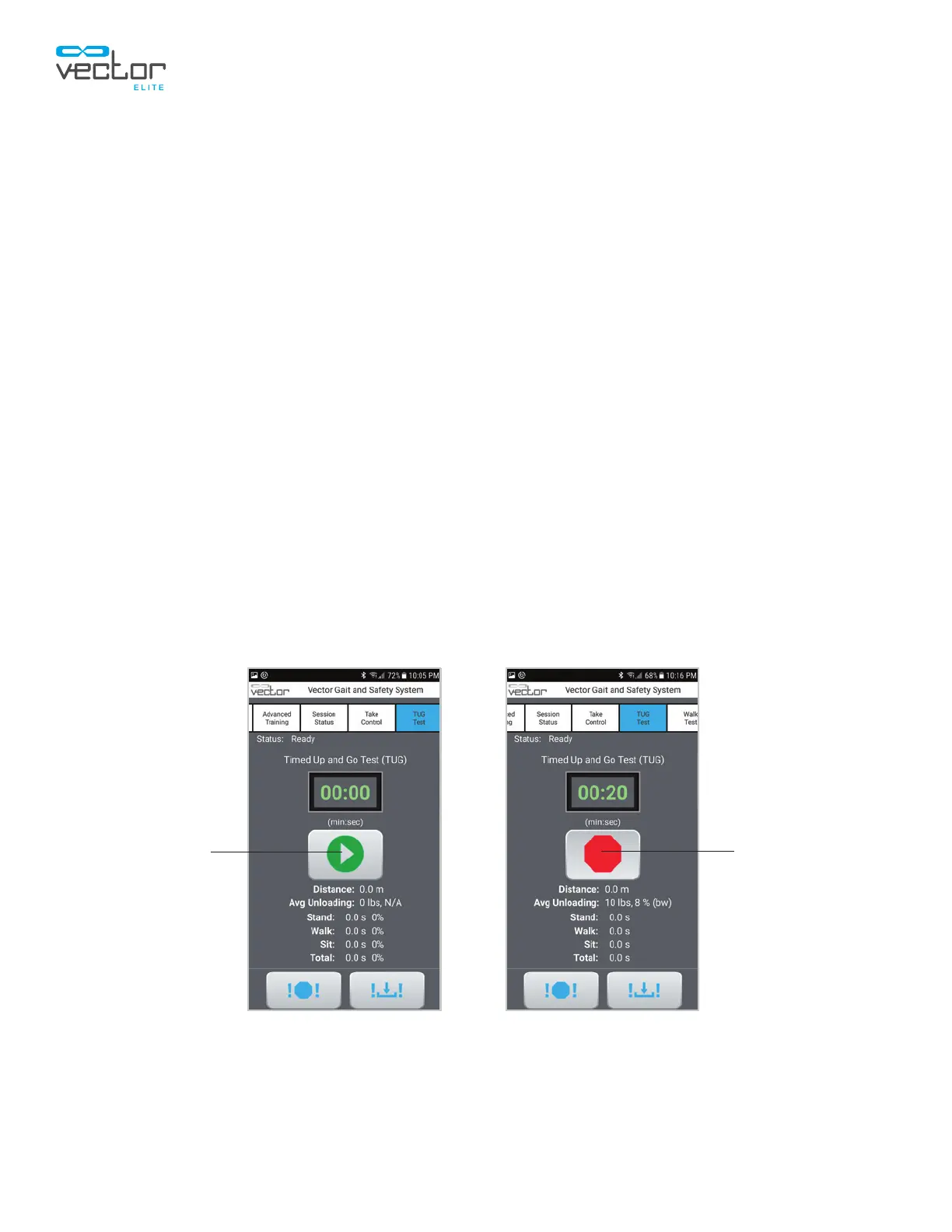
3. Press the Start button on the Timed Up and Go Test (TUG) screen. See Figure 9-20.
4. During the TUG Test training controls can be adjusted. Swipe back to the Training Controls tab.
5. Make the desired adjustments to the training controls. Swipe to the right on the tabs and select
the TUG Test tab to return to the TUG screen.
Note: The training controls are only accessible by the device that is in control.
6. Once the patient is seated, press the Stop button to end the test. See Figure 9-21.
7. Return to the PC to review test results, fill in assessments, and save the test. The test can also be
saved as a baseline or exported as a screen capture from the PC.
Note: To save the test results, you must press the Save button on the PC.
Figure 9-20: TUG Start Screen Figure 9-21: TUG Stop Screen
Start Stop



 To Next Page