74
Clinician's Guide
Emergency Stop and Emergency Lower
Use the remote control to press the Emergency Stop button or the Emergency Lower button at any time.
When the Emergency Stop button is pressed the trolley stops moving and locks in position. When the
Emergency Lower button is pressed, the system will continue to winch down the rope until the patient
has reached the ground or until the rope tension goes below the minimum unload value.
Using the Remote Control to Operate System Without Patient Data
When powering on the Vector Elite system, if the remote control establishes a connection with the
trolley before the PC does, the training data will not be saved. A patient account must be selected
from the PC for training data to be saved.
To control the Vector Elite system without capturing
training data:
1. Turn on the Vector Elite trolley and then turn on the remote control to establish a connection.
2. If the Trolley Tracking and/or DBWS buttons are pressed, without the PC establishing connection
to the trolley or a patient account being selected and a training session initiated from the PC, then
you will see a warning message stating, “Training data is currently not being saved.” Press the OK
button to proceed with using the remote control. See Figure 9-29.
Advanced Training
The Advanced Training screen is used to enable Intuitive Body Weight Support And Trolley Cue
features. Detailed descriptions of these features are available in the Patient Training Screen section of
this guide.
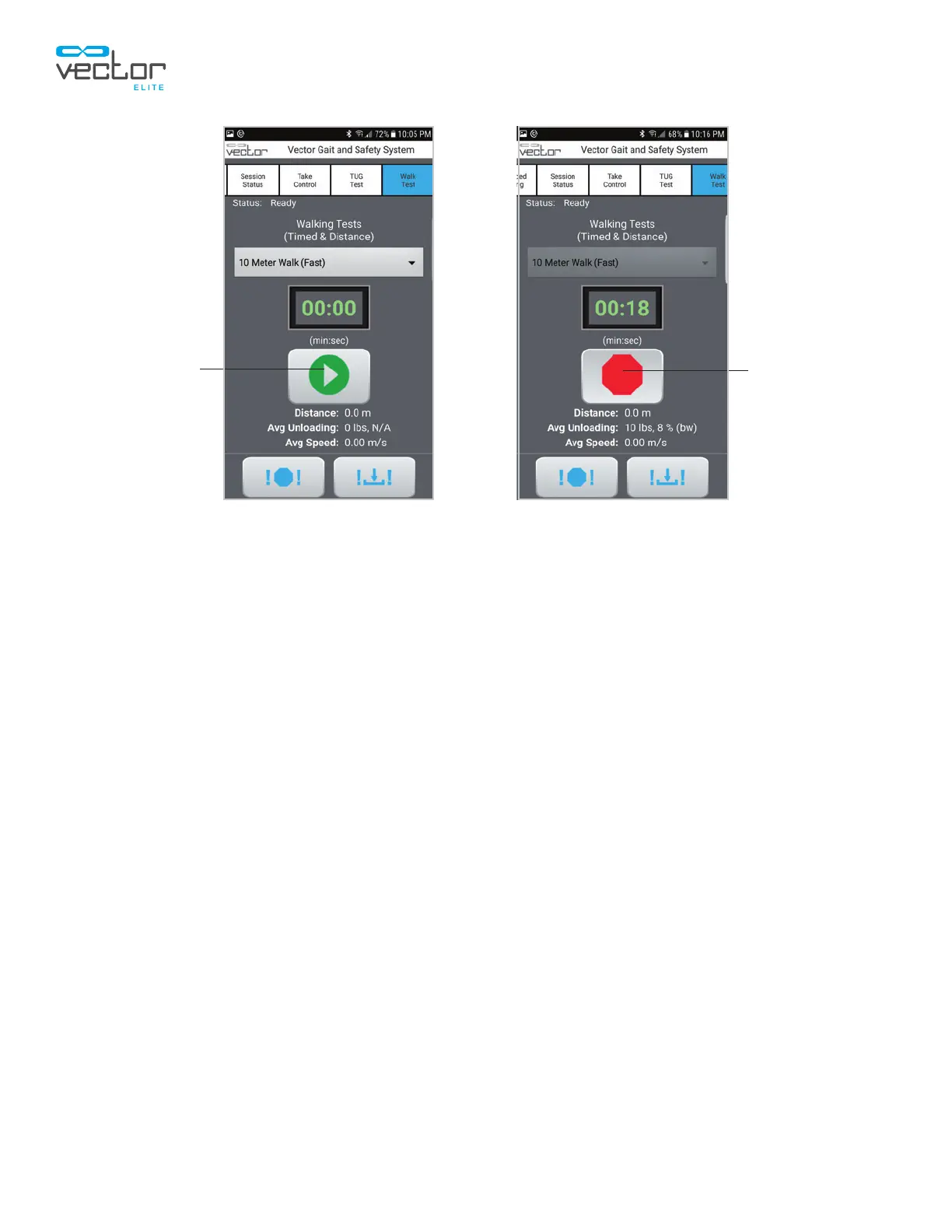
Figure 9-22: TUG Start Screen Figure 9-23: TUG Stop Screen
Start
Stop



 To Next Page