18
Clinician's Guide
Trolley Tracking
The Trolley Tracking feature keeps the trolley at a desired location relative to the patient.
In the normal default setting, the trolley remains directly above the patient during a training
session.
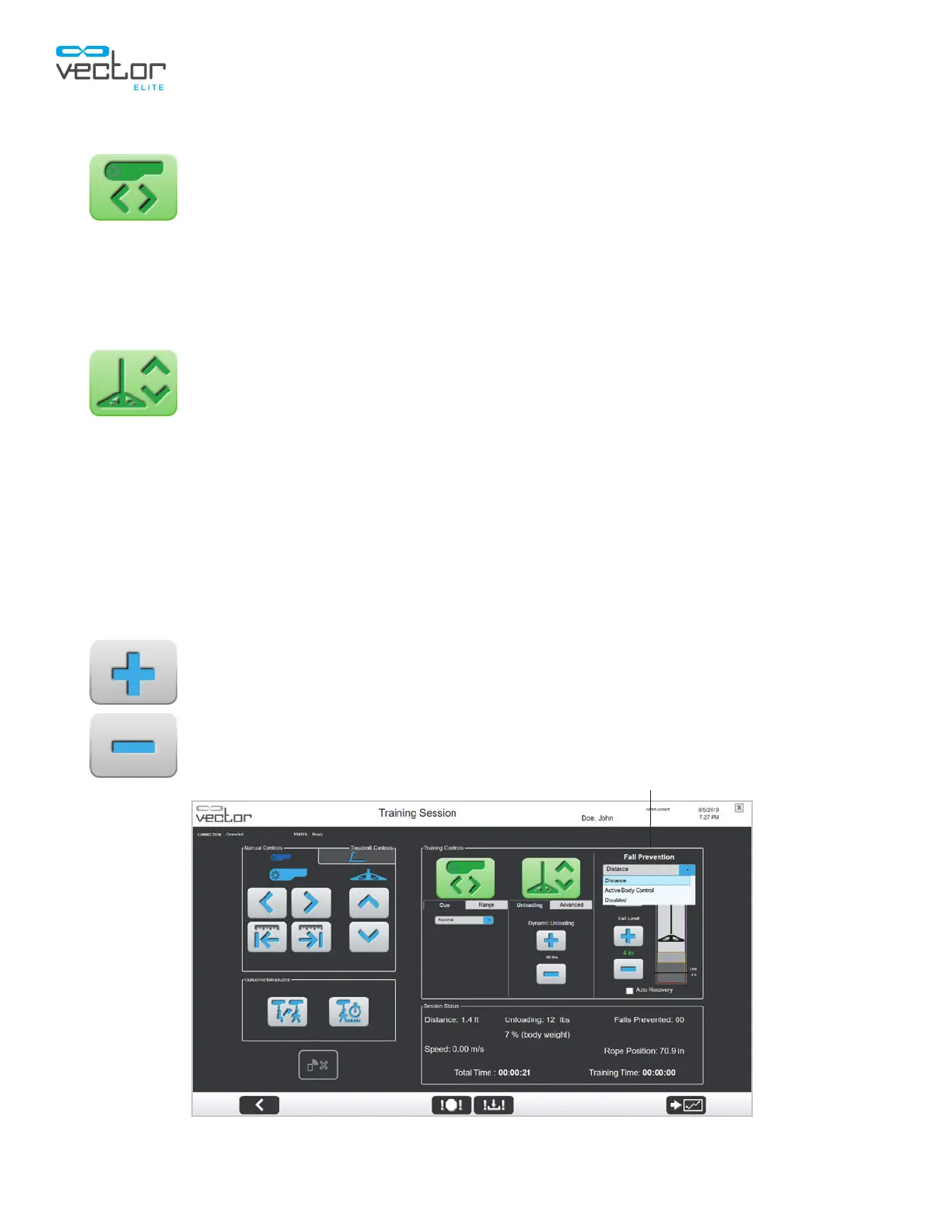
To change the settings, press the More Training Options button. See Figure 5-6. Then the More Training
Options window will appear. See Figure 5-7.
Dynamic Body Weight Support (DBWS)
The Dynamic Body Weight Support (DBWS) feature keeps the rope tension at a desired
value. As the patient moves, the trolley will make adjustments to keep the dynamic unloading
at the specified value. The amount of dynamic unloading is controlled by the plus (+)
and minus (-) buttons and is shown in pounds (or kilograms) and body weight percent.
A minimum unloading of 10 lbs. (4.5 kgs.) must be detected in order to initiate DBWS. If the static
unloading value and the Dynamic Unloading differs by more than 75 lbs. (34 kgs.), the system will not
allow DBWS to be activated. Manually adjust the static unloading value as close as possible to the
intended Dynamic Unloading setting.
Once activated, the DBWS feature will remain on until the button has been turned off, a fall is detected,
or until the dynamic unloading force falls below 3 lbs. (1.36 kgs.).
Dynamic Unloading
The default Dynamic Unloading setting is 10 lbs. (4.5 kgs.). Dynamic unloading can be
adjusted between 10 lbs. (4.5 kgs.) to 200 lbs. (91 kgs.). Use the plus (+) and minus (-)
buttons to change the settings. The Dynamic Unloading setting value will be displayed
between the buttons. Each tap of the + and - button equals a one-unit (lb. or kg.)
change. Press and hold the up or down button to quickly adjust in five-unit increments.
Figure 5-7: Training Session Screen - Training Controls Enabled
Fall Prevention Drop-Down Menu



 To Next Page