47
Chapter 7 - Vector Outcome Measures
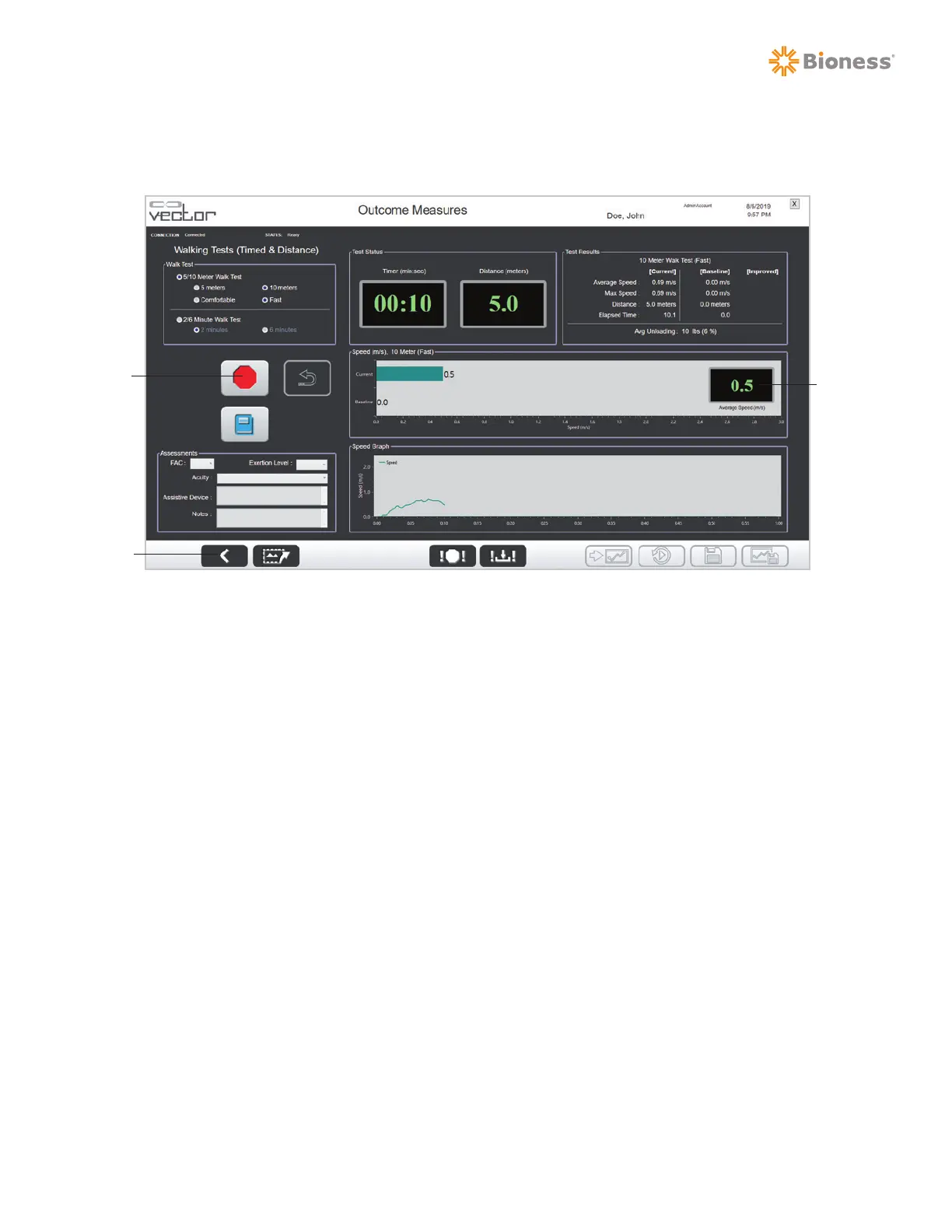
Note: Press the Stop button to cancel the test. See Figure 7-7. The test will automatically stop at the
selected distance or time.
Figure 7-7: Outcome Measures Walking Test Screen (Active Test)
11. The test results and graphs will be displayed on the screen. The Walk Test Score will be displayed
in the test score box. See Figure 7-8. For a 5/10 meter Walk Test the Test Score is gait speed in
meter per second (m/s). For a 2/6 minute Walk Test the Test Score is distance in meters. Press
the Playback button to review the test. See Figure 7-8. The recorded test run will be replayed from
beginning to end.
12. Complete the Assessments section.
13. Press the Save button. See Figure 7-8. The Save button must be pressed to save test results.
If the button is not pressed before starting another test run or before leaving the screen the current
test run results will not be saved to the patient summaries.
14. To save the current test as a baseline, press the Save As Baseline button. See Figure 7-8.
15. To export the current test screen as a screen capture image, press the Export Screen button. See
Figure 7-8. When the Export Screen button is pressed, the software saves the test screen as a
PNG file and a Save As window will appear. Select the location to save the file.
16. Press the Reset button to clear the previous test results before starting a new test. See Figure 7-2.
17. To view all the of selected Walk test results (5 meters/10 meters/2 minutes/6 minutes) for a given
patient, press the View Summary Graph button. See Figure 8-11.
Note: Press the Instruction Guide button to open a window displaying the walking tests instructions from
this guide. See Figure 7-8.
Stop
Back
Test
Score
Box



 To Next Page