55
Chapter 8: Manual Control, Summaries, and Reference Library Menus
12. From the Patient Training Summaries screen, select a patient from the Known Patients list and
press the Outcome Measures Summary button. See Figure 8-10.
13. The Outcome Measures Summary screen displays list of saved test runs, organized under tabs
for TUG, 10 Meter Walk, 5 Meter Walk, 6 Minute Walk, and 2 Minute Walk. Navigate to a tab and
select a single test run to view test results. See Figure 8-10.
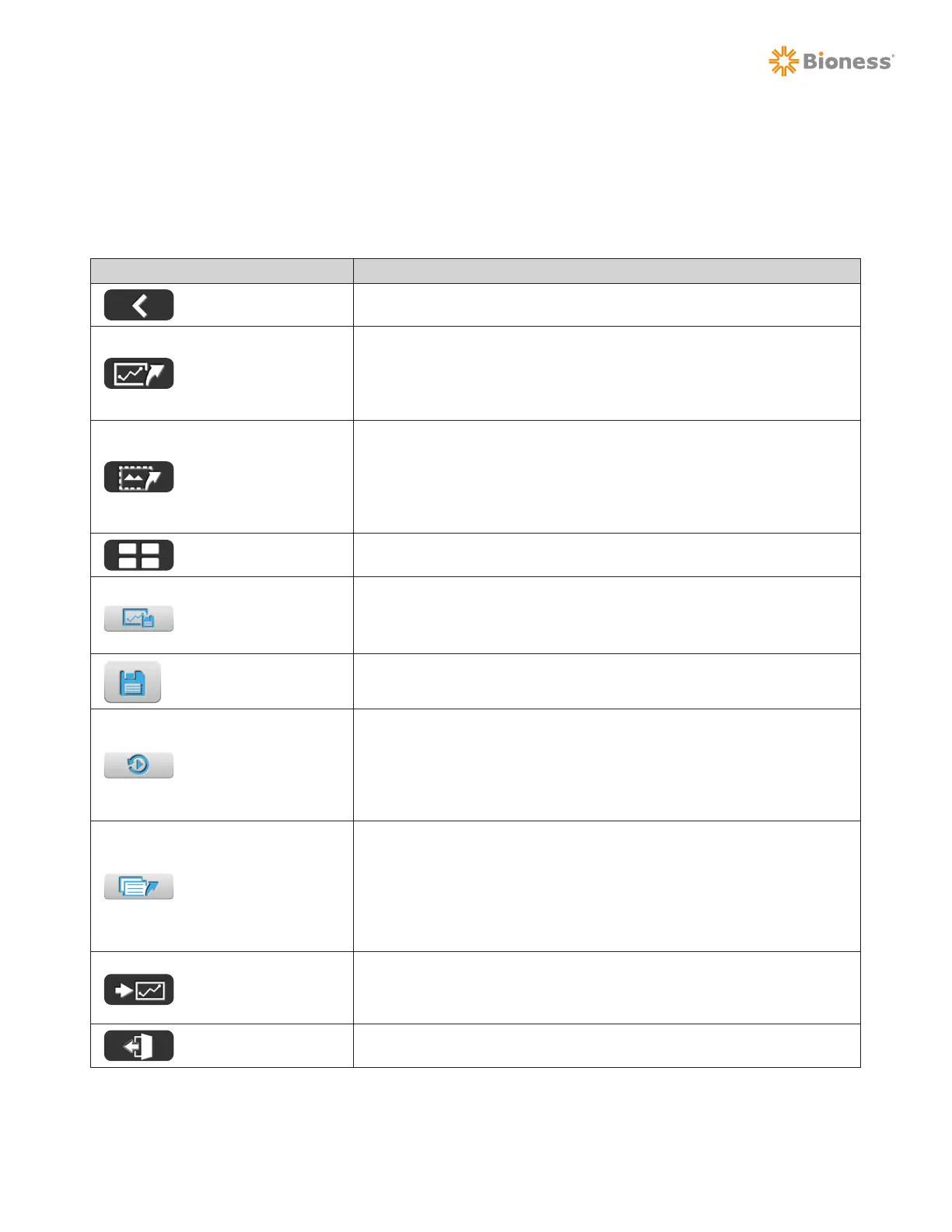
Button Definition
Back Button
Takes the user back to the previous screen.
Export Data Button
Exports the session data as an excel document (CSV file).
When the Export Data button is pressed, the software exports
the data and a Save As window will appear. Select the location
to save the file and press the Save button.
Export Screen Button
Exports the current graph as a screen capture image. When the
Export Screen button is pressed, the software saves the graph
that is displayed on the screen as a PNG file and a Save As
window will appear. Select the location to save the file and press
the Save button.
Main Menu Button
Takes the user to the Main Menu screen.
Save As Baseline
Button
Saves the currently selected test run as the Baseline Test
for that test type (organized by tab). Button is located on the
Outcome Measures Summary screen.
Save Button
Saves the updated assessments including FAC, acuity, exertion
level, assistive device.
Playback Button
Takes the user to a new window displaying a TUG or Walking
Tests screen where the selected test run will be played back.
Press the Back button on the Playback screen to leave Playback
Mode. Playback button is located on the Outcome Measures
Summary screen.
Export Report Button
Exports a PDF report containing the results, assessments, and
comments for the currently selected test run. When the Export
Report button is pressed, the software saves the report as a
PDF file and a Save As Window will appear. Select the location
to save the file and press the Save button. Button is located on
the Outcome Measures Summary screen.
Outcome Measures
Graph Button
Takes the user to the Outcome Measures Graph screen for the
test type (tab) that is currently selected. Button is located on the
Outcome Measures Summary screen.
Logout Button
Takes the user back to the Login screen.
Table 8-2: Button Definition



 To Next Page