80
Clinician's Guide
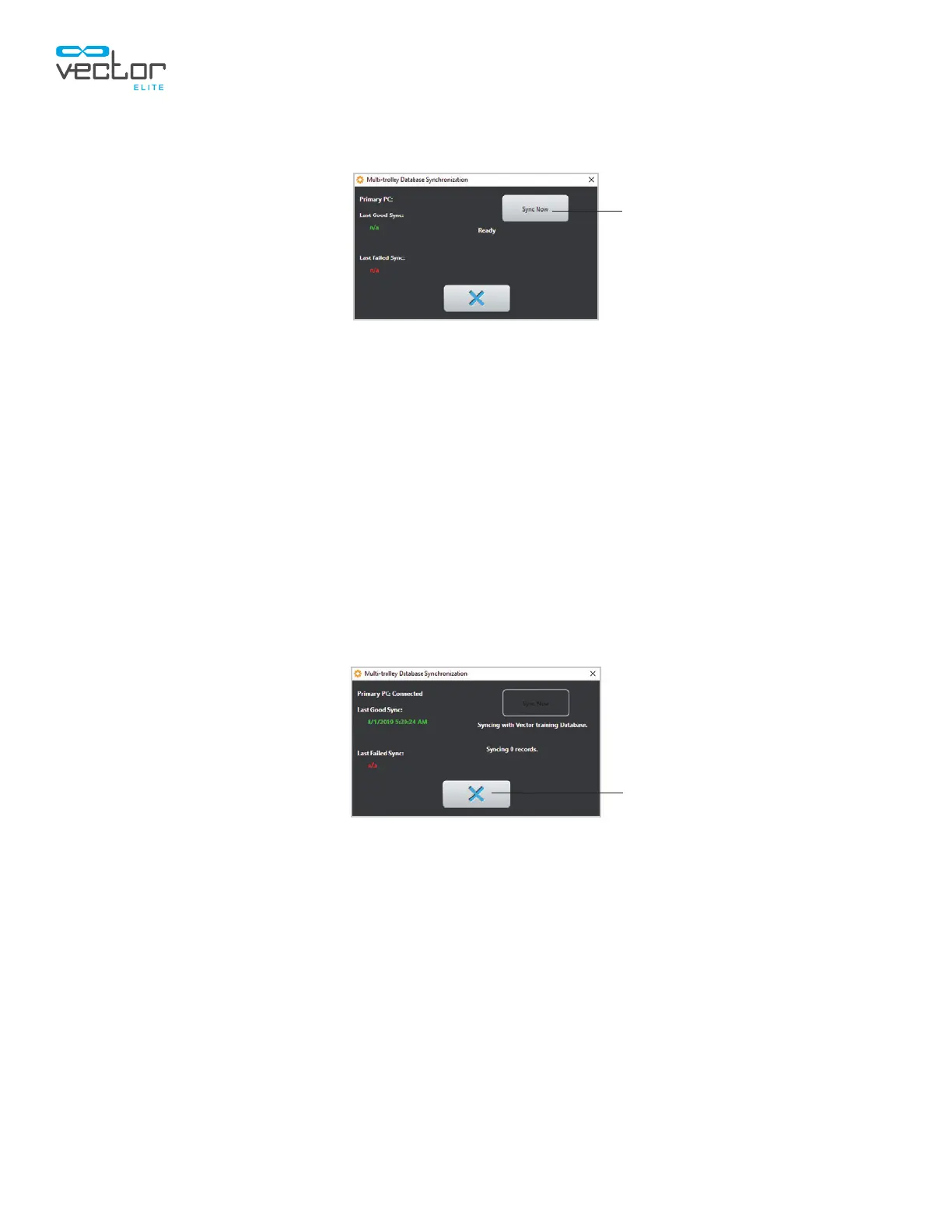
2. The Multi-trolley Database Synchronization window will appear.
Figure 10-2: Multi-Trolley Database Synchronization Window
3. The window displays how many patient records need to be synced. Press the Sync Now button.
See Figure 10-2.
4. From the Main Menu screen on the second computer, press the Sync Menu button.
5. When the Multi-trolley Database Synchronization window appears, press the Sync Now button.
6. Go back to the first computer, and press the Sync Now button. Confirm that the window states
"Syncing with primary database." See Figure 10-3.
7. Go back to the second computer and press the Sync Now button. Confirm that the window states
"Syncing with primary database".
8. Once the computers have finished the manual sync process, the screen will state "Ready". Press
the exit (X) button to close the Multi-trolley Database Synchronization window.
Figure 10-3: Multi-Trolley Database Synchronization Window (Syncing)
Exit
Sync Now



 To Next Page