If no split point is set, all parts play parallel on the entire manual.
To make settings, e.g. the sound selection for the individual parts, simply tap on the desired part in the
display or select it using the buttons to the right or left of the display.
All parameter fields in the middle column of the editor or on the [F buttons] below the display refer to
the currently selected part.
We will first look at the most important settings, a detailed description of the Part-Editor will follow in
a separate chapter of this manual.
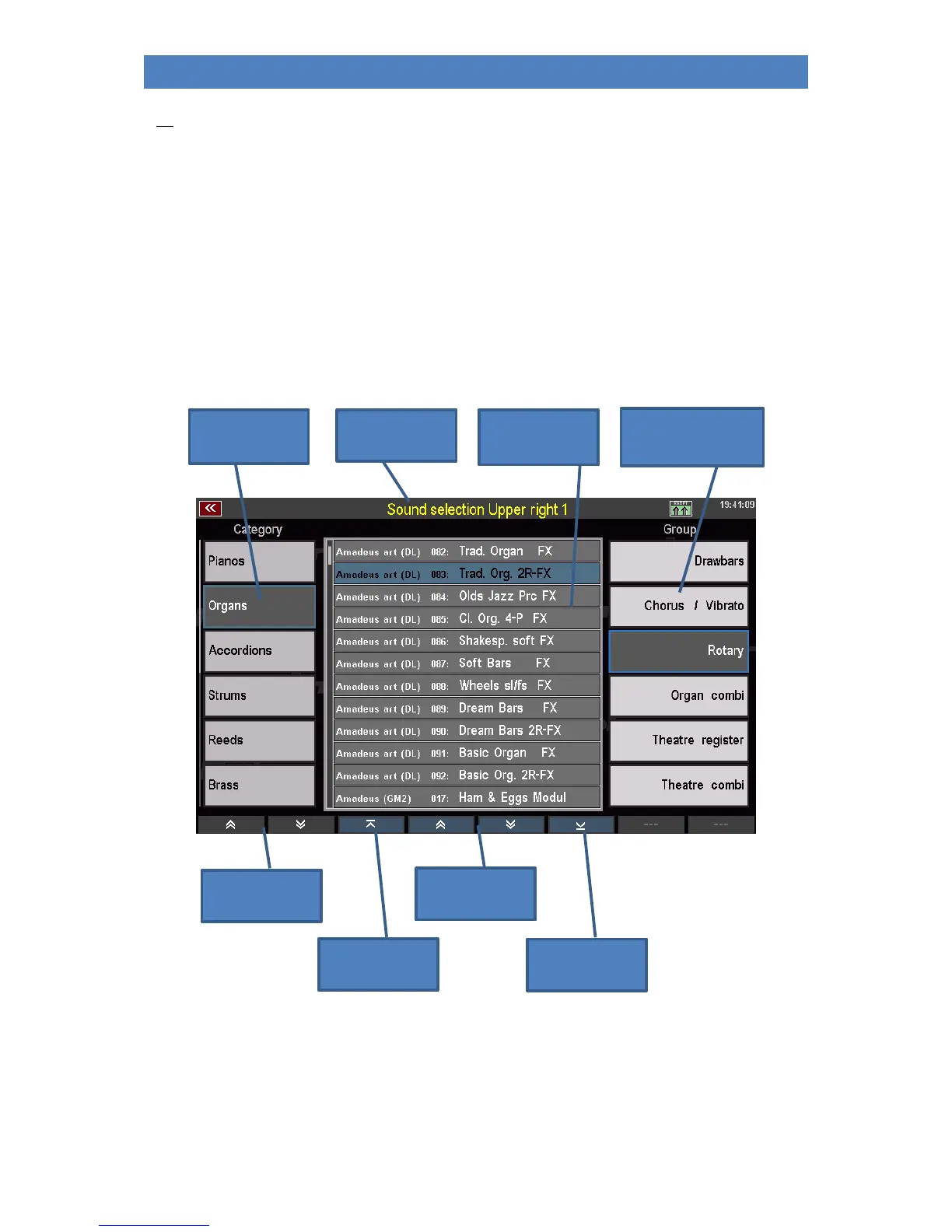
• To change the sound of the selected part, tap the part again. You are now taken to the sound
selection screen. In the upper status line, the display shows for which part the sound
selection has been activated.
• On the left you can see the list of the 12 sound categories (corresponding to the 12 sound
buttons on the right of the control panel). You can select a category field by tapping on it.
Alternatively, you can select the categories using the 12 sound buttons of the SOUND SELECT
group on the control panel.
• With the two arrow keys below the list you can scroll in the category list.


 To Next Page