136
Other Convenient Functions
* The maximum partition size is 20 GB. If you are using a hard
disk bigger than 20 GB, you will be able to use up to 20 GB
from the beginning of the disk, while the remaining portion
cannot be used.
SURFACE SCAN
When the entire hard disk is formatted as “NORMAL,”
all of the storage sectors of the hard disk are checked.
With a 20 GB hard disk, such checking takes roughly
three hours to complete.
If you press [EXIT] while the check is still in progress,
the check is stopped at that point, and formatting
continues in “NORMAL” mode.
DIV 2–8
This separates the hard disk into drives (partitions) of
equal size. You cannot set the drives so that they are of
different sizes.
Example) When using “DIV 5” in formatting the
partitions on a 20 GB hard disk.
20GB / 5 = 4 GB
This creates five drives, each containing 4 GB.
* The maximum size for a single partition is 20 GB.
* Initialization is set to “NORMAL” at the factory.
5. Use [CURSOR] to move the cursor to “GO,” then press
[ENTER].
The display will ask “Sure?,” so that you can confirm the
operation.
If you wish to cancel the initialization, press [NO].
6. Press [YES].
After the initialization is completed properly, the top
screen returns to the display.
* Initialization with “SURFACE SCAN” selected takes about 3
hours to complete. This is normal, and should not be cause for
concern. The progress of the formatting is shown in the
display. Do not turn off the BR-1180/1180CD until the
formatting has been completed.
Again, once formatting is underway, it cannot be cancelled.
* When formatting starts, a new song is automatically created.
“LIN” is selected as the data type at this time.
Viewing information about the
hard disk (Hard Disk Information)
You can display information about the hard disk.
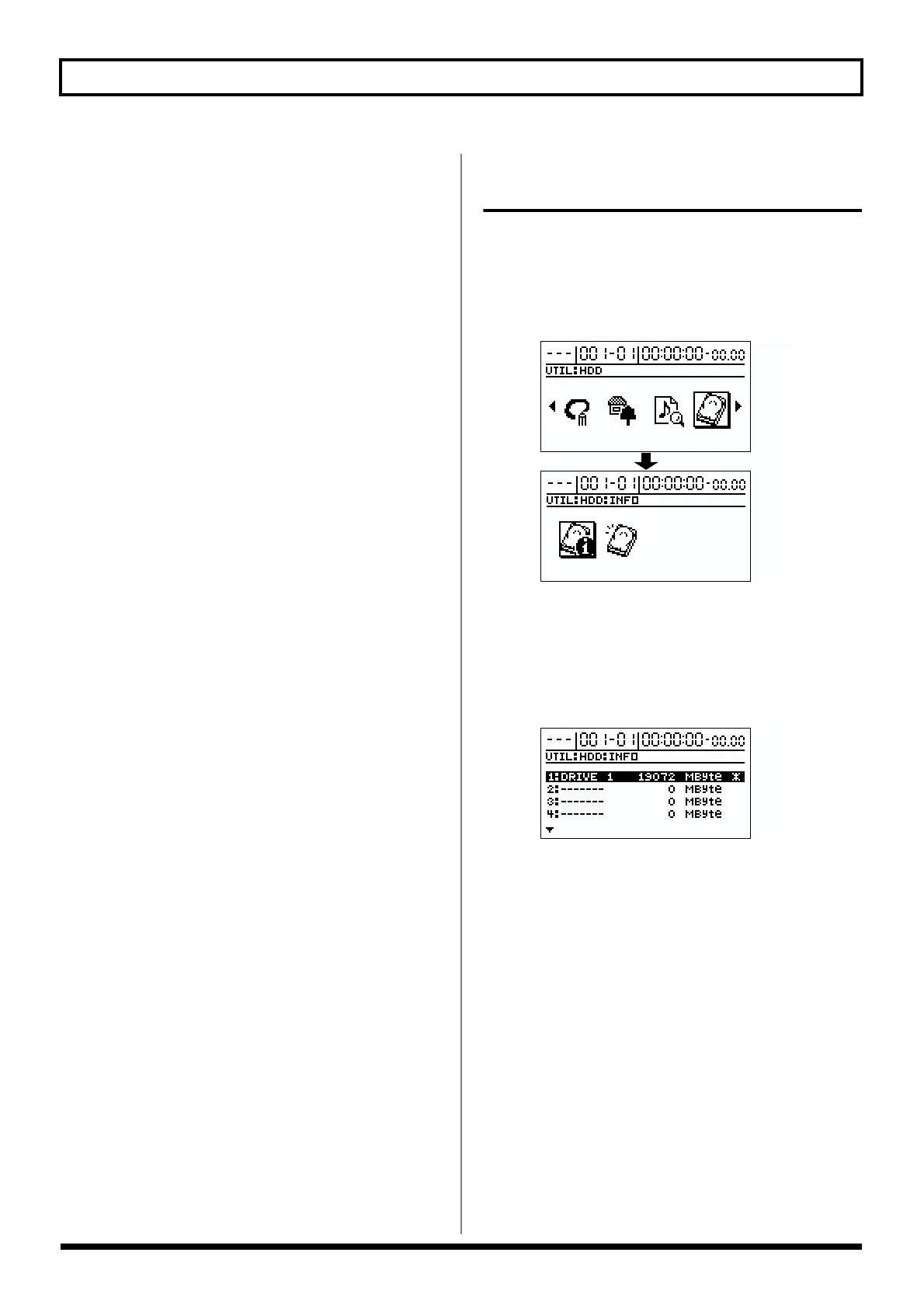
1. Press [UTILITY].
2. Use [CURSOR] to select the “HDD” icon, then press
[ENTER].
fig.R19-40
3. Using [CURSOR] again to select the “INFO” icon, then
press [ENTER].
The size of each drive (partition) appears.
The currently selected drive is indicated by an asterisk
(“*”).
fig.R19-41
* The BR-1180/BR-1180CD is set with one drive at the factory,
so only one drive will appear in the display.
4. If you want to switch the drive being used, use
[CURSOR] to move the cursor to the drive you want to
use, then press [ENTER].
* If you are in the process of recording a song at this point, the
message “Save Current?” appear. If you want to save the
current song, press [YES]; press [NO] if you do not need to
save the song.
The message “Now Loading...” appears.
When “Complete!” appears, the switch is completed.
* Drives can be switched only when multiple drives have been
created.



 To Next Page