68
Editing the performance—Track Editing
Moving recorded data
(Track Move)
This operation moves a specified region of recorded data to
another location.
After the recorded data is moved, the location it was in will
be left empty.
This operation can be used to move multiple tracks of
recorded data at once.
When moving recorded data, you will normally align the
beginning of the recorded data with the move destination
location. However, there may be cases in which you wish to
align a certain location within the moved performance data
to the beginning of the move destination. In such cases, make
the appropriate setting for the “FROM” field.
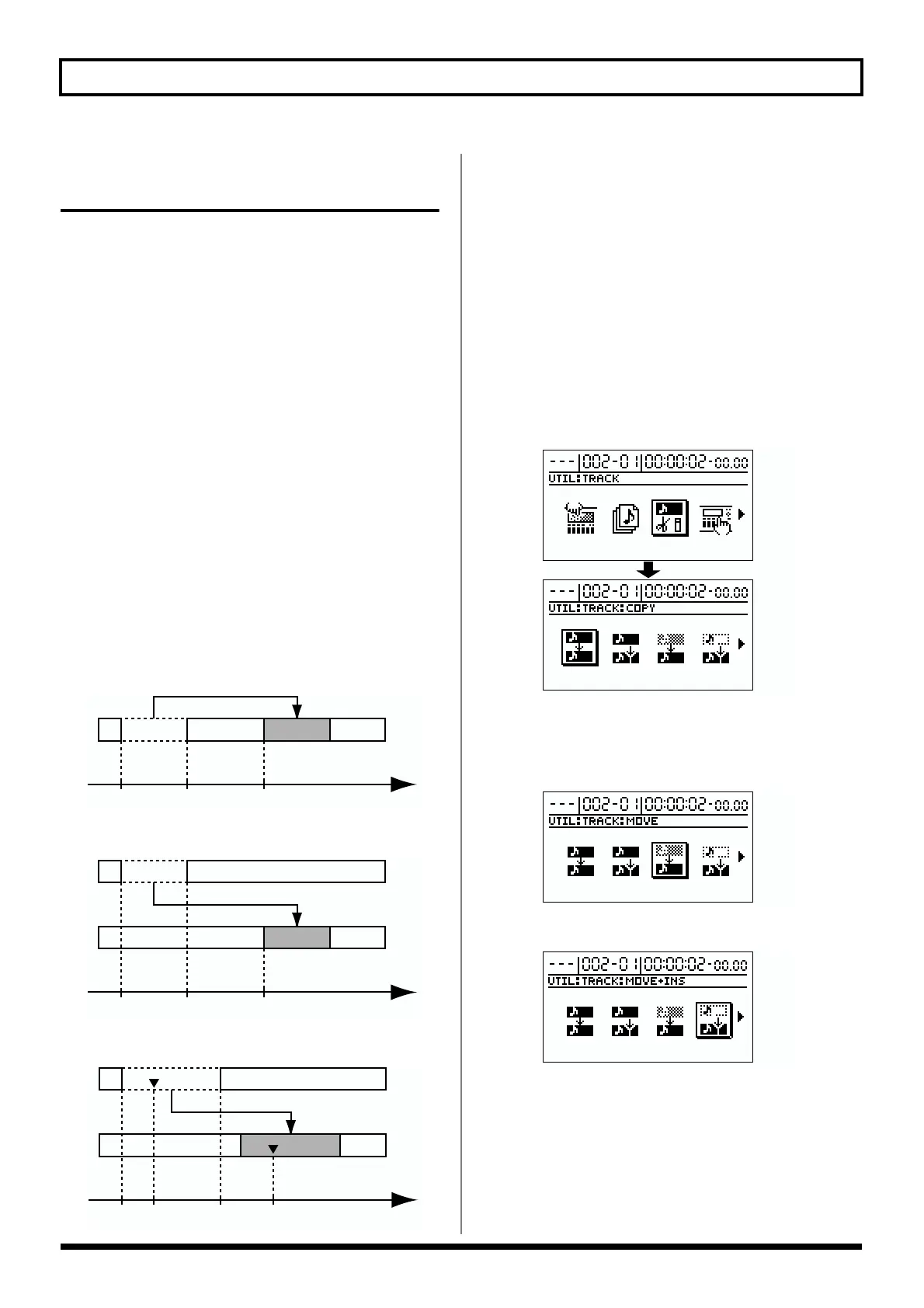
For example, suppose that you are moving a sound effect of a
time bomb ticking and then exploding, and you want to align
the instant of the explosion to a specific time location.
Normally, you would have to calculate the time from the
beginning of the sound effect until the explosion, and then
offset the move destination location accordingly. But in such
cases, you can specify “the location where the explosion
begins” of the move source as the “FROM” setting, and
specify “the location where you want the explosion to sound”
as the “TO” setting. This method makes it easy to move the
data so that the explosion will occur at just the right time.
Example 1: Moving data within the same track
fig.R10-11
Example 2: Moving data to another track
fig.R10-12
Example 3: Moving using “FROM”
fig.R10-13
* If the move destination contains recorded data, that recorded
data will be overwritten.
* Set a minimum of 0.5 seconds for the range to be moved. If the
range is less than 0.5 seconds, the sound won’t be audible,
even though the data is moved.
* Do not leave any sound that is under 0.5 seconds in duration
before or after the range being moved. Sound of a duration that
is less than 0.5 seconds will be inaudible, even though it still
exists in the data.
1. Press [UTILITY].
2. Use [CURSOR] to select the “TRACK” icon, and press
[ENTER].
fig.R10-04
3. Use [CURSOR] to select the “MOVE” icon or the
“MOVE + INS” icon, and press [ENTER].
MOVE icon
fig.R10-14
MOVE + INS (insert) icon
fig.R10-15
The Track Move screen appears, and you will be able to
select the tracks/V-tracks of the move source and move
destination.
* If you select the Track Move + INS icon, a blank of the
specified length will be inserted at the move destination, and
then the data will be moved.
AA
START END TO Time
B
B
START END TO Time
C
C
START END TO Time
FROM


 To Next Page