93
Using loop phrases
Advanced Use
Creating a loop phrase by
copying waveform data on a
computer (Loop Phrase Import)
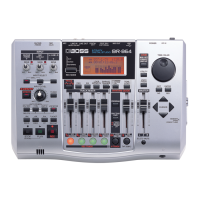
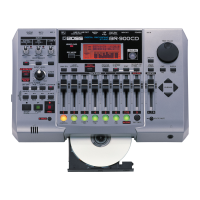
When using the BR-1180CD, you can copy (import) WAV or
AIFF files on CD-R/RW discs as loop phrases.
Copying waveform data created on computers or other
devices as WAV files to CD-R/RW discs lets you more easily
add loop phrases.
* Use of the BR-1180 requires installation of the optional CDI-
BR-1 CD-R/RW drive.
1. Using your computer, write the waveform data you
want to import for the loop phrase as a WAV or AIFF
file to a CD-R/RW disc.
* The prescribed format for CD-R/RW discs is “ISO9660 Level
2 Mode 1.” Note that you may be unable to import using other
formats.
2. Insert the CD-R/RW disc containing the WAV or AIFF
file into the CD-R/RW drive.
3. When the CD-R/RW drive indicator stops flashing and
goes off, press [LOOP PHRASE IMPORT].
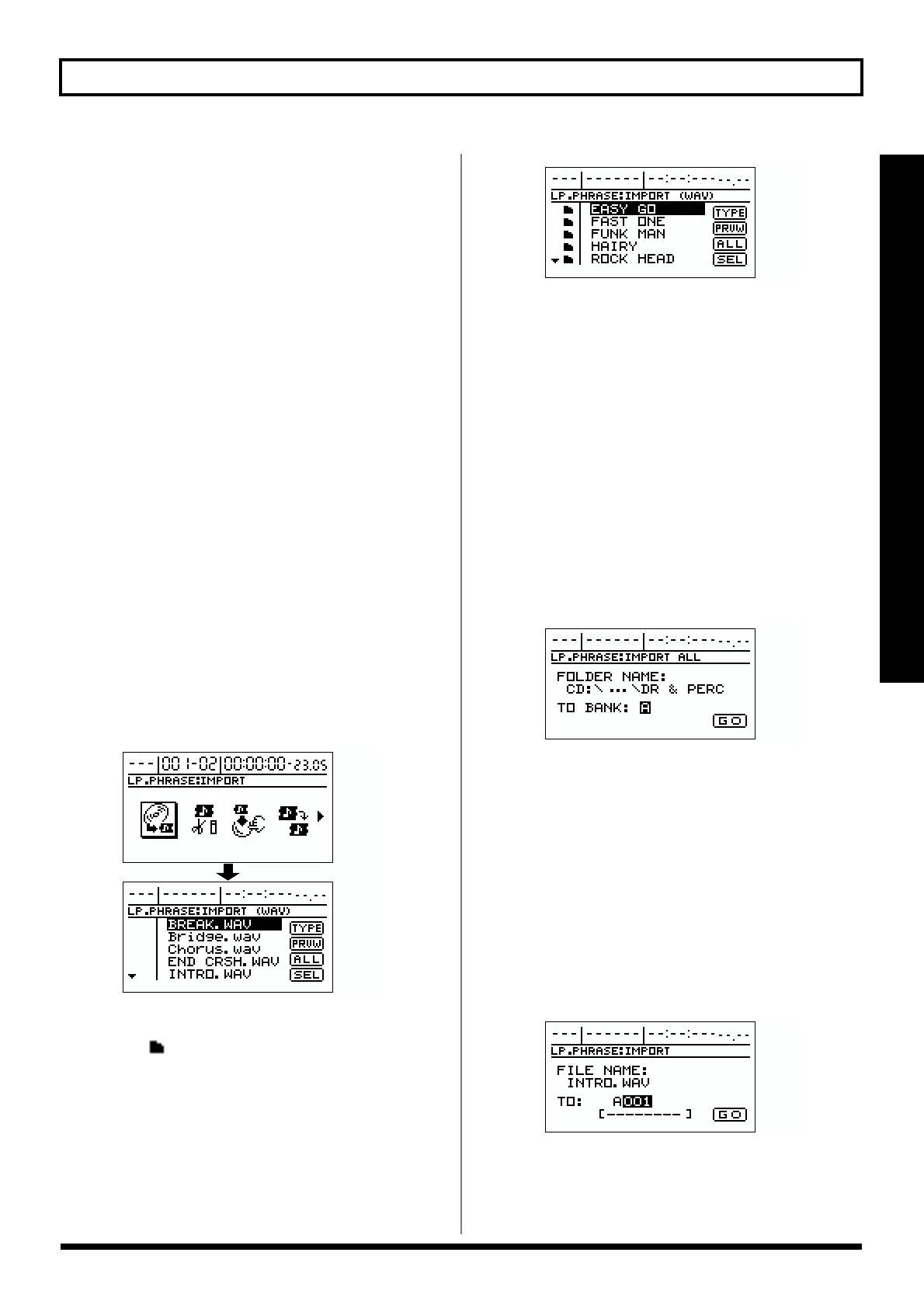
4. Use [CURSOR] to select “IMPORT,” then press
[ENTER].
The loop phrase import screen appears, and a list of
WAV files written to the CD-R/RW is displayed.
fig.R14-03
* If the WAV files are collected in a folder, then the folder name
and icon ( ) is displayed. To show the WAV files within
the folder, move the cursor to the folder name and press
[ENTER].
fig.R14-70
5. To switch the format of the wave file you want to
import, move the cursor to “TYPE,” then press
[ENTER].
[ENTER] acts as a toggle, switching the file format
between WAV and AIFF each time it’s pressed.
6. Move the cursor to the wave file you want to import.
* At this time you can also play back the file to check (preview)
the content by moving the cursor to “PRVW” and pressing
[ENTER]. To stop playback, press [ENTER] again.
If you want to import all of the files at one
time
1) Move the cursor to “ALL,” then press [ENTER].
The IMPORT ALL screen appears
fig.R14-60
2) Move the cursor to “TO BANK,” then select the import
destination track.
A–H:
Loop phrase of the user bank (A–H).
S:
Loop phrase of the song bank. it is stored with each song.
3) Move the cursor to “GO,” then press [ENTER].
Import of the wave file begins.
7. Move the cursor to “SEL,” then press [ENTER].
The Import Destination selection screen appears.
fig.R14-71
* When “ALL” is selected, only loop phrase groups are
displayed.
8. Select the import-destination bank and number.


 To Next Page