65
Search for the music’s start and end (Scrub/Preview)
Advanced Use
Changing the scrub points
The BR-1180/1180CD lets you specify either before or after
the current location as the scrub point.
Follow the procedure given below to change the scrub point.
1. Press [UTILITY].
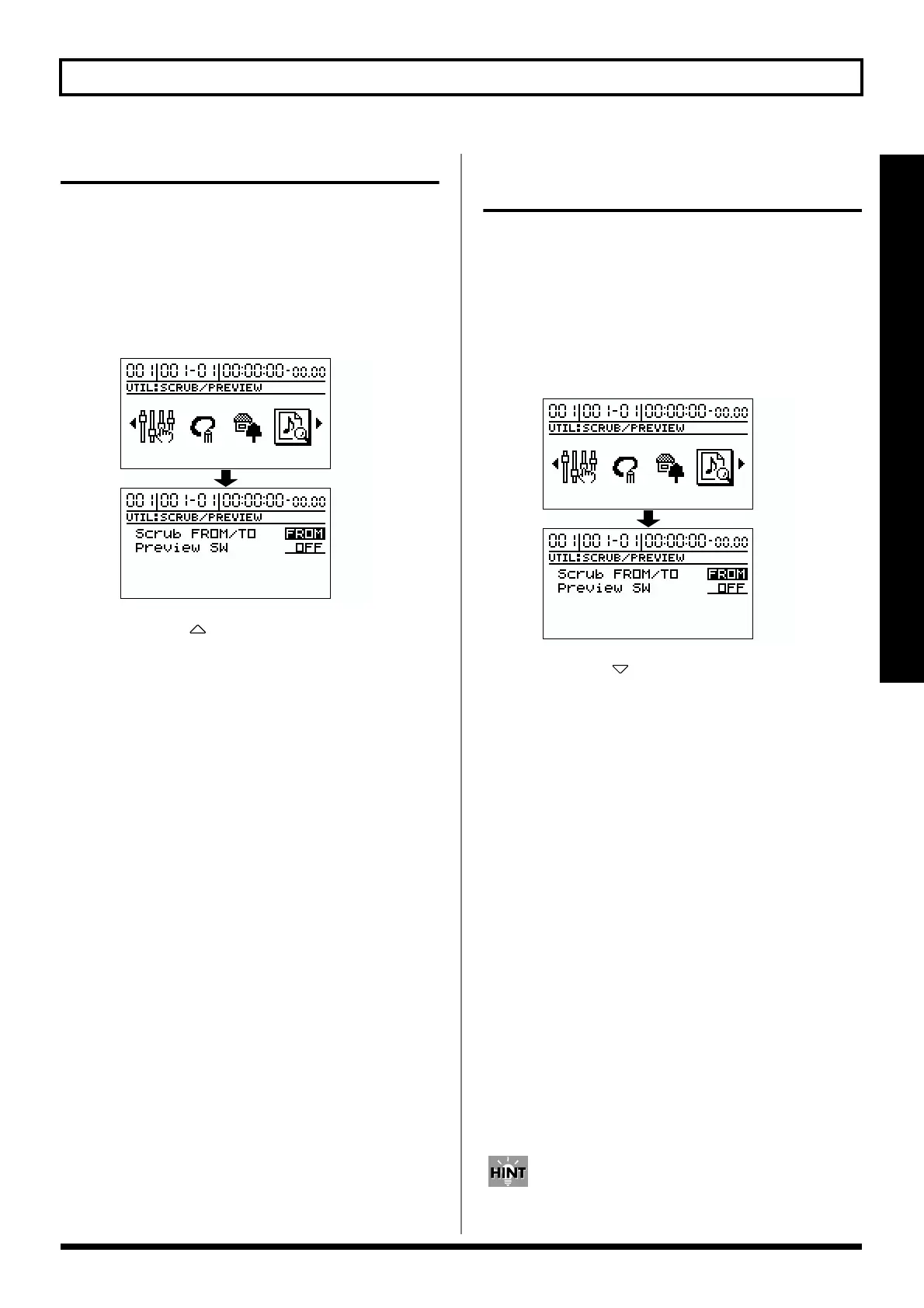
2. Use [CURSOR] to select the “SCRUB/PREVIEW” icon,
and press [ENTER].
fig.R09-03
3. Use CURSOR [ ] to move the cursor to “Scrub
FROM/TO,” and use the TIME/VALUE dial to change
the scrub point.
FROM:
Scrubs from your current position.
TO:
Scrubs to your current position.
4. Press [EXIT] several times to return to the top screen.
Using Scrub and Preview to
find the music ending point
Enabling the Preview Function
First you must enable use of the Preview Function at the BR-
1180/1180CD.
1. Press [UTILITY].
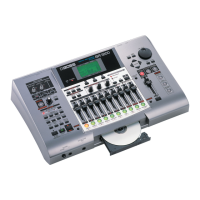
2. Use [CURSOR] to select the Scrub/Preview icon, and
press [ENTER].
fig.R09-03
3. Use CURSOR [ ] to move the cursor to “Preview
SW,” and rotate the TIME/VALUE dial to setting “ON.”
This enables use of the Preview Function.
4. Press [EXIT] several times to return to the top screen.
Using Scrub and Preview
1. Hold down [STOP] and press [PLAY].
The [PLAY] indicator begins flashing and scrubbing starts.
During Scrub playback, pressing [REW] will play back a
region of one second up to the current location (PREVIEW
TO). Pressing [FF] will play back a region of one second
starting at the current location (PREVIEW FROM).
2. Use the Preview Function while scrubbing to search for
the point where the music ends.
Slowly turn the TIME/VALUE dial to move the current
position and search for the ending point of the phrase
(e.g., where sound is last emitted).
At this time, use [REW] to make sure that the phrase is
not simply cutting in and out during playback.
3. After you find the exact point where the music ends,
press [STOP] to stop scrubbing.
In order to easily find this location later, it is convenient to
press [MARK] to assign a marker to the current location.


 To Next Page