63
Advanced Use
Registering/recalling the current mixer settings—Scenes
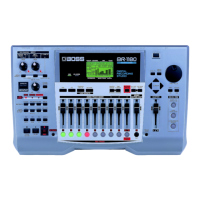
In each song, the BR-1180/1180CD lets you store up to eight
sets of mixer and effect settings. The mixer and effect settings
that you register are called a “scene,” and can be recalled
instantly and easily.
For example, if you wish to compare different mix balances
during mixdown, it is convenient to register each of the
different mixer settings as a scene.
Registering/recalling/
deleting scenes
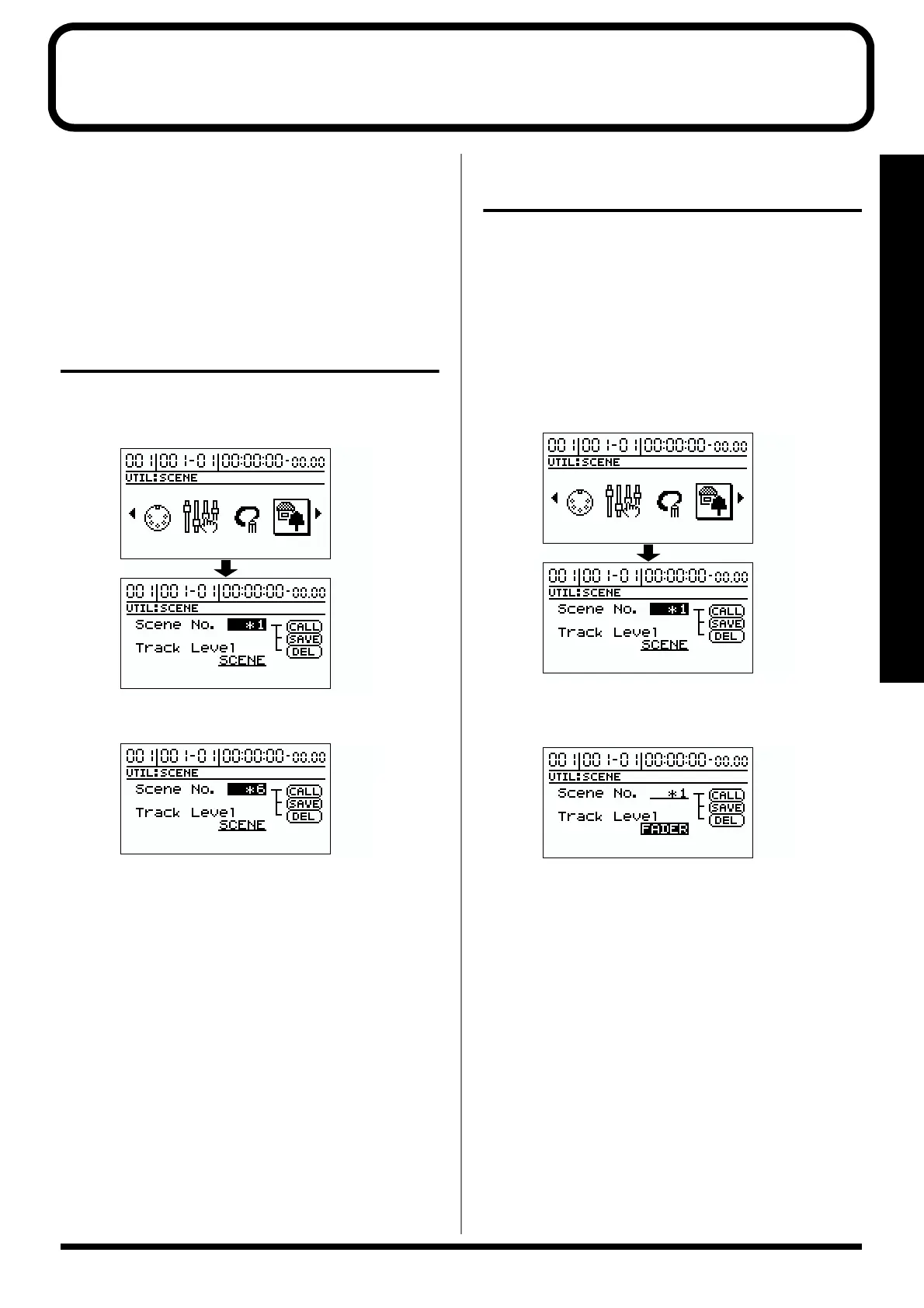
1. Press [UTILITY].
2. Use [CURSOR] to select the “SCENE” icon, and press [ENTER].
fig.R08-01
3. Rotate the TIME/VALUE dial to specify the scene number.
fig.R08-02
* If you select the number of a scene that has already been
registered, an “*” will appear to indicate that this scene has
already been registered.
4. Select whether to register, recall, or delete the scene.
To recall
Use [CURSOR] to select “CALL,” and press [ENTER].
To register
Use [CURSOR] to select “SAVE,” and press [ENTER].
The display will indicate “*” to show that the scene has
been registered. If you selected a scene that had already
been registered, the scene will be overwritten.
To delete
Use [CURSOR] to select “DEL,” and press [ENTER].
The “*” that indicates a registered scene will disappear,
indicating that the scene has been deleted.
5. Press [EXIT] several times to return to the top screen.
Recalling a scene without
changing the track volumes
When a scene is recalled, the volume value of each track is
also recalled, but the physical position of the faders will not
change. This means that the fader positions will not match
the actual volumes. If you wish to leave only the track
volumes unchanged at the current fader positions when a
scene is recalled, use the following procedure.
1. Press [UTILITY].
2. Use [CURSOR] to select the “SCENE” icon, and press
[ENTER].
fig.R08-01
3. Use [CURSOR] to move the cursor to “Track Level,”
and use the TIME/VALUE dial to select “FADER.”
fig.R08-03
Track Level
Specify the volume of each track when a scene is recalled.
SCENE:
The settings will change to the mixer settings of the
recalled scene. In this case, the physical positions of the
panel faders may differ from the actual track volume
when a scene is recalled.
FADER:
When you recall a scene, the track volumes will remain
the same as the physical positions of the panel faders.
4. Press [EXIT] several times to return to the top screen.


 To Next Page