92
Using loop phrases
When composing a song, one method of creating a style for
the song is to first create a one- or two-measure phrase that is
repeated (a loop phrase), then arrange those to set up the
song’s rhythmic framework.
The BR-1180/1180CD is also capable of this method of
creating music, meaning you can arrange and perform loop
phrases in whatever order you like while arranging rhythms.
About rhythm arrangements (p. 82)
Creating loop phrases
*A loop phrase can be anywhere between a minimum of 0.5
seconds, up to a maximum of thirty minutes in length. You
cannot create loop phrases of a length that does not fall
within this range.
* When creating a loop phrase, the number of measures and the
tempo are set automatically according to the length of the
phrase, but the number of measures here is adjusted to the
following values.
. . . 1/32, 1/16, 1/8, 1/4, 1/2, 1, 2, 4, 8, 16, 32, 64, 128 . . .
Additionally, when changing the loop phrase settings, you
can only set the number of measures to the above values.
Creating a loop phrase from a
portion of the audio tracks
You can create a loop phrase using data on any desired audio
track in the currently selected song (which is referred to as
the “current song”).
Specify the locations defining a segment of the data, and that
segment is then recreated as a loop phrase.
1. Press [LOOP PHRASE IMPORT], causing the button to
light up.
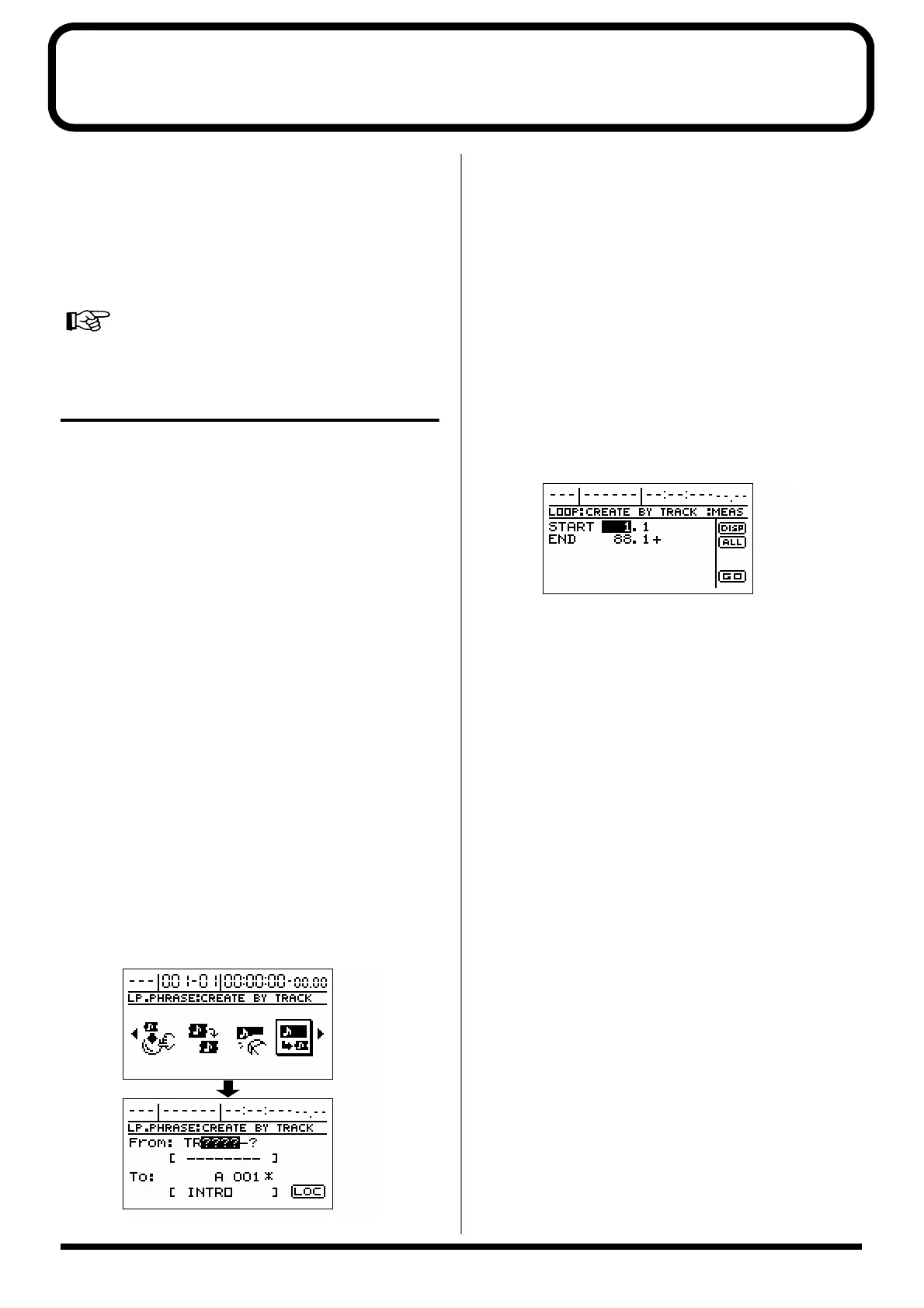
2. Use [CURSOR] to select the “CREATE BY TRACK” icon,
then press [ENTER].
fig.R14-01
3. Use [CURSOR] and the TIME/VALUE dial to specify
the copy-source track and the copy-destination loop
phrase.
A–H:
Loop phrase of the user bank (A–H).
S:
Loop phrase of the song bank. it is stored with each song.
* If a loop phrase is already in the copy destination, that loop
phrase is erased and overwritten.
4. Use [CURSOR] to move the cursor to “LOC,” then
press [ENTER].
The screen for specifying the locations defining the
segment you want to copy as a loop phrase appears in
the display.
fig.R14-02
5. Use [CURSOR] and the TIME/VALUE dial to specify
the start point and end point of the segment you want
to copy as a loop phrase.
At this time, you can select “DISP” and press [ENTER] to
switch between ways to specify the location (measures,
time, markers).
Set the following items.
START (start point):
Specify the starting location of the copy source track.
END (end point):
Specify the ending location of the copy source track.
* If, after specifying the above parameters in terms of location
you switch to the measure or marker indication, a “+” may
appear if a discrepancy between the indicated position and the
actual position arises. When using measures or markers to
make the specification, you can use the TIME/VALUE dial in
the respective screen to eliminate the discrepancy.
* If you want the import range to be from the beginning of the
track to the end, select the “ALL” icon and press [ENTER].
6. Move the cursor to “GO,” then press [ENTER].
Creation of the loop phrase begins.
When “Completed!” appears, creation of the loop phrase
is finished.
* If you are currently recording a song, the message “Save
Current?” may appear in the display. To discard the song
being recorded, press [NO]; press [YES] if you want to leave
the song as is.


 To Next Page