46
Re-recording only a mistake—Punch-in/out
If you wish to punch-in/punch-out at the location of a
marker, first move to the marker at which you wish to
punch-in, and then press [IN]. Then move to the location
of the marker at which you wish to punch-out, and press
[OUT].
For details on moving to a marker location, refer to
“Moving to the location of a marker” (p. 61).
How to Record
Here’s how to use auto punch-in/out to re-record part of
previously recorded track 1.
1. Press REC TRACK [1].
The REC TRACK [1] indicator will light alternately in
orange and green.
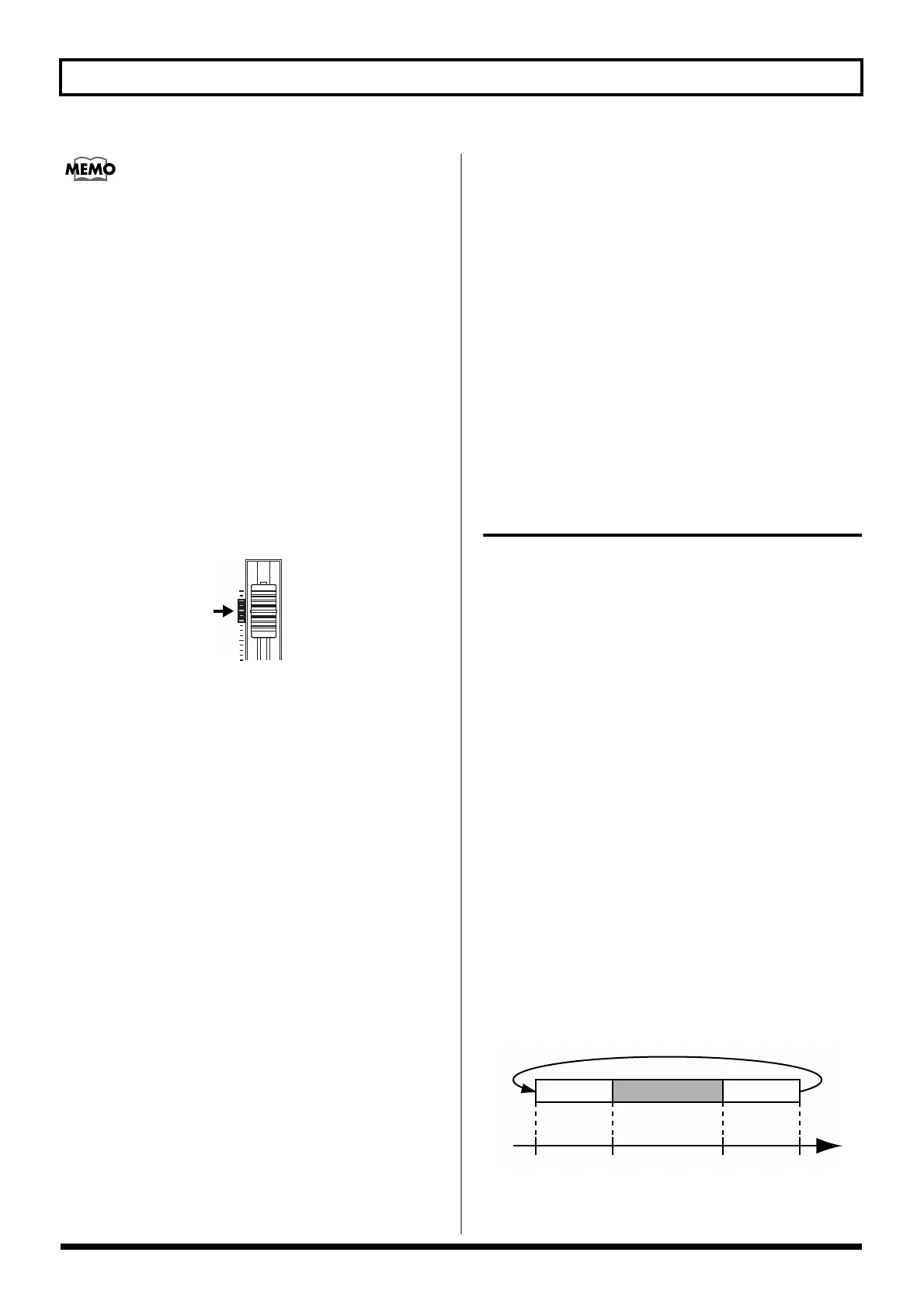
2. Place the fader for track 1 at the location shown below.
fig.R01-02
3. Make sure that the AUTO PUNCH IN/OUT [ON/OFF]
indicator is dark.
If it is lit, press [ON/OFF] to make the indicator go out.
4. Start playback and adjust the volume of the input
source using the INPUT LEVEL knob.
While the song is playing, you can hold down [TRACK
MUTE] and press REC TRACK [1] to mute track 1.
Repeat this to cancel muting.
Listen to the track you will be re-recording and the input
source and adjust the volume of the input source using
the INPUT LEVEL knob so that it is the same level as the
track.
5. After you have adjusted the volume of the input
source, make sure that muting of track 1 is cancelled.
6. Move to a location earlier than the point where you
wish to begin re-recording, and press AUTO PUNCH
IN/OUT [ON/OFF].
The indicator lights up, showing that the auto punch in
and out have been set.
7. Press [REC] to place the BR-1180/1180CD in recording
standby and then press [PLAY].
Recording automatically starts at the auto punch-in
location, so start playing what you want to record.
At the point you specified for punch-out, the track will
automatically change back to play mode.
8. When you finish recording, press [STOP].
9. Listen to the re-recorded result.
Return the song to a point earlier than you re-recorded,
and play it back.
Adjust the volume of track 1 using the TRACK fader.
* By pressing [IN] you can jump to the punch-in location.
Repeatedly Recording Over the
Same Location (Loop Recording)
The repeat function allows you to play a certain portion of a
song (the repeat portion) over and over again.
If you used auto punch in/out together with the repeat
function, the portion will be repeated so the result of the
recording can be heard right away. If the recording did not
sound as you wished, simply press [REC] and redo the
recording. Using the repeat function and auto punch in/out
together in this manner to repeatedly perform recording is
known as “loop recording.”
* For details on how to set the portion where recording will
occur (the portion between the punch-in and punch-out
positions), refer to “Auto punching in and out” above.
Setting the portion to be repeated
Before you begin recording, you will need to set the starting
and ending position of the portion to be repeated.
* The portion to be repeated should contain the portion that you
wish to re-record (the portion between the punch-in and
punch-out points). If the portion to be re-recorded is not fully
contained in the repeat portion, the recording may not start or
end as desired.
fig.R01-07
PlaybackPlayback
Repeat
Repeat start Punch-in Punch-out Repeat end
Time
Recording


 To Next Page