77
Organizing the songs you’ve recorded
Advanced Use
* When you execute the Song Copy operation, the copy
destination song will be assigned the lowest unused song
number.
When the copy operation has been completed, the
display will indicate “Complete!” and you will return to
the top screen.
<If “Disk Full!” appears>
If this message appears while the copy is in progress, it
indicates that there is insufficient free space on the hard disk.
Copy the song after first deleting unneeded data.
Erasing songs (Song Erase)
This erases songs that are saved on the hard disk.
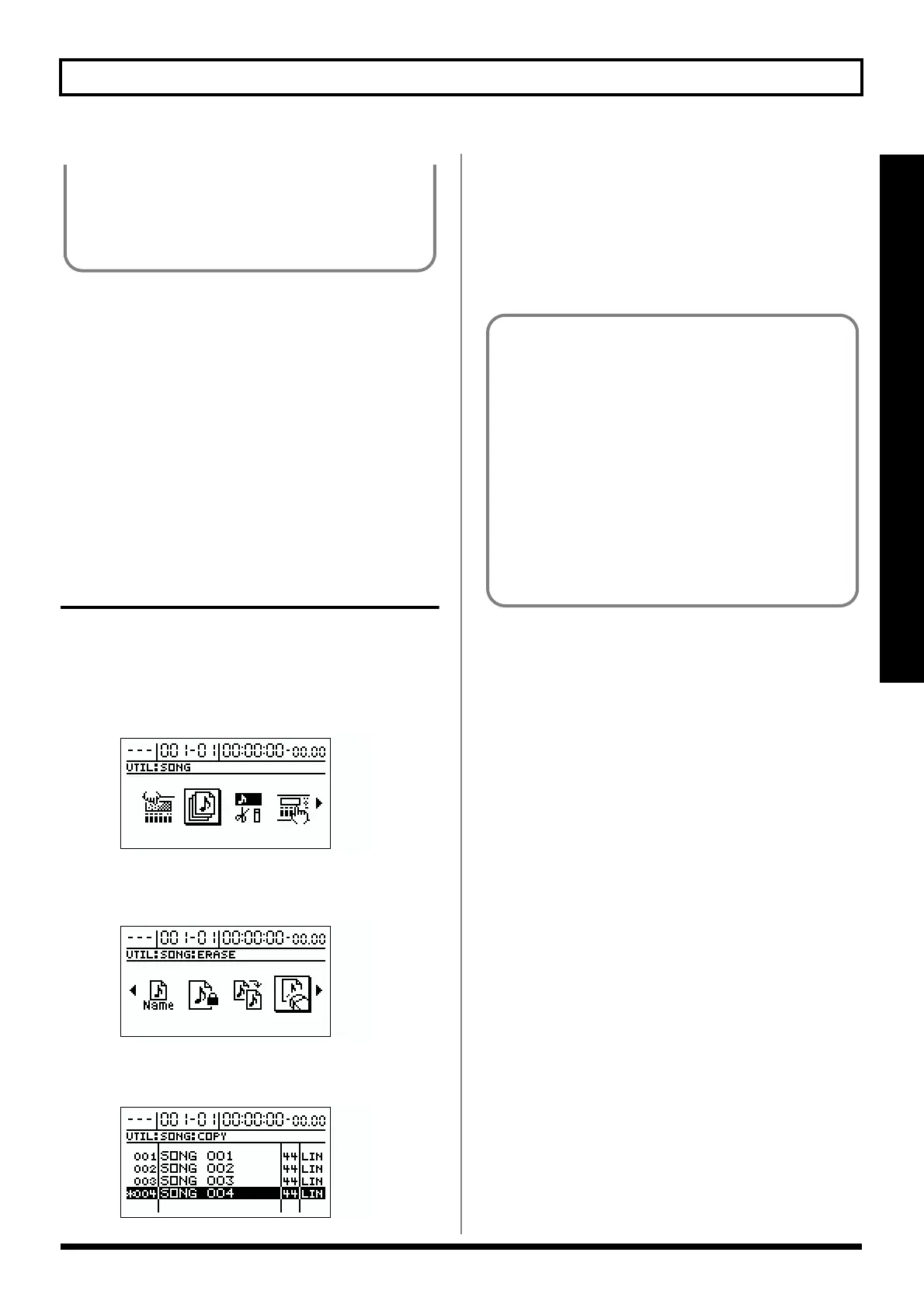
1. Press [UTILITY].
2. Use [CURSOR] to select the “SONG” icon, and press
[ENTER].
fig.R12-01
3. Use [CURSOR] to select the “ERASE” icon, and press
[ENTER].
fig.R12-06
The names of the songs saved on the hard disk are
displayed.
fig.R12-05
4. Use [CURSOR] to select the song to be erased, then
press [ENTER].
Songs that are currently being used have a “*” before
their listing.
The display will ask “Erase Song OK?”
5. Press [YES].
The Song Erase operation will be executed.
* If you erase the current song, the lowest-numbered song on the
disk will be selected.
* After all songs have been deleted, a new song will be created
automatically. At this time, Linear (LIN) will be selected as
the data type (p. 31).
* If you execute Song Copy without saving, all recording
and editing operations that you performed on the current
song, the current state of the mixer section, and any
changes to the song patch will not be saved.
■ If you recorded/edited, or modified the settings
of the mixer section or effect song patch (p. 51)
The display will ask “Save Current ?”
If you wish to store the current song and mixer
settings before protecting them, press [YES].
If you do not wish to save the song, but would like
to protect the song in the state in which it was last
saved, press [NO].
* If you execute Song Protect without saving, all recording
and editing operations that you performed on the current
song, the current state of the mixer section will not be
saved.


 To Next Page