7-20 Adding Objects
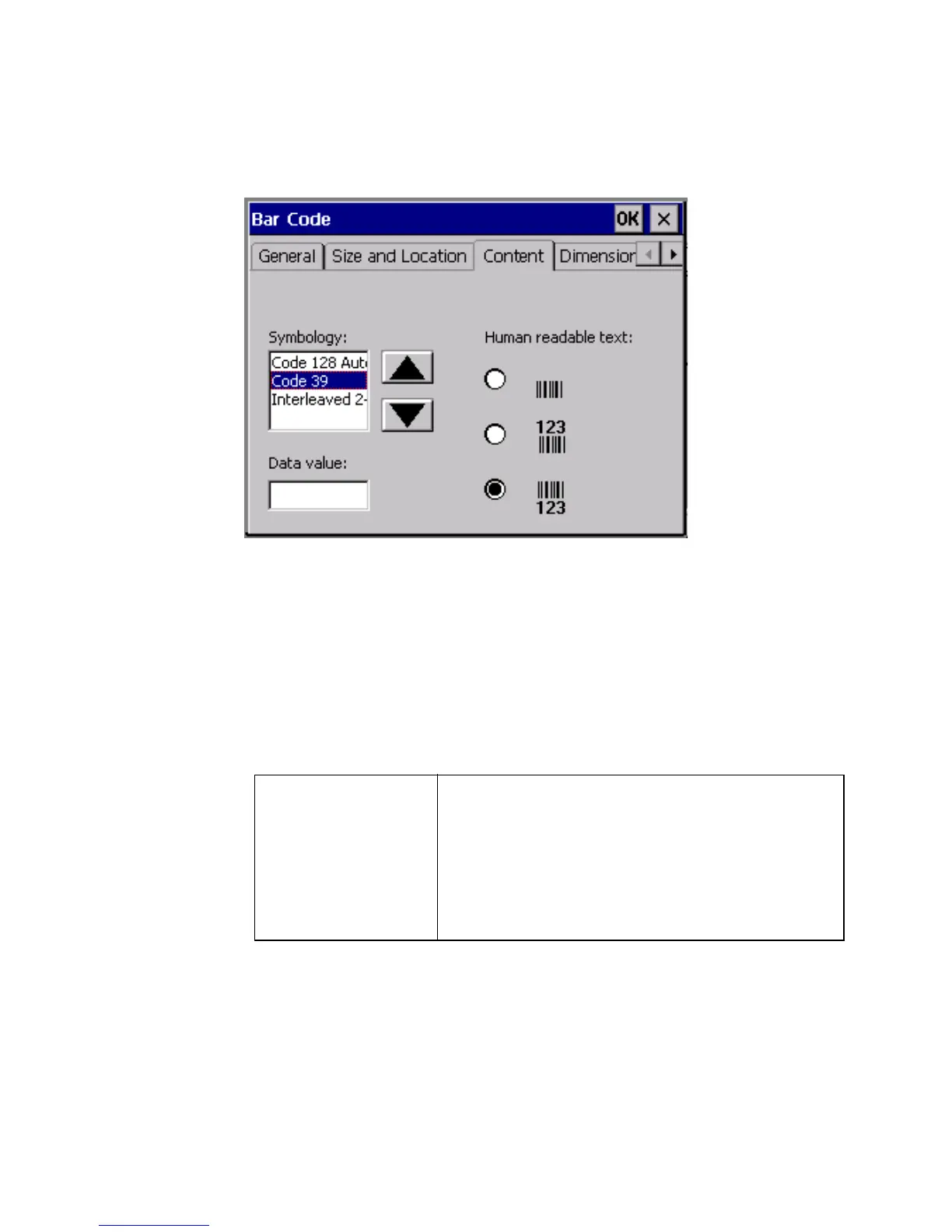
If you select Bar Code on the Data Source dialog box, the Bar Code
dialog box displays where you can specify the content of the bar code.
Figure 7-11. The Bar Code screen Content Tab.
The Bar Code screen has five tabs. When you add a bar code, you’ll use
the Content and Dimension tabs. The remaining tabs -- General, Size
and Location, and Font -- are mainly used to change default settings for
bar codes (see Editing bar codes on page 7-23).
Setting bar code content
Use the Content tab to set these options:
Symbology Select a symbology code from this list box.
Symbologies are universal bar code formats.
This system supports these symbologies:
• Code 128 Auto
• Code 39
• Interleaved 2-of-5



 To Next Page