7-32 Sizing Objects
To resize an object using <Scale>
1. Select the object
2. Press the <Scale> key on the keyboard.
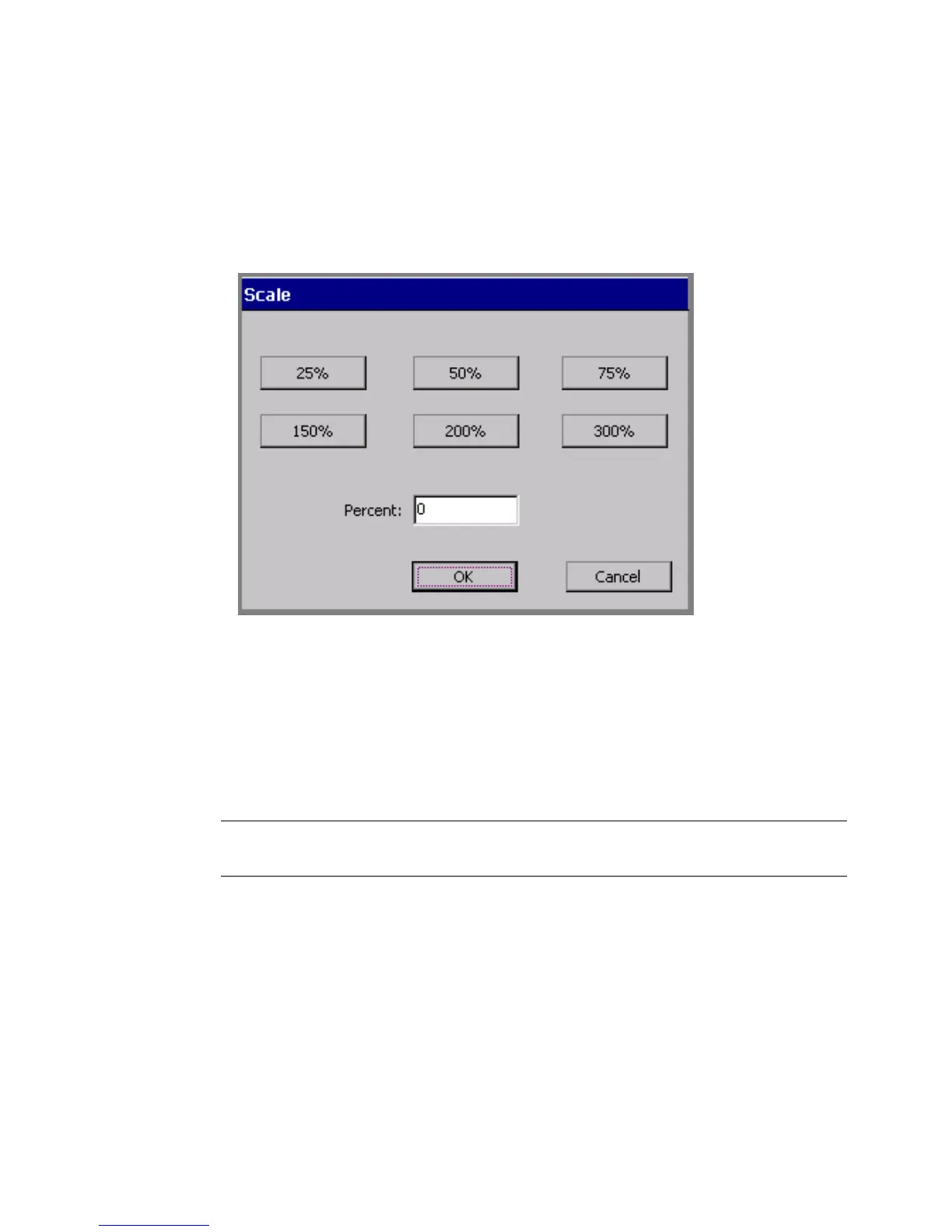
The Scale screen displays.
Figure 7-17. The Scale screen.
3. Choose one of the percent buttons.
or
Enter a percentage in the Percent field.
• Percent field minimum = 10%
• Percent field maximum = 500%
Hint! Use the Percent field for percentage amounts not provided on
the percent buttons.
If you enter a percentage outside the range, a system message directs
you to re-enter a valid value.
Scaling text objects
Using <Scale> on text objects is not recommended, as it may result in
the text wrapping to more or fewer lines on the label. (Resizing using
the Increase/Decrease Size tools may have the same result.) If the
Auto Size Font option on the Options tab of the Text Properties



 To Next Page