24
Loading the Calibration Data
With the Calibration Tool inserted to the BN360-200-ECU and the
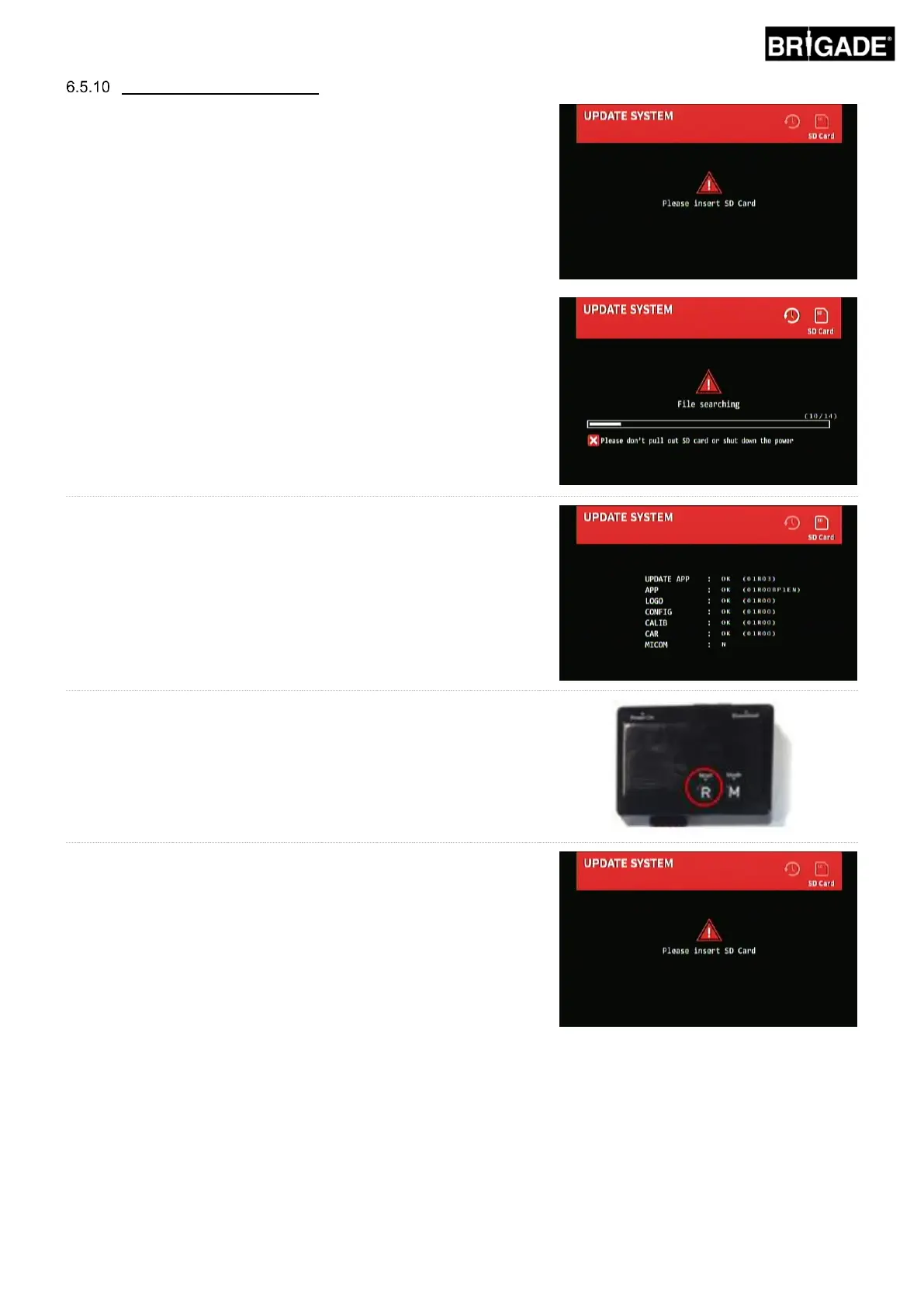
system powered, the “Update System” screen should be displayed
prompting the user to insert an SD Card.
Insert the SD Card to begin the upload process. As long as the “cmd”
file has been renamed to “update.cmd” the system will automatically
upload the new data to the ECU.
Once the upload has completed the following screen should show.
Anything that is updated will be displayed as “OK”, anything that has
not been updated will be displayed as “N”, i.e. if a calibration has
been loaded but the vehicle image has not changed.
The numbers in brackets indicate the version number that has been
loaded however the ECU must be restarted to show the newly
flashed version.
Updating ECU firmware is a two stage process that requires a second
upload. Press the “Reset” button on the Calibration Tool to repeat the
calibration upload.
Once the update completes a second time the UPDATE SYSTEM
screen will show again. Confirm that the APP version is correct for the
configuration used (e.g. XXRXXBP1 for Portrait 1).
Eject the SD Card and wait for the “Please Insert SD Card” screen
to appear before removing the Calibration Tool.
The system will automatically restart and the new calibration data
will be shown on the display.


 To Next Page