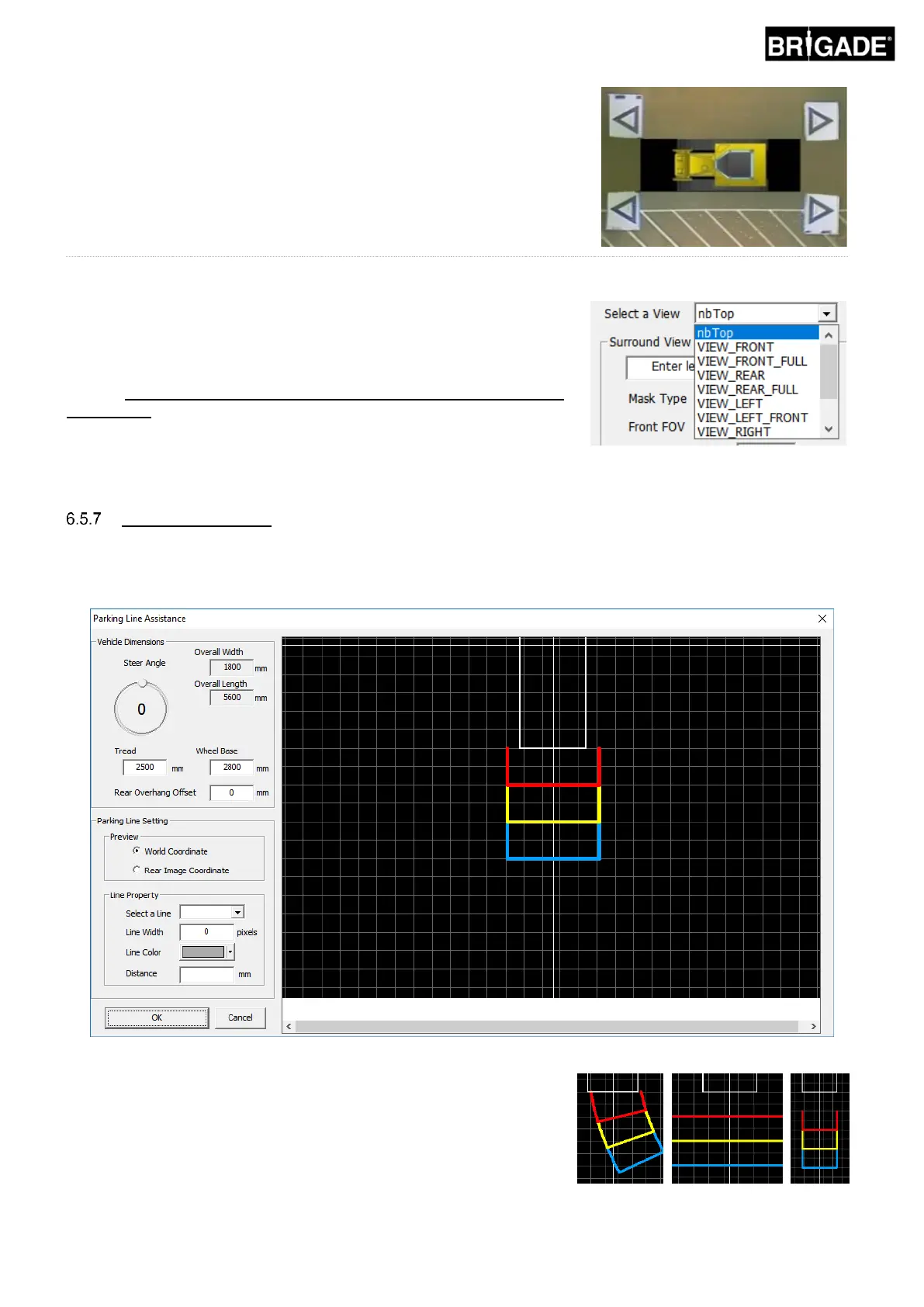
Using the “Auto Fit” option will automatically fit the vehicle image to the
vehicle mask however the software will try to scale the vehicle image
whilst maintaining the original image aspect ratio. If the image is not the
same aspect ratio as the vehicle mask the outcome may not be desirable
e.g. if the vehicle image is square but the vehicle mask is rectangular.
For the best results, Brigade recommends that the vehicle image is
correctly scaled to fit the vehicle mask rather than using the Auto
Fit option.
Use the “Select a View” menu to view and make any necessary
adjustments to the additional views. The views listed here will depend on
the configuration that has been selected, for more information see section
2.4.
For configurations where there are multiple 360° views (e.g.
Landscape 2, 3 and Portrait) it is necessary to calibrate these views
as well, calibrations on one view are not automatically applied to the
other views. Select each of the views here (e.g. nbLSTop) and repeat
the steps listed above to calibrate all of the available views as
desired.
Parking Line Property
In the Preview window, select a rear view in the “Select a View” box and select the “Parking Line Assistance” button
to change the Parking Line Property. The follow screen will open:
Vehicle Dimensions
• Steer angle – adjusting this will add a curvature to the parking
guide lines. The center pivot is taken as the center of the wheel
base. The steer angle is fixed and does not move with the
vehicle steering angle.
• Tread – changes the width of the parking guides
• Wheel base – the distance between the vehicle wheels, used in
conjunction with the Steer Angle.


 To Next Page