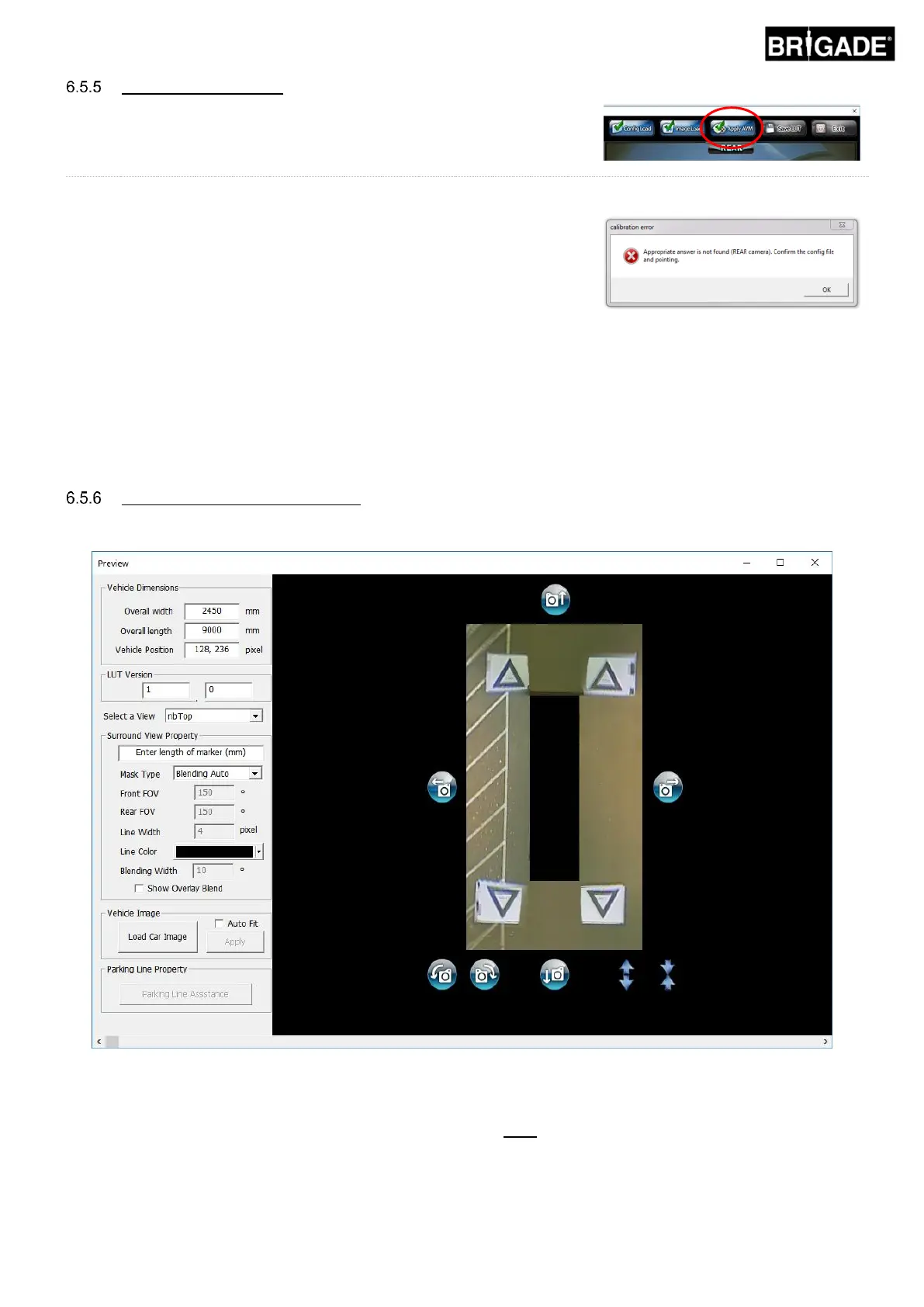
Clicking the “Apply AVM” button will open the surround view “Preview”
window.
If there is anything wrong with the control points the “Calibration Error”
prompt will be displayed with a hint describing which camera is incorrect.
This is generally due to two errors:
1. The control points are not correctly aligned. Check the order and
position of the control points paying attention to the camera given in the
message box.
2. The Calibration Mats are not correctly/accurately position around the
vehicle. Re-align the calibration mats correctly.
Useful hints:
• Selecting “Ok” in this window will bypass the prompt and the “Preview” window will open regardless.
• Keep the “Preview” window open while making the adjustments to the control point.
• Re-select “Apply AVM” whilst adjusting view the effect of the changes to the surround view image “live”.
• Adjust one control point at a time to get the most suitable surround view image.
Surround View Image Adjustments
If the control points are correctly aligned, The Preview window will appear similar to the example below:
Note: the appearance of the surround view image will vary depending on the Config file that is used. The image
above shows the Landscape surround view image. Some configurations have multiple 360° views which need to be
calibrated, perform the steps below for each surround view image.


 To Next Page