To exit the menu and save the changes, press the MENU button on
the remote control once to return to the menu home screen and
then again to exit.
Note: there is a short delay when exiting the menu as the system
saves the changes that have been made. Wait approx. 10 seconds
for the system to exit the menu.
Configure the Screen Size and Position
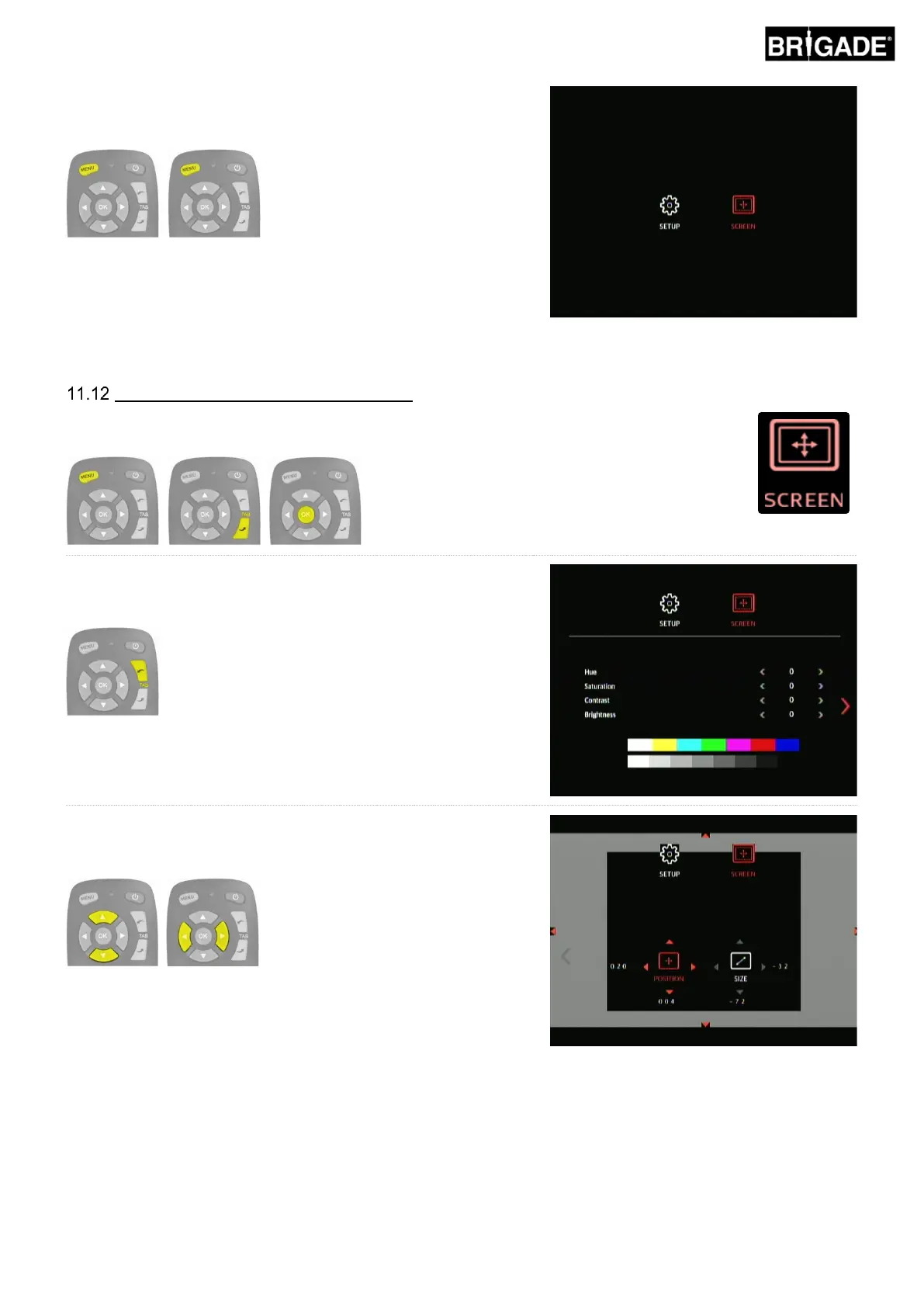
To change the display settings enter the SCREEN menu by pressing MENU button, and pressing
TAB down and then OK on the SETUP icon.
The size and position settings are on the second page of the
SCREEN menu. Press the TAB up button to select the next page
icon and press the OK button.
(Alternatively, press the TAB down button 4 times)
Use the up and down arrows on the remote control to move the
picture up and down. Use the left and right arrows on the remote
control to move the picture left and right.


 To Next Page