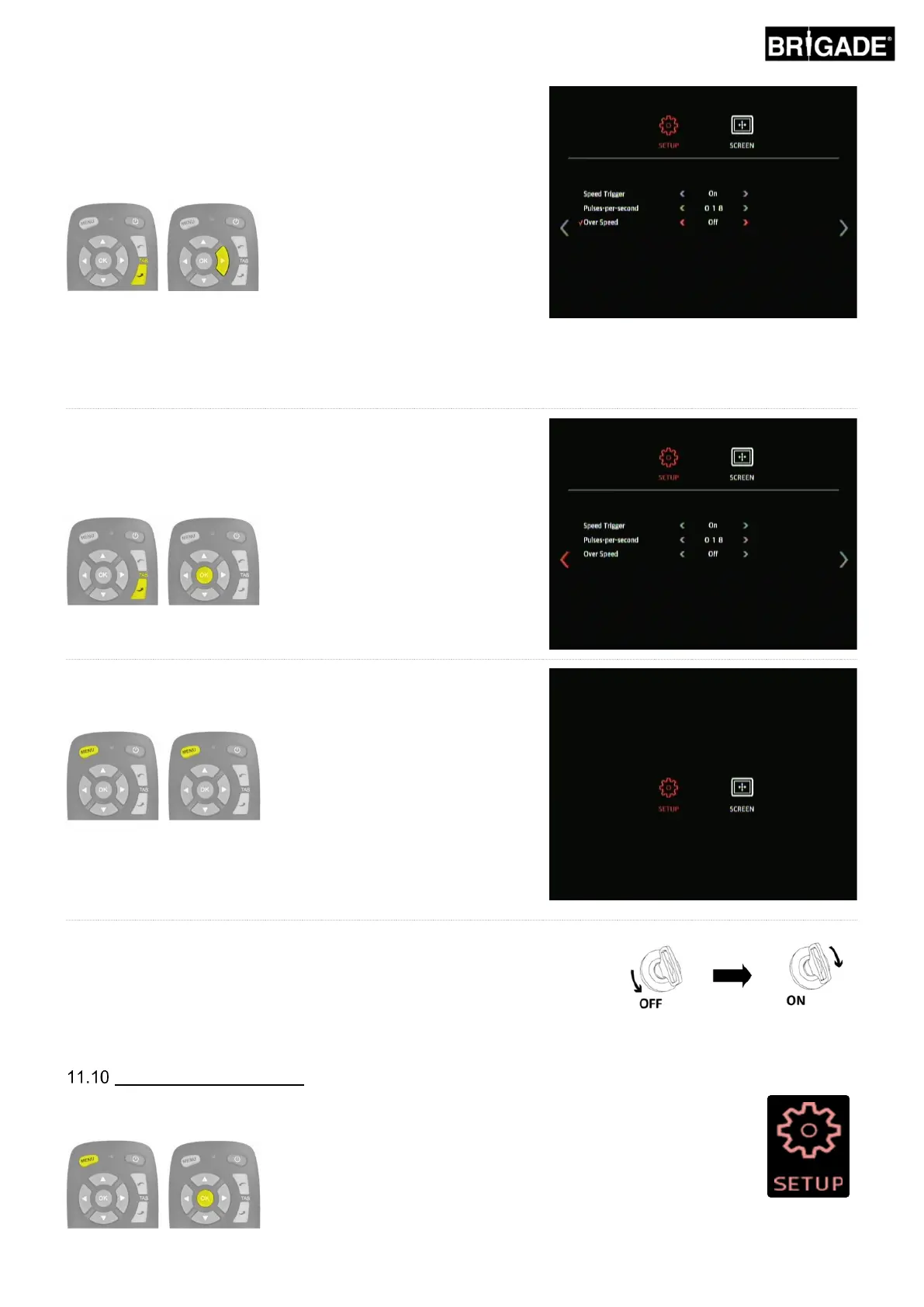
To change the system response when the vehicle exceeds the
configured speed, select the Over Speed option with the TAB down
button. Use the arrow buttons to select the desired response, this
can be any of the views installed on the system (refer to section
2.4 for more information on view configurations) or the display can
be switched off.
Note: selecting OFF for this option will output a full black display
rather than disabling the video output (typically monitors will display
a blue screen when there is no video output which could be
distracting for drivers).
To exit the menu and save the changes, return to the first page of
the OSD SETUP menu by pressing the TAB down (or up) button
until the previous page button is selected and press the OK button.
Press the MENU button on the remote control once to return to the
menu home screen and then again to exit.
On the first page of the OSD SETUP menu, press the MENU button
on the remote control once to return to the menu home screen and
then again to exit.
Note: there is a short delay when exiting the menu as the system
saves the changes that have been made. Wait approx. 10 seconds
for the system to exit the menu.
Restart the system to “activate” the changes (turn vehicle ignition
on/off).
To configure the View Groups (the views that are displayed when the View Select Button is pressed),
enter the OSD SETUP menu by pressing the MENU button and pressing OK on the SETUP icon.


 To Next Page