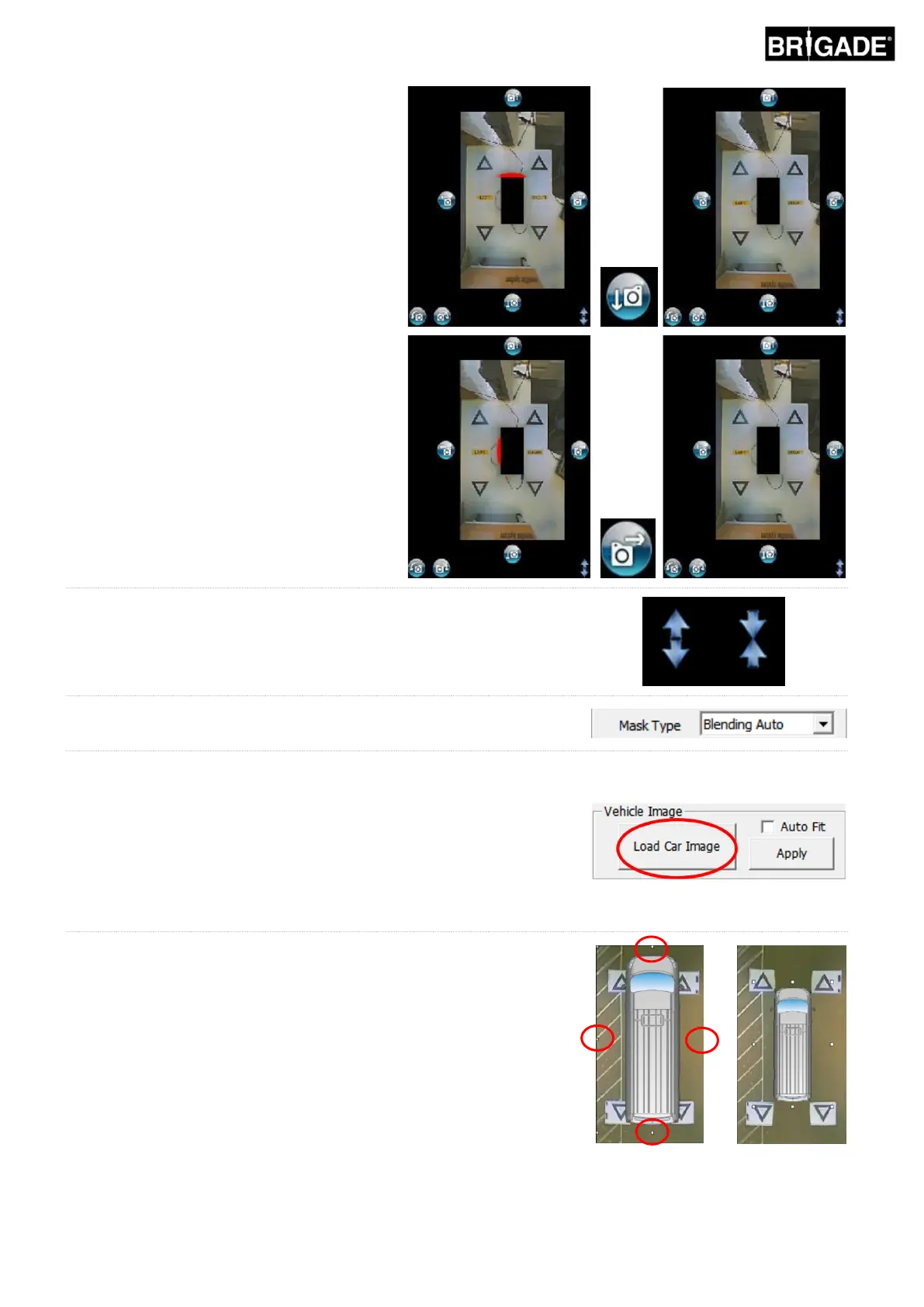
Horizontal and vertical adjustments can be
made to remove any camera blind spots
(shown in red).
Once the preferred mask position has been
established, check to see that there is no
excess vehicle body or camera blind areas
(red area) shown.
In some cases, the exact vehicle dimensions
may leave some of the body or camera blind
area visible (this is due to camera positioning
and mounting angles). Adjust the vehicle
dimension values and reposition the vehicle
mask to remove the vehicle body or blind
areas from the view.
It may be necessary to enlarge the vehicle mask or “zoom” in or out in the
surround view image to see more or less of the area around the vehicle.
To do this, use the arrow buttons below the surround view image to adjust
the view as desired.
It is recommended to leave the “Mask Type” setting as “Blending Auto”.
For more information on the Mask Types, refer to section 7.
Click the “Load Car Image” in the Vehicle Image section to load a vehicle
image.
Vehicle images are stored in the 6.0 Overlays folder on BN360-200-USB.
Bespoke vehicle images can be created, the image must be 24bit .bmp
format, background must be Black (RGB 0,0,0), vehicle colour RGB must
have no 0 values). Any colour that contains a 0 value in the RGB will be
displayed as transparent. Paint or Paint.Net may be used to create or
modify existing vehicle overlays.
The chosen vehicle image will be overlaid on to the surround view.
To resize the vehicle image so that it correctly fits the vehicle mask, click
and drag the adjustment boxes around the image to shrink or enlarge the
overlay as desired. Click and drag the vehicle image to position it over the
vehicle mask. It is recommended to make the vehicle image slightly larger
than the vehicle mask to hide the blank areas of the surround vehicle
mask.
When the vehicle image is positioned and sized correctly, press the
“Apply” button to save the changes.


 To Next Page