29
System Information Screen
The System Information screen contains the information regarding which versions of firmware have been loaded to
the BN360-200-ECU.
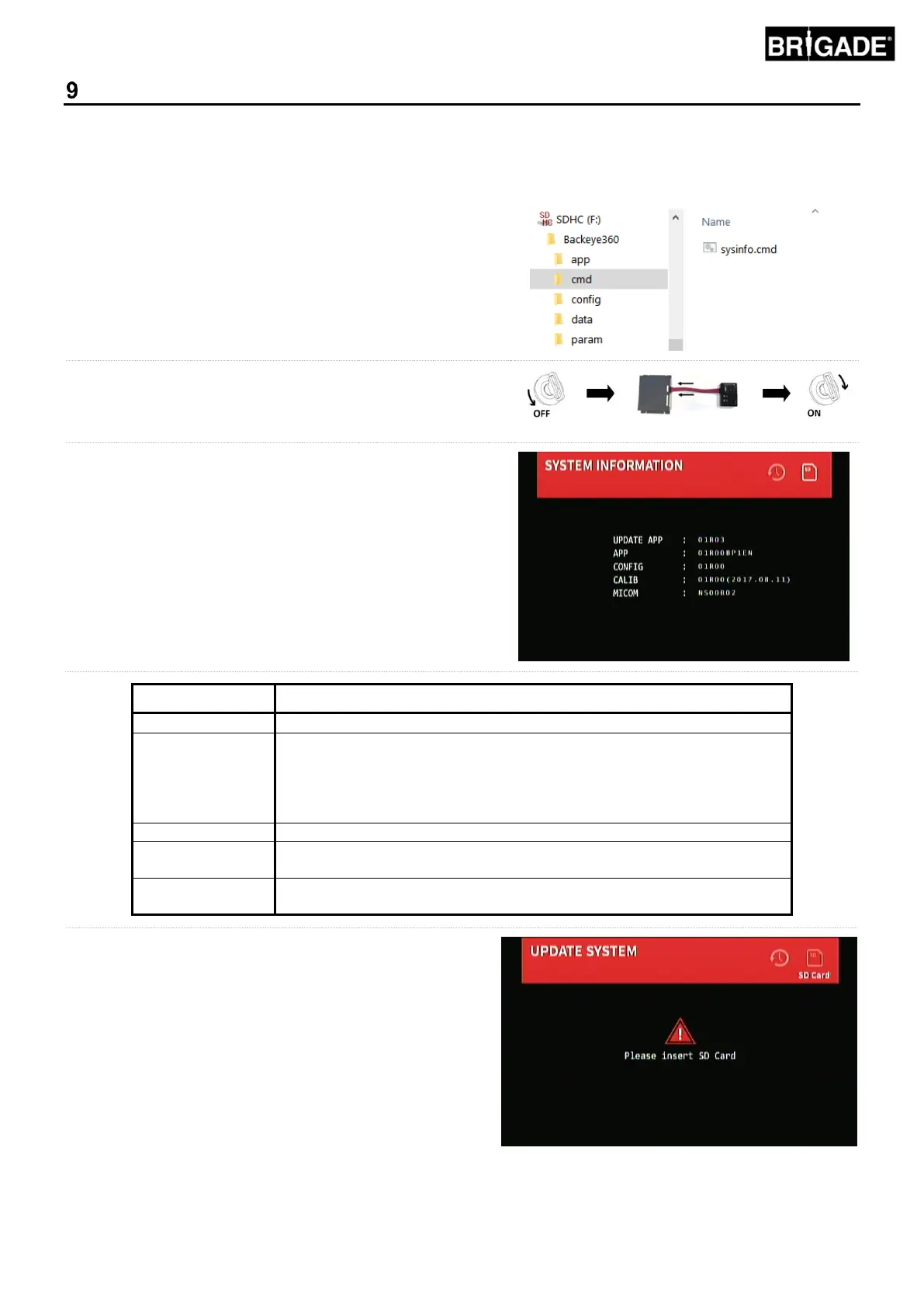
If not done so already, copy the “Backeye360” folder from the
desired configuration to the SD Card. Refer to section 4.1 for
more information on the SD Card contents.
Ensure the “Backeye360” folder is at the root of the SD Card and
the file inside the “cmd” folder is named “sysinfo.cmd”.
Insert the Calibration Tool into the ECU and switch the system
on. The Update System Screen will load.
Insert the SD Card into the Calibration Tool, the System
Information Screen will display the current version of software
loaded to the ECU. A description of the different items and their
functions is given in the table below.
The base system operating software
The display configuration version. The last 4 digits refer to the config
version (L1, L2, L3 and P1 see section 2.3 for more information) and
language installed e.g:
L1EN = Landscape 1 English
P1FR = Portrait 1 French
The calibration configuration file used
The calibration data from the Calibration Software Tool, this will show
version number + date of the calibration
The software that controls the system operation, i.e. triggers, speed
signal, delays etc.
To exit the System Information Screen, eject the SD Card
and wait for the “Please Insert SD Card” screen to appear
before removing the Calibration Tool. The system will
automatically restart and will return to the default view.


 To Next Page