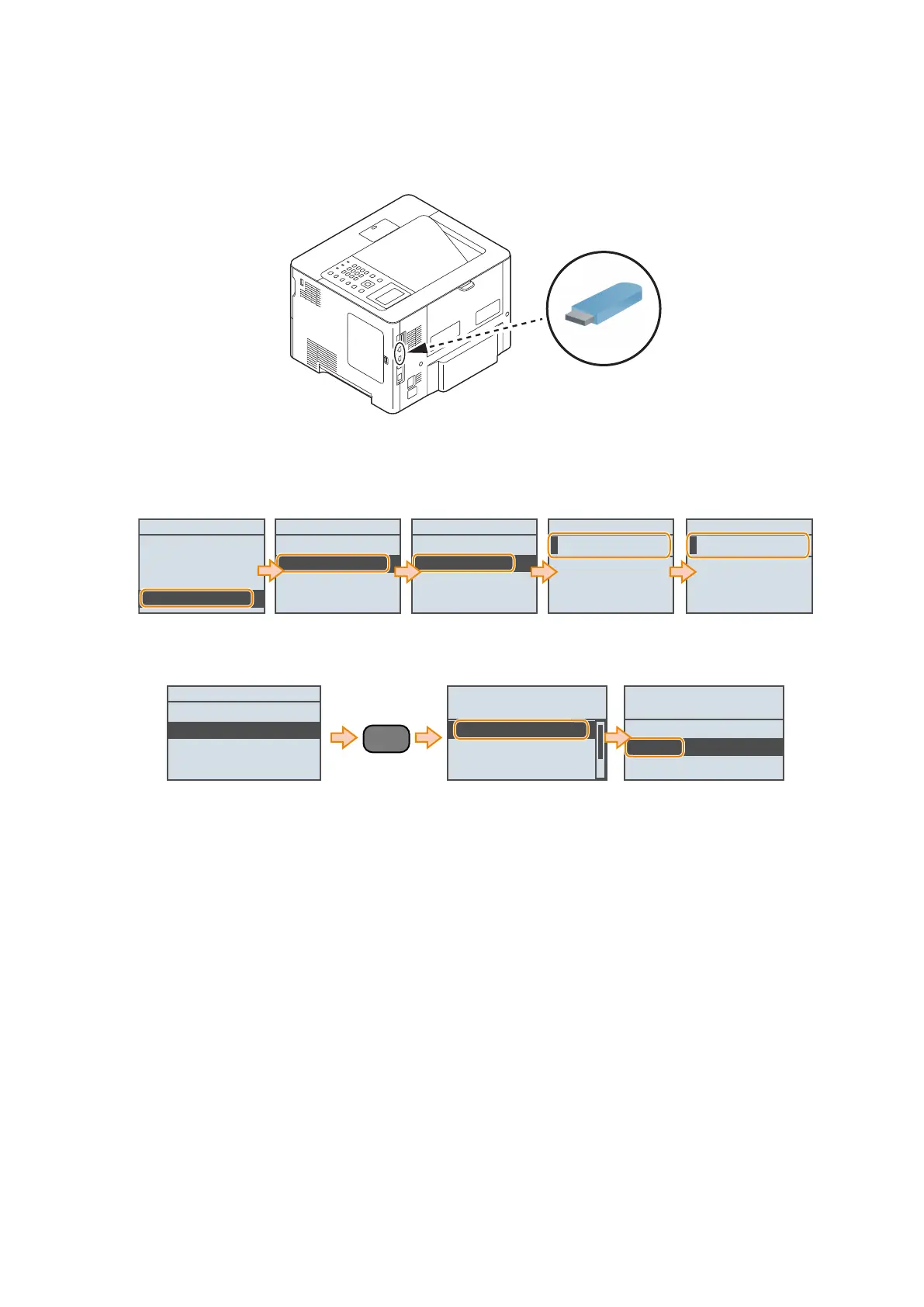
The following USB flash drives can be used for export/import.
• USB flash drive in FAT 16 format (storage capacity: 2 GB)
• USB flash drive in FAT 32 format (storage capacity: 32 GB)
Note that the descriptions in parenthesis in the procedure are the descriptions in the case of remote UI.
1. Connect a USB flash drive to the USB port.
*1
*1: USB port of the front side can also be used.
2. Enter service mode, select the following service mode, and enter the password.
• SERVICE MODE > FUNCTION GR. > Import/Export Set. > EXPORT > Password
SERVICE MODE
COUNTER GR.
ADJUST GR.
OPTION GR.
FUNCTION GR.
FUNCTION GR.
ECONF
Import/Export Set.
SMD-EXPT
USB-H
Import Export Set.
IMPORT
EXPORT
Password
fix : OK key
Entry Mode :a
Password (Confirm)
fix : OK key
Entry Mode :a
3. When the [Import Export Set.] screen is displayed after the processing is complete, press the [Application] button
on the Control Panel, select [<Remove USB Memory>], and remove the USB flash drive.
Import Export Set.
IMPORT
EXPORT
Ready to print files
from USB memory.
<Remove USB Memory>
Select File(s)
Sort Files
Remove USB memory?
No
Yes
Application
4. Check that a setting information file (".dcm" file) exists in the directory directly under the root of the USB flash drive.
This completes the procedure for exporting a setting information file.
● Procedure for Import from USB Flash Drive
Use the service mode function to import the service mode setting information.
1. Prepare a USB flash drive containing the setting information file (".dcm" file) to import.
3. Technical Explanation (System)
85









 To Next Page