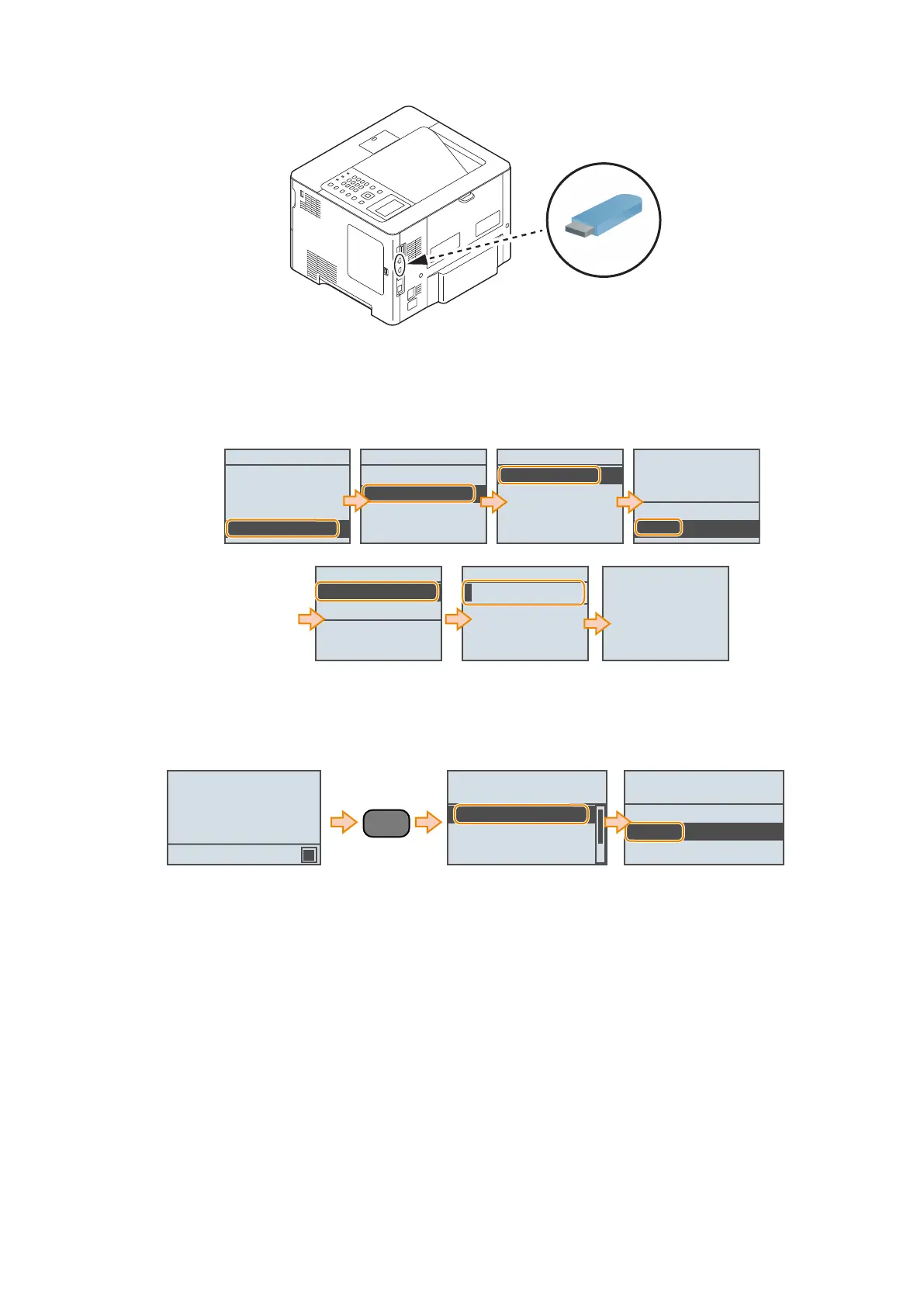
2. Connect a USB flash drive to the USB port.
*1
*1: USB port of the front side can also be used.
3. Access the following service mode from the Control Panel, specify the file to import, enter the encryption password,
and press the [OK] key.
• SERVICE MODE > FUNCTION GR. > Import Export Set. >IMPORT
SERVICE MODE
COUNTER GR.
ADJUST GR.
OPTION GR.
FUNCTION GR.
FUNCTION GR.
ECONF
Import/Export Set.
SMD-EXPT
USB-H
Import Export Set.
IMPORT
EXPORT
Device will restart
after import is
complete. Is it OK?
No
Yes
Select Import File
LBP352i_AAA A0000
LBP352i_AAA A0000
Password
fix : OK key
Entry Mode :a
Import is complete.
Device will restart.
Press OK to close this
screen.
The message "Import is complete. Device will restart. Press OK to close this screen." is displayed when the processing is
complete. Press the [OK] key.
4. When the machine has restarted, press the [Application] key on the Control Panel, select [<Remove USB Memory>],
and remove the USB flash drive.
Remove USB memory?
No
Yes
The printer is ready. A4
K
Ready to print files
from USB memory.
<Remove USB Memory>
Select File(s)
Sort Files
Application
5. Restart this machine, enter service mode, and confirm that the setting information is reflected.
This completes the procedure for importing a setting information file.
● Exporting to a PC
You can export the service mode setting information by accessing from the Remote UI to use the service mode function.
1. Select the following service mode from the Remote UI service mode, enter the password, and click [Start Exporting].
• SERVICE MODE > FUNCTION GR. > Import/Export Set. > EXPORT
3. Technical Explanation (System)
86









 To Next Page