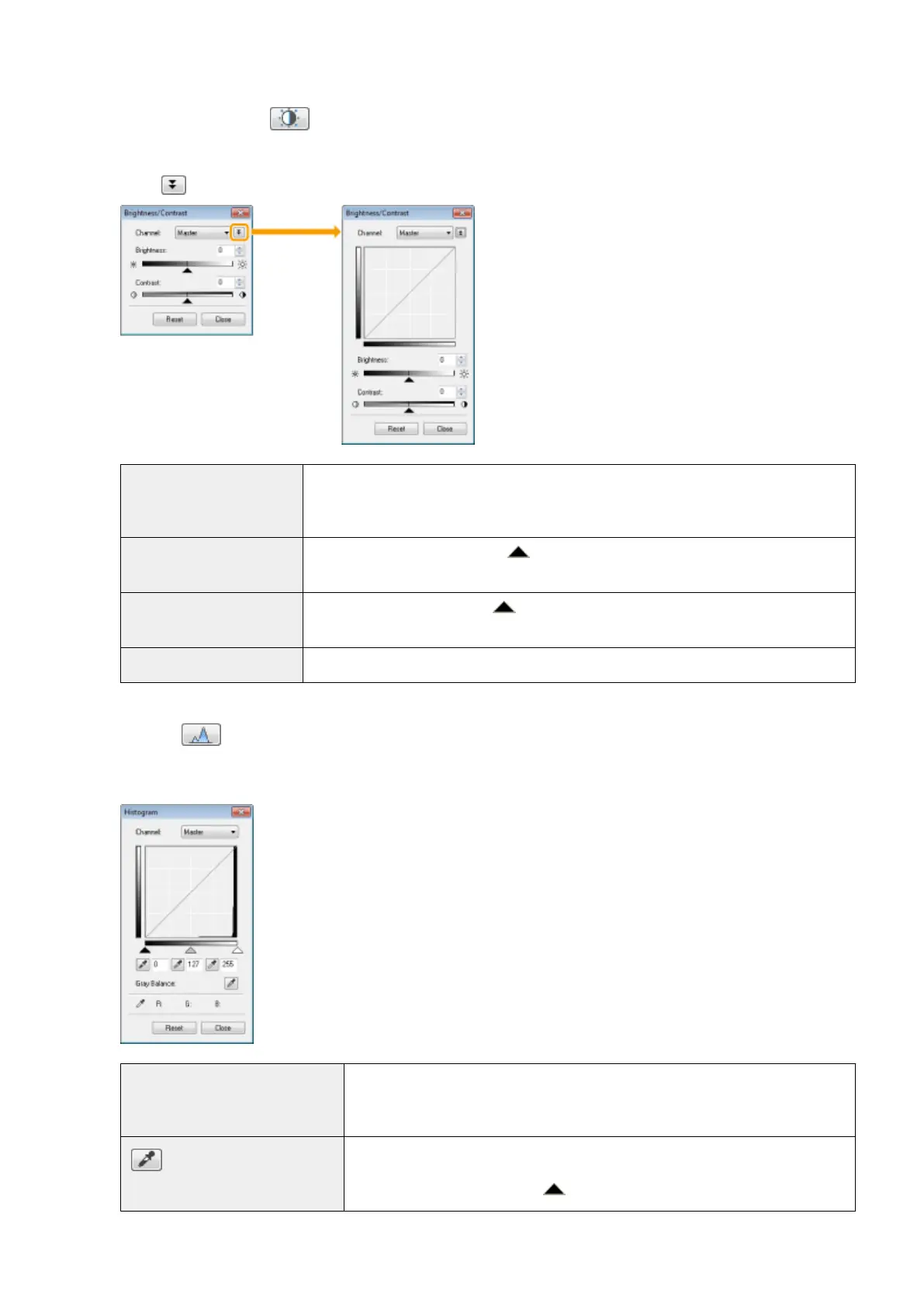
Brightness/Contrast
You can adjust the brightness and contrast level in this dialog box.
Click [ ] to adjust the brightness and contrast using the curve on the graph.
[Channel]
Select [Red], [Green], or [Blue] to adjust each color, or select [Master] to adjust all three
colors when [Color] or [Color (Documents)] is selected for [Color Mode].
Adjust gr
ay when [Grayscale] is selected for [Color Mode].
[Brightness]
Adjust the brightness by moving [
] on the slider or manually entering values from -127
up to 127.
[Contrast]
Adjust the contrast by moving [ ] on the slider or manually entering values from -127 up
to 127.
[Reset] Restore all current settings to default settings.
Histogram
You can visually conrm which parts of the image ar
e darker or lighter. You can eliminate the darkest and
lightest parts to increase the halftone tonal range.
[Channel]
Select [Red], [Green], or [Blue] to adjust each color, or select [Master] to adjust all
thr
ee colors when [Color] or [Color (Documents)] is selected for [Color Mode].
Adjust gray when [Grayscale] is selected for [Color Mode].
[
] (Black-point eyedropper
tool)
Click to move the tool to the part of the image (or the selected scan area) in the
pr
eview area that you want to be the darkest part. You can also manually enter a
value from 0 up to 245 or move [
] on the slider.
Scan
142









 To Next Page