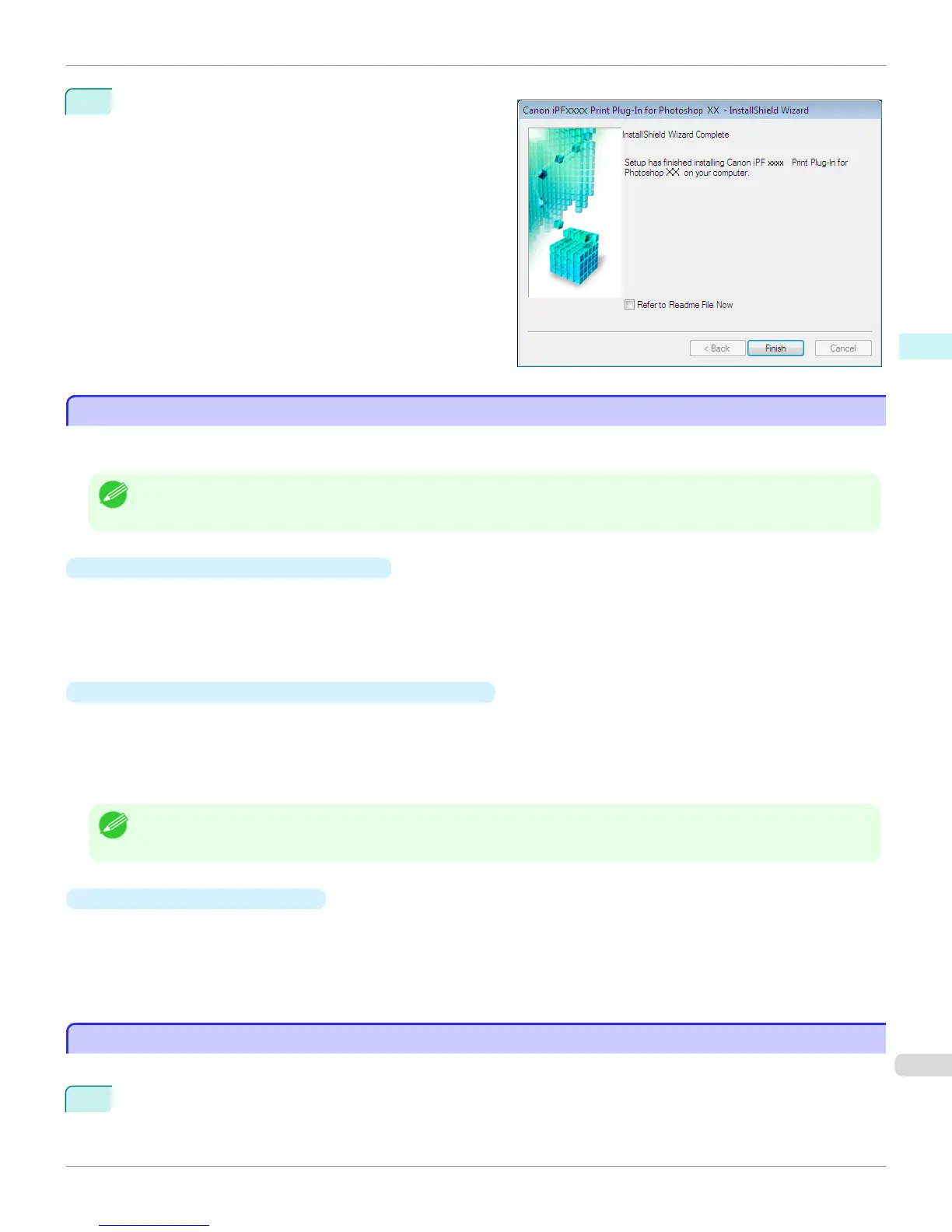
7
Click Finish button.
Installing the Print Plug-In for Photoshop/Digital Photo
Professional finishes.
Uninstall Procedures
Uninstall Procedures
The procedure for uninstalling the Print Plug-In for Photoshop/Digital Photo Professional and Layout Plug-In is as fol-
lows.
Note
• This section describes the procedure in Windows 7.
•
Uninstall the Print Plug-In for Photoshop
1.
Select start in Control Panel menu.
2.
Select Programs and Features.
3.
Select Canon iPFxxxx Print Plug-In for Photoshop xx, then click Change/Remove.
•
Uninstall the Print Plug-In for Digital Photo Professional
1.
Select start in Control Panel menu.
2.
Select Programs and Features.
3.
Select Canon iPFxxxx Print Plug-In for Digital Photo Professional, then click Change/Remove.
Note
• iPFxxxx is the name of your printer.
•
Uninstalling the Layout Plug-In
1.
Select Control Panel from the start menu.
2.
Select Programs and Features.
3.
Select imagePROGRAF Layout Plug-In, and then click the Change/Remove button.
Starting from Photoshop
Starting from Photoshop
Follow the procedure below to start the Print Plug-In for Photoshop from Photoshop.
1
Start Photoshop.
iPF9400
Uninstall Procedures
User's Guide
Windows Software Print Plug-In for Photoshop / Digital Photo Professional
255


 To Next Page
 Loading...