200
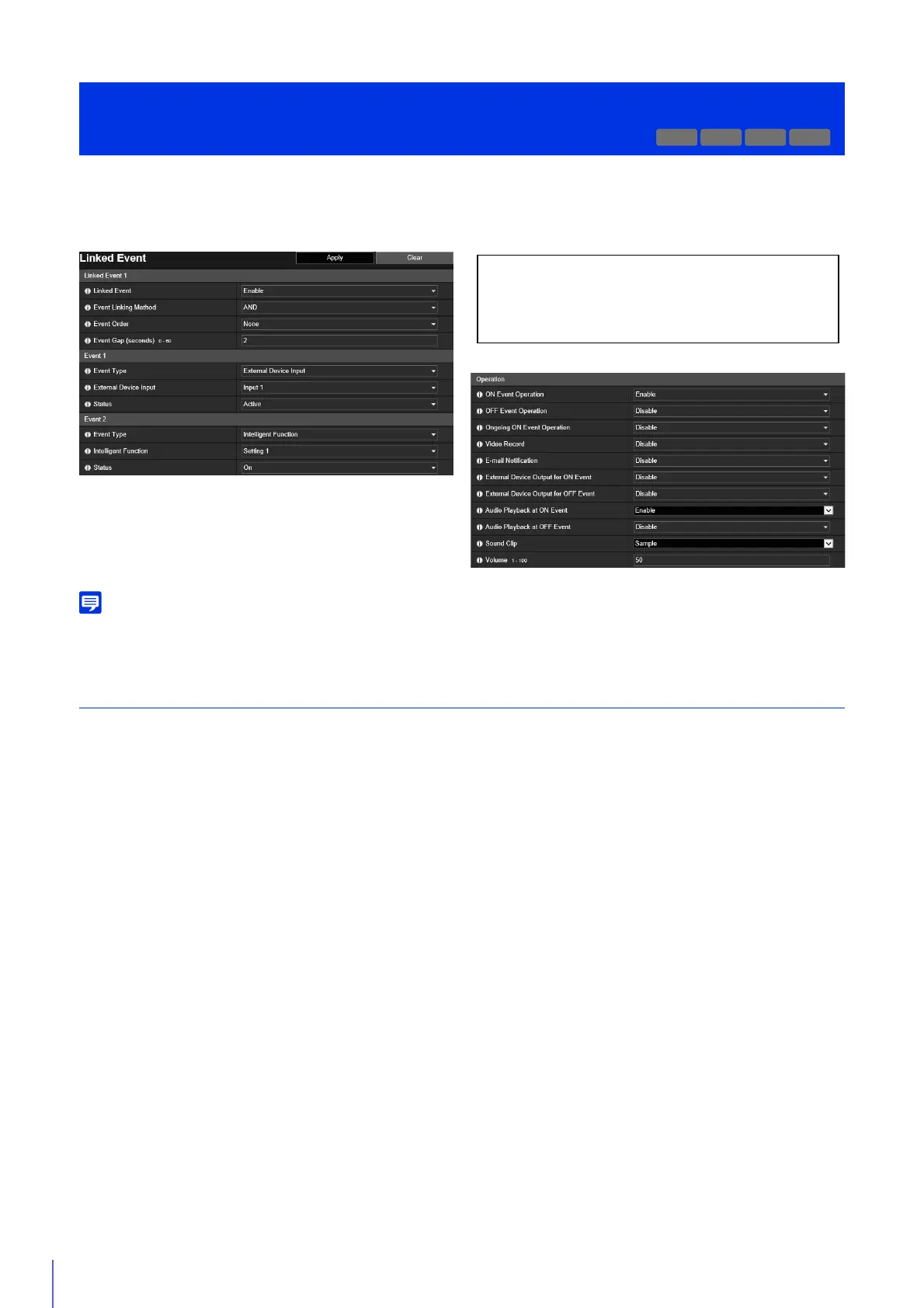
By linking two types of events, a single event is triggered. Select AND/OR for the event linking method.
You can set the operations to perform, such as recording video or sending e-mail notifications, when a linked event is
triggered.
You can check the linked event status on the [Event and Input/Output] menu of the Camera Viewer (P. 85).
Linked Event 1 to 4
You can register up to four linked events.
You can link five types of events: [Volume Detection], [Scream Detection], [External Device Input], [Timer] and [Intelligent
Function].
[Linked Event]
Select whether to use a linked event.
[Event Linking Method]
Select the event linking conditions.
[AND]: A new linked event is triggered if both event types selected with [Event 1] and [Event 2] are triggered. Set [Event
Order] and [Event Gap] for this.
[OR]: A new linked event is triggered if either event type selected with [Event 1] and [Event 2] is triggered.
[Event Order]
You can select the order two events must be triggered when [Event Linking Method] is set to [AND].
If set to [None], the order will not be considered.
[Event Gap (seconds)]
Enter the interval between two events that must be triggered when [Event Linking Method] is set to [AND].
A new linked event is triggered if the second event triggers within the specified interval after the first event was triggered.
Event 1, 2
Specify the two events to be linked. The settings are the same for both.
[Event Type]
Select the event type for linking.
[Volume Detection]/[Scream Detection]
[Event] > [Linked Event]
Using Event Combinations
M50
H651
The following settings can be configured here.
• Linked Event 1 to 4
• Event 1, 2
•Operation


 To Next Page