42
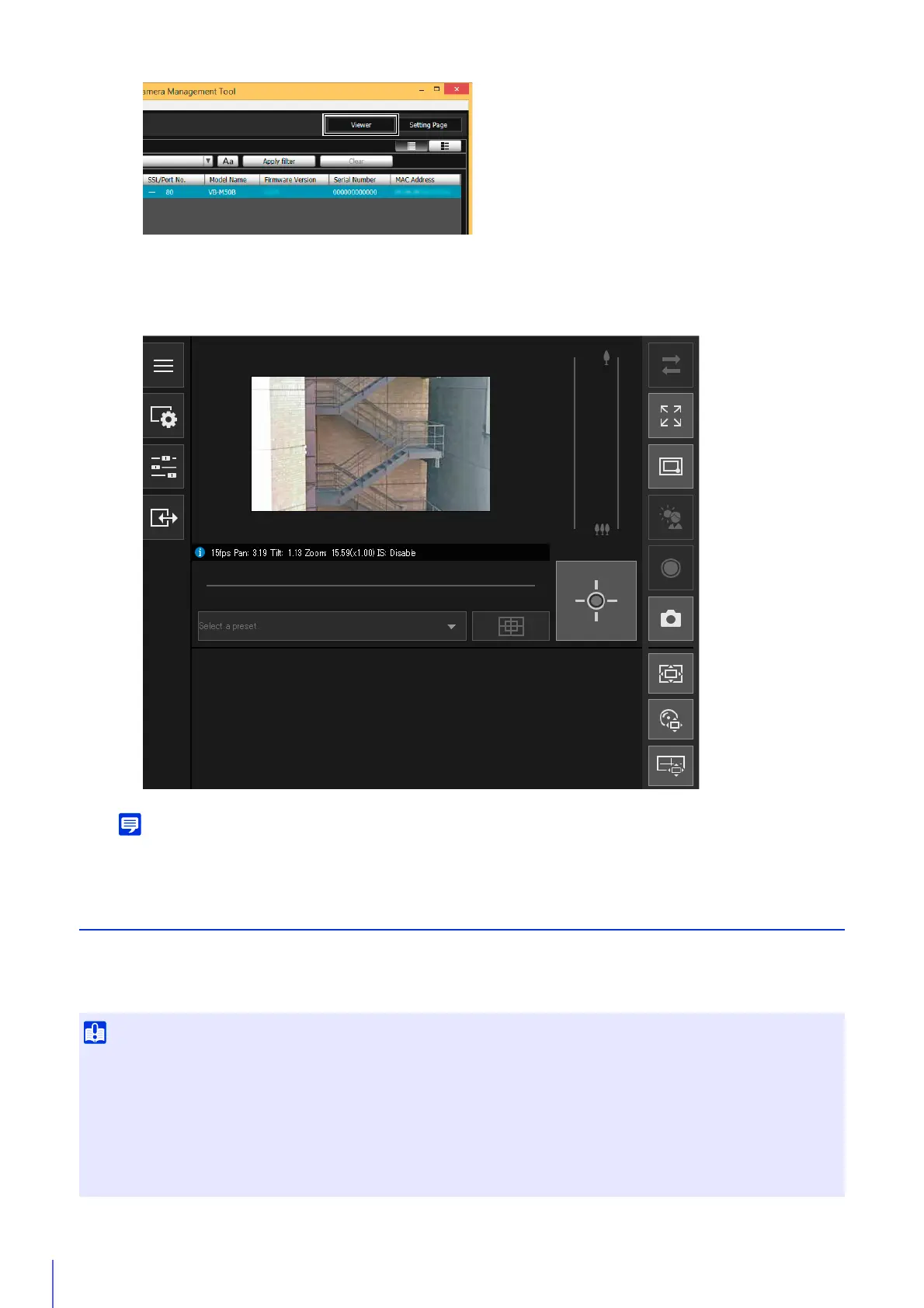
The authentication screen for the Viewer is displayed (P. 53).
The web browser starts and the Camera Viewer is displayed.
The web browser only starts when [Connectable] or [Connectable (error)] is displayed for [Connection Status].
Accessing the Camera from Web Browser
Cameras with the factory default settings are configured to obtain an IP address from the DHCP server. However, you can
access a camera connected to a network environment without a response from the DHCP server by entering a specific IP
address (192.168.100.1).
4
Enter the administrator name and administrator password (P. 39), and click [OK].
• You can only access a camera 30 seconds after connecting the camera to the network environment without a response from the DHCP
server using the 192.168.100.1 IP address.
• If there is a response from the DHCP server after 30 seconds has elapsed, the camera switches to the address assigned by the DHCP
server.
• When accessing a camera by entering 192.168.100.1 in a web browser, set the computer to an IP address with the same subnet
(255.255.255.0).
• If multiple cameras with the factory default settings exist on the same network, the cameras cannot be accessed.


 To Next Page