Camera Setup
35
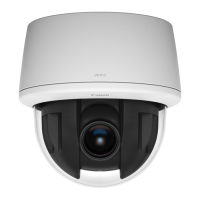
The [Trusted sites] dialog box is displayed.
• Clear the [Require server verification (https:) for all sites in this zone] checkbox if it is selected.
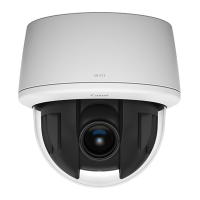
The camera’s IP address will be added to the [Websites] list.
• You can add IP addresses for multiple cameras by using a wildcard (*) when entering the IP address.
For example, if you enter “192.160.1.*”, all cameras that share the “192.160.1” portion of the address will be added as trusted
sites.
Settings When Using Windows Server
Adding “about:internet” and the Camera Host Name
The Viewer and the Setting Page will not launch when IE ESC (Internet Explorer Enhanced Security Configuration) is
enabled in Windows Server 2008/Windows Server 2012.
Before using the tools, add “about:internet” and the host name for the connected camera in the Internet Explorer
“local intranet” or “trusted sites” list.
3
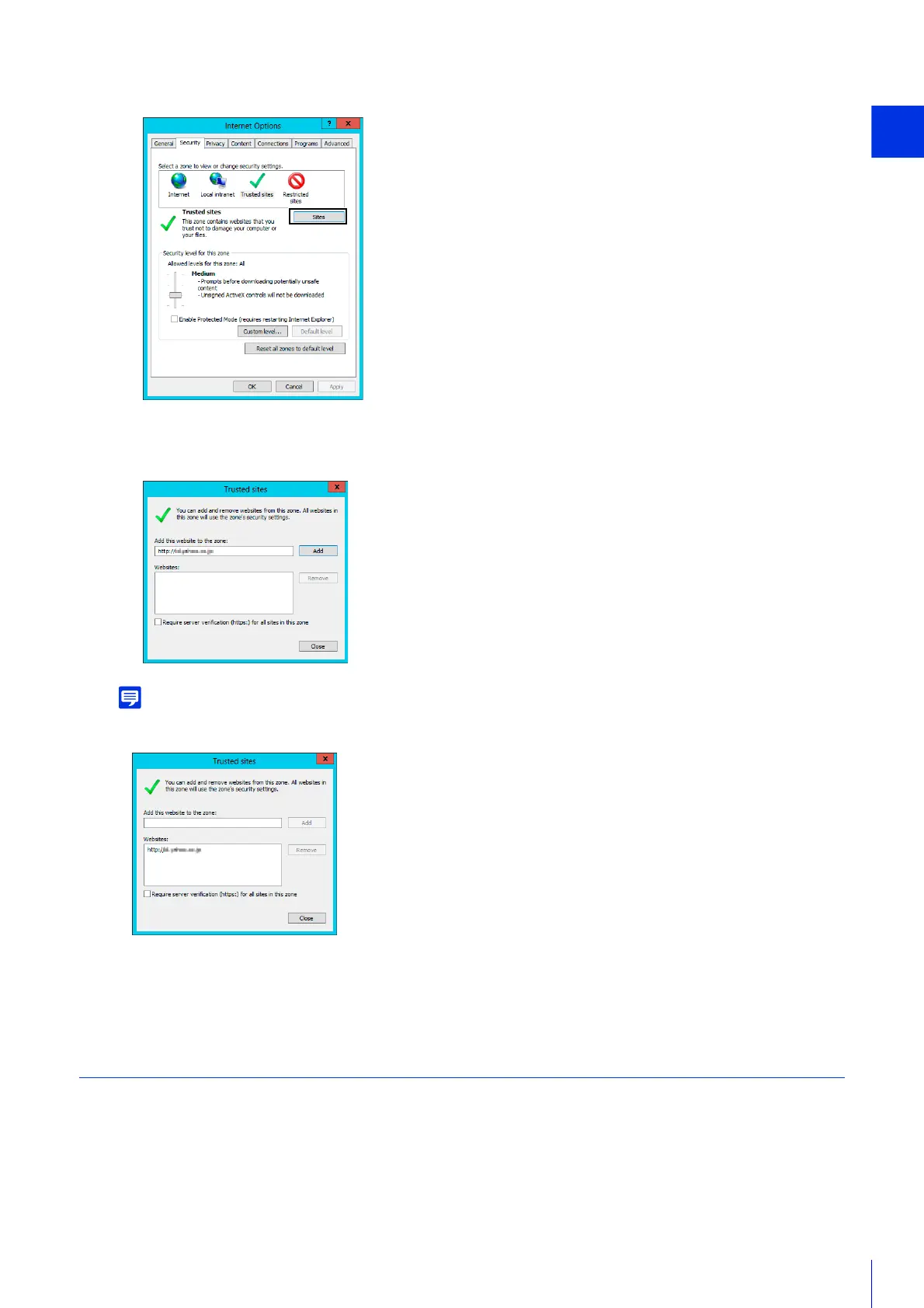
Click [Trusted sites] > [Sites].
4
Enter the IP address of the camera under [Add this website to the zone], then click [Add].


 To Next Page