84
In the [Event and Input/Output] menu, you can check the status of output/input operations of an external device,
intelligent functions, and occurrence of linked events.
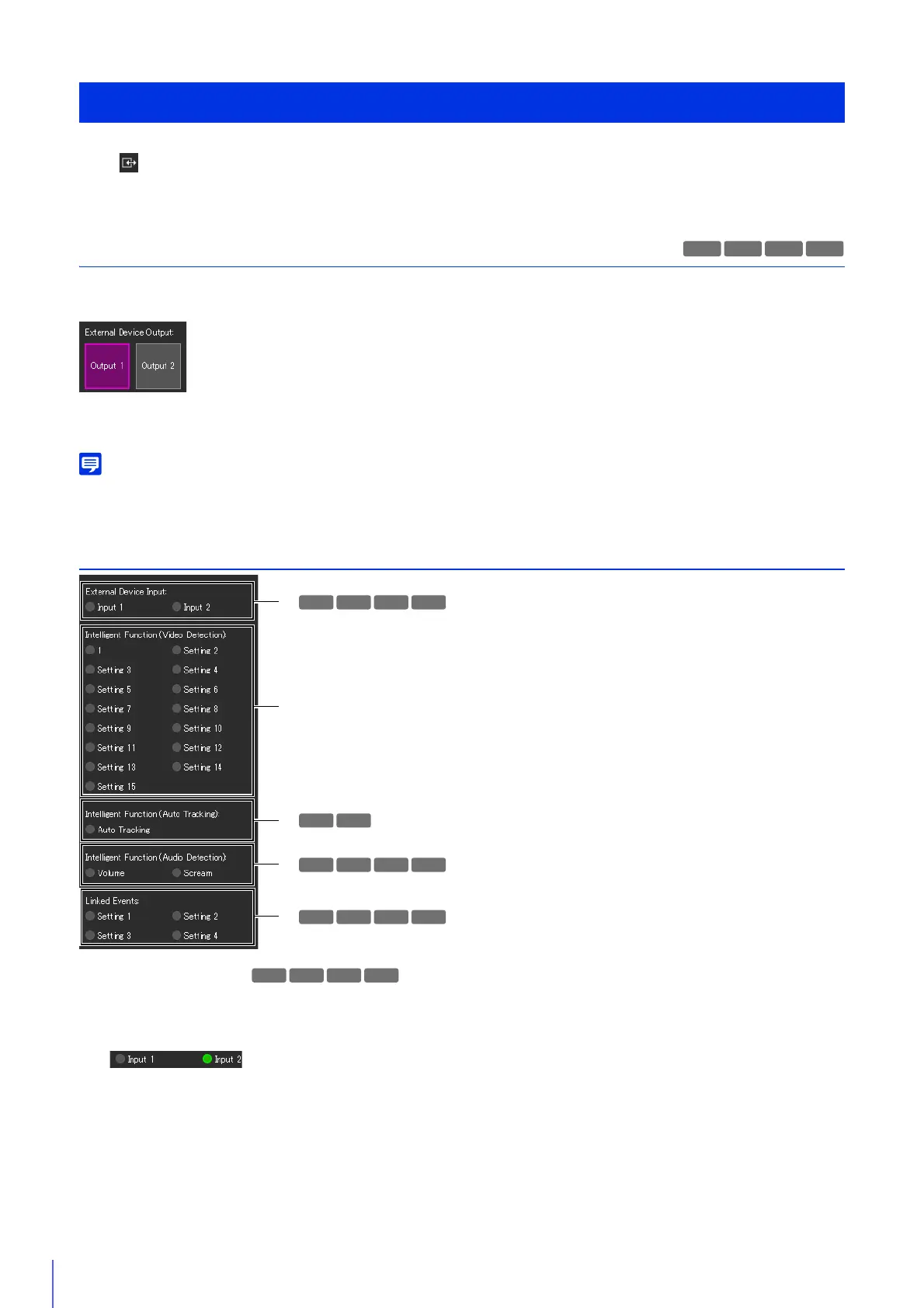
Operating External Device Output
You can operate output for the external device set in [Event] > [External Device] (P. 161) on the Setting Page.
Click the icon to switch between the active (purple)/inactive (gray) status.
Output 1: Output active
Output 2: Output inactive
To operate [External Device Output] output, it is necessary to obtain camera control privileges.
Checking the Status of Event Detection
(1) [External Device Input]
Displays the input status of the external device set in [Event] > [External Device] (P. 162) on the Setting Page.
When a contact input signal is received from an external device, input will be activated and the icon becomes green.
Example:
Input 1: Input inactive
Input 2: Input active
(2) [Intelligent Function (Image Detection)]
The status of video detection set in [Event] > [Intelligent Function] > [Video Detection] (P. 175) is displayed for each
detection setting number. When the detection settings configured in Intelligent Function (Moving Object Detection,
Abandoned Object Detection, Removed Object Detection, Camera Tampering Detection, Passing Detection, or
Intrusion Detection) are triggered, the corresponding icon will turn green.
Checking the Status of Event Detection
R13 M50
H652
R13 R12
R13 M50
H652
H651


 To Next Page