Camera Viewer
83
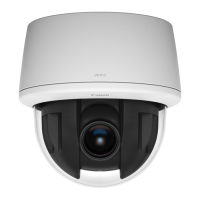
Audio transmission starts.
The [Audio Transmission] button icon will change to active (purple) while transmitting audio.
• To transmit audio, you must first set [Server] > [Audio Server] > [Audio Reception from Viewer] to [Enable] in the Setting Page
(P. 153).
• While the icon is active (purple), audio is constantly transmitted even if you close the [Video and Audio] menu.
• To use the audio function in environments that use a proxy server, select [Use a proxy server for your LAN] in [Internet options] >
[Connections] tab > [LAN settings] > [Proxy server] in the Internet Explorer, then specify the camera IP address in [Advanced] >
[Exceptions].
• Only the Administrator can transmit audio from the Viewer.
2
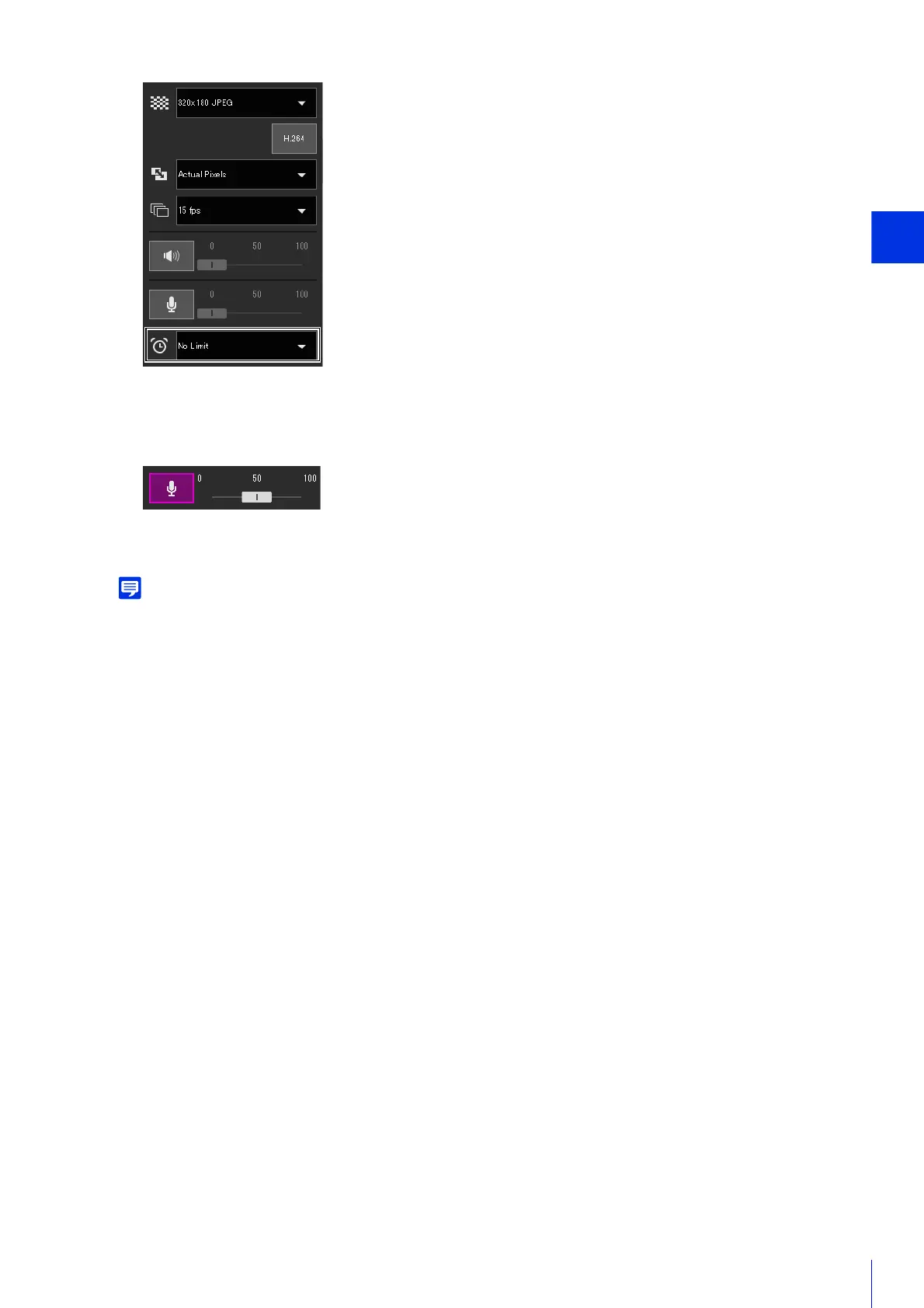
Click the [Audio Transmission] button.
3
In [Input Volume], adjust the volume to an appropriate level using the slider.


 To Next Page