Camera Viewer
73
Setting the Clear IR Mode
If you click the [Clear IR Mode] button to enable it (make it purple), the video becomes black and white, which
reduces shade and heat shimmer in far backgrounds.
Switching Day/Night
Set the shooting mode according to the brightness of the installation environment of the camera.
For details on this function, see [Day/Night] on “Setting Page” (P. 118).
Using Backlight Compensation
Click [BLC] to brighten video that is dark due to backlight.
The back light compensation button becomes active (purple) while backlight compensation is being performed.
Click the button again to cancel backlight compensation.
If bright areas are overexposed, use [Smart Shade Control] on the Setting Page.
• Cannot be set when [Exposure] is set to [Manual] on the Setting Page (P. 115).
• Cannot be set when [Smart Shade Control] is set to [Auto] on the Setting Page (P. 116).
M50
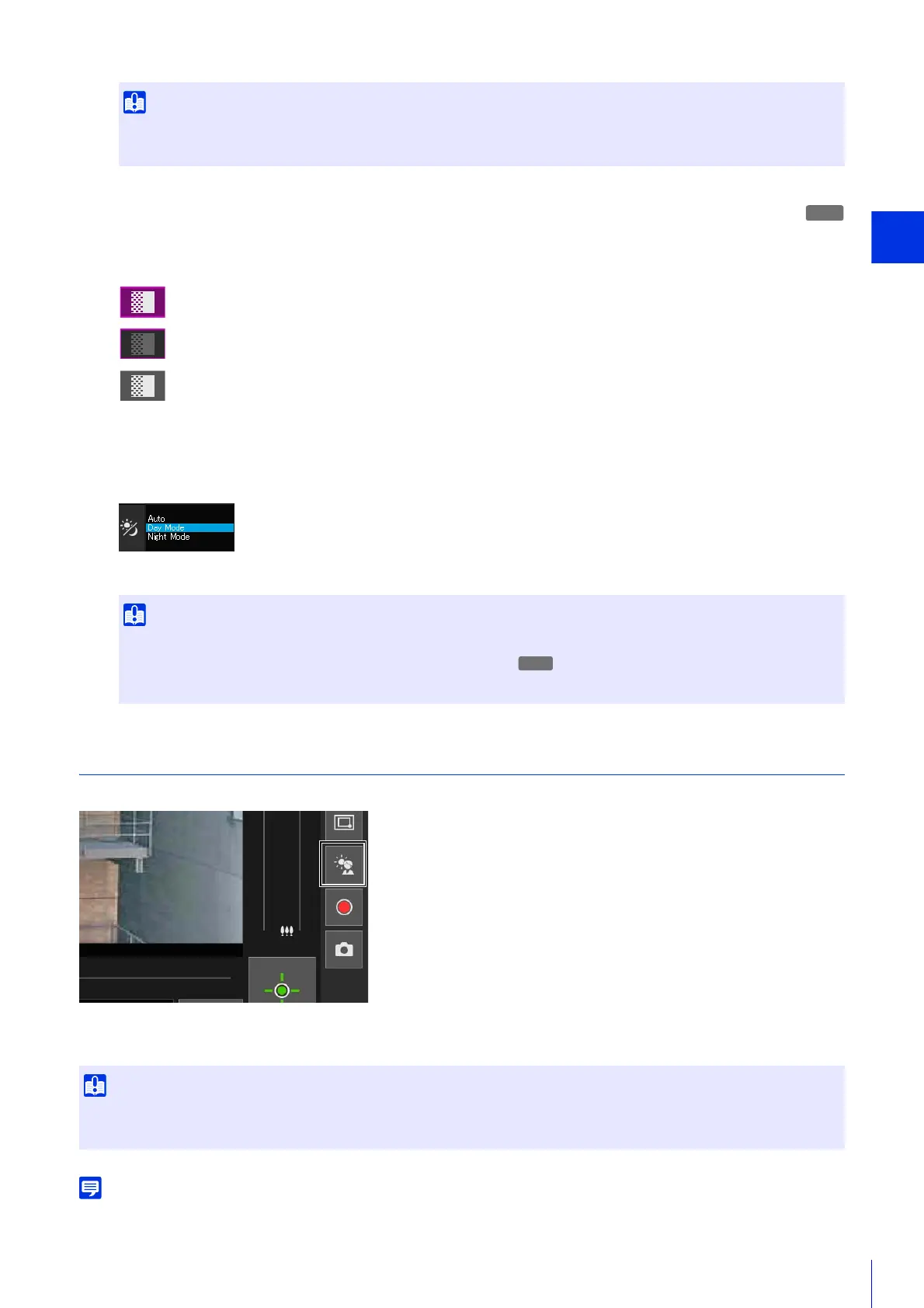
ON Status
ON Status (while camera control privileges are not obtained)
OFF Status
• Day/night can be set by the administrator and authorized users with privileged camera control.
• Day/night cannot be set when the clear IR mode is enabled (purple).
• For cautions on using Day/Night, see the “Important” section on P. 118.
M50
• You cannot use the [BLC] button if [Smart Shade Control] is set to [Auto] on the Setting Page.
• You cannot use the [BLC] button if [Exposure] is set to [Manual] on the Setting Page.


 To Next Page