192
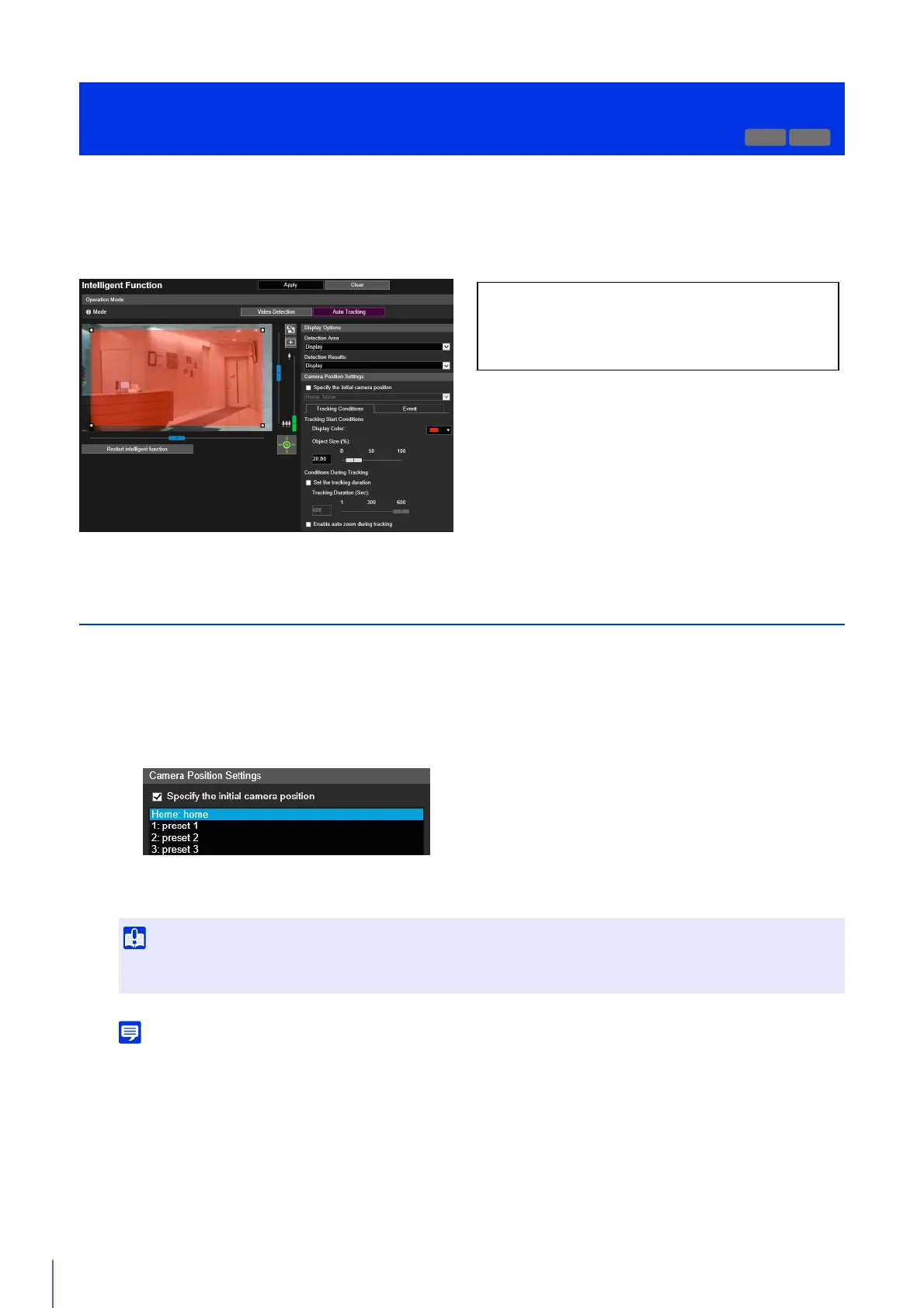
For Auto Tracking, set the detection area for moving objects while checking the video on the computer screen. The camera
is controlled so that the detected moving object appears near the center of the video display area. You can also set which
operations (such as e-mail notification, recording video, or playing audio from the speaker connected to the camera) are
carried out when detection occurs.
Setting Auto Tracking
Use the following steps to set Auto Tracking.
For details on how to adjust presets, please refer to “Registering a Preset” (P. 131).
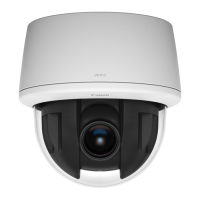
If you select [Specify the initial camera position], the camera angle will be moved to the selected preset position.
The camera angle will also be moved to the selected preset position after Auto Tracking ends.
You can select presets that meet the following conditions.
– Presets configured within the view restrictions.
– Presets with pan, tilt and zoom setting values (not blank) configured in [Preset Registration] (P. 132).
[Event] > [Intelligent Function]
- Auto Tracking -
R12
The following settings can be configured here.
•Operation Mode
• Display Options
• Camera Position Settings
1
Obtain camera control privileges to set Auto Tracking (P. 67).
2
Select [Specify the initial camera position] in [Camera Position Settings] as necessary, then select a preset.
It is recommended that you select [Specify the initial camera position] and configure the camera to begin auto tracking from a
specified position.


 To Next Page