Managing the System
Network Services
Cisco Small Business NSS300 Series Smart Storage Administration Guide 148
3
FTP Service
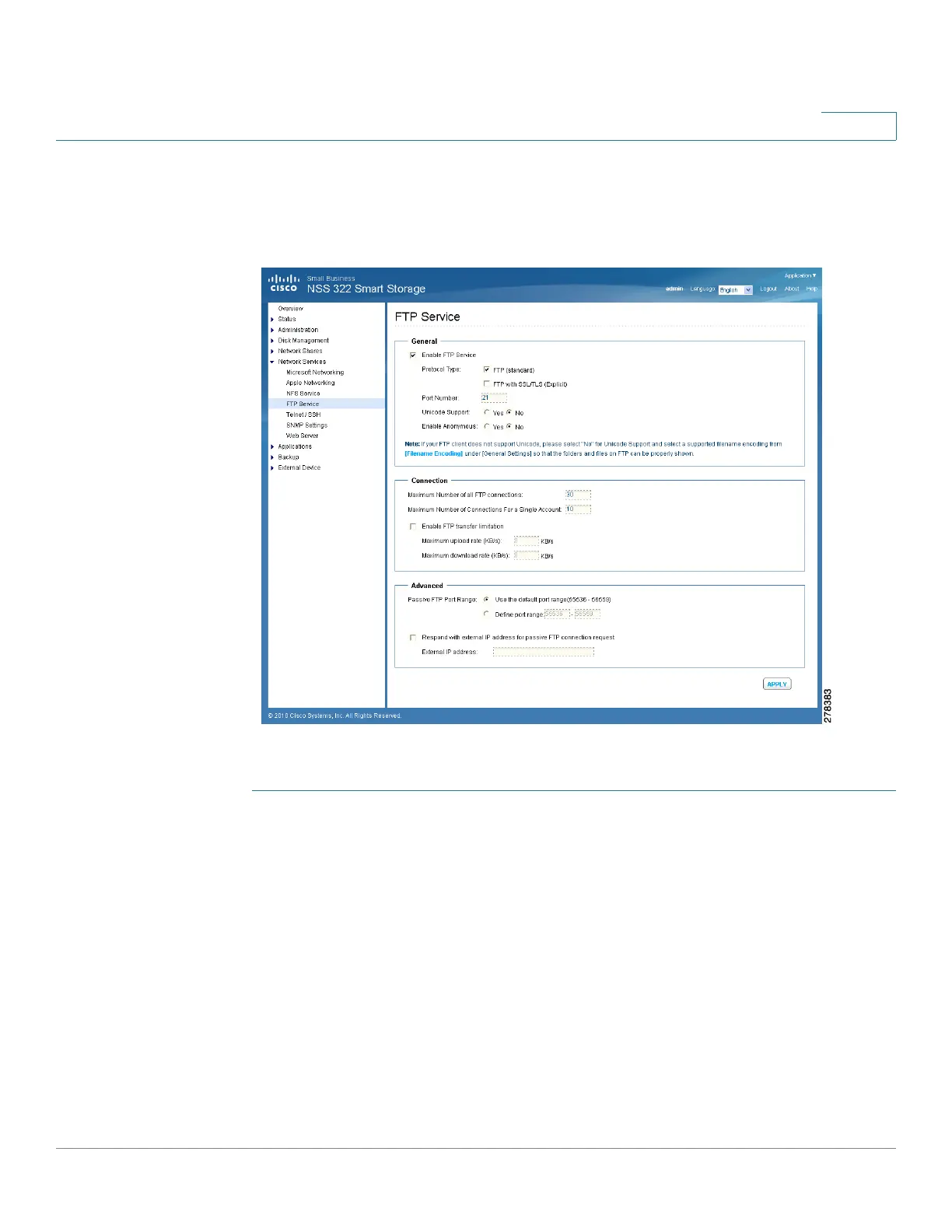
FTP clients can have access to network share folders on the NAS device.
To e n a b l e F T P s e r v i c e :
STEP 1 Choose Network Services > FTP Service from the Navigation menu. The FTP
Service window opens.
STEP 2 Click Enable FTP Service to enable FTP service.
STEP 3 Select at least one FTP transfer protocol type:
• FTP (standard)—Use general FTP protocol.
• FTP with SSL/TLS (Explicit)—Use SSL or TLS Explicit encryption
protocol.
STEP 4 Enter a port number for FTP service. The default is 21.
STEP 5 You can enable or disable Unicode Support by clicking Yes (enabled) or No
(disabled) in the Unicode Support field. The default setting is No. If your FTP client


 To Next Page