104 • 4-Series™ Control Systems Product Manual — Doc. 8559B
Once the control system is claimed, select it from the cloud interface to view its status and
settings. The control system may now also be managed and assigned to a group or room. For
more information, refer to the XiOCloudUserGuide.
NOTE:For XiOCloud accounts with room-based licenses, the control system must be added
to a licensed room before its status and settings can be viewed.
Create an Admin Account
The first time the web configuration interface is accessed, a page is displayed asking the user to
create an admin account. A similar message is displayed when connecting to the control system
in Crestron Toolbox software if an admin account has not already been created.
To create an admin account:
1. Enter a username and password for the admin account in the appropriate text fields.
CAUTION:Do not lose the username and password for the admin account, as the
control system must be reset to factory settings to regain access.
2. Select OK to create the admin account. The web configuration interface refreshes to show
the standard login page.
3. Reenter the credentials created in step 1 and select Sign In.
NOTE:The username and password must also be entered when connecting from
CrestronToolbox or XPanel.
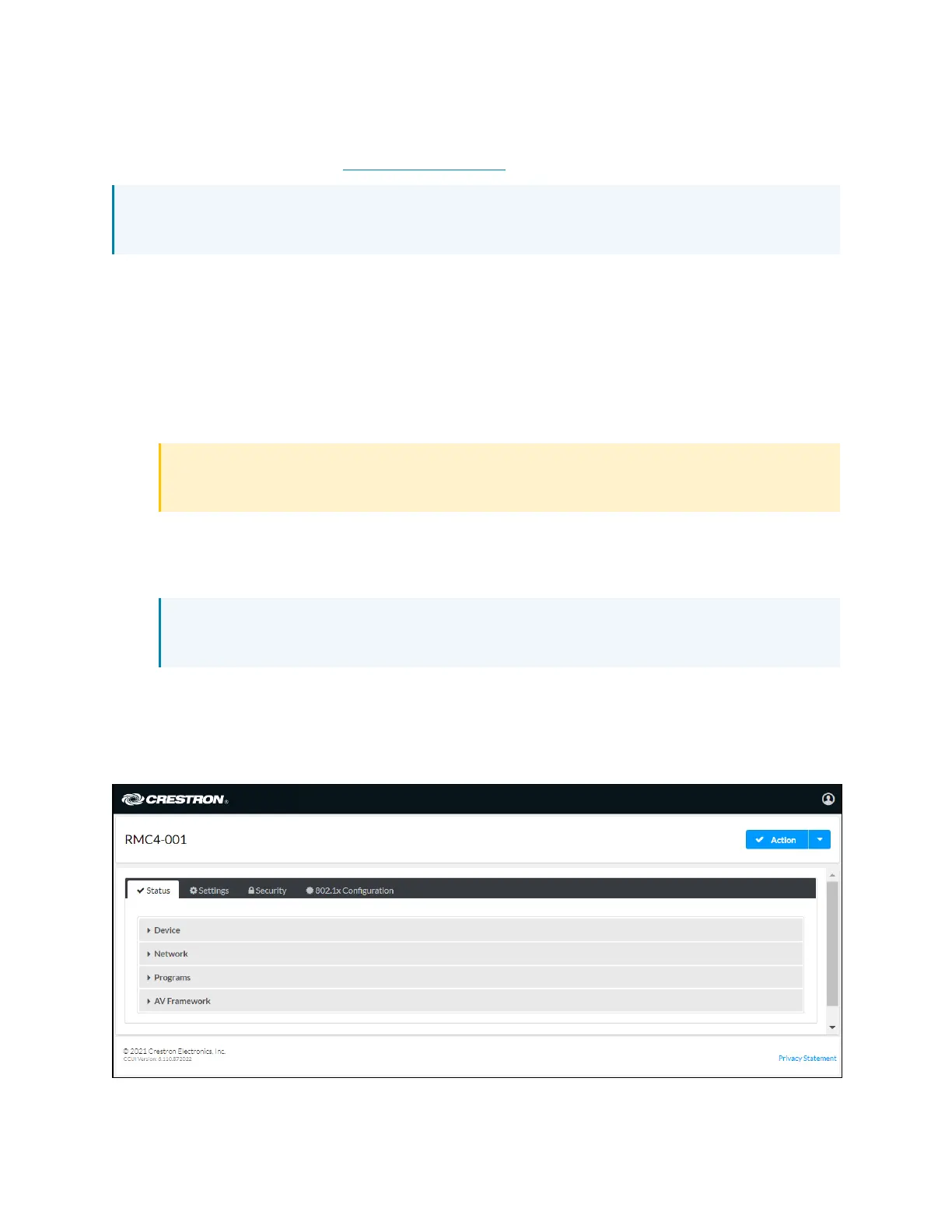
The web configuration interface is displayed upon successful login. For more information on
configuring the control system via its web configuration interface, refer to Web Configuration
(on page108).
Web Configuration Interface



 To Next Page