Product Manual — Doc. 8559B 4-Series™ Control Systems • 105
Set the Time Zone
The time zone must be set on the control system to ensure that the correct time settings are
pushed to controlled devices.
To set the time zone:
1. Access the web configuration interface using either the device IPaddress or the XiOCloud
service.
2. Navigate to Settings >System Setup.
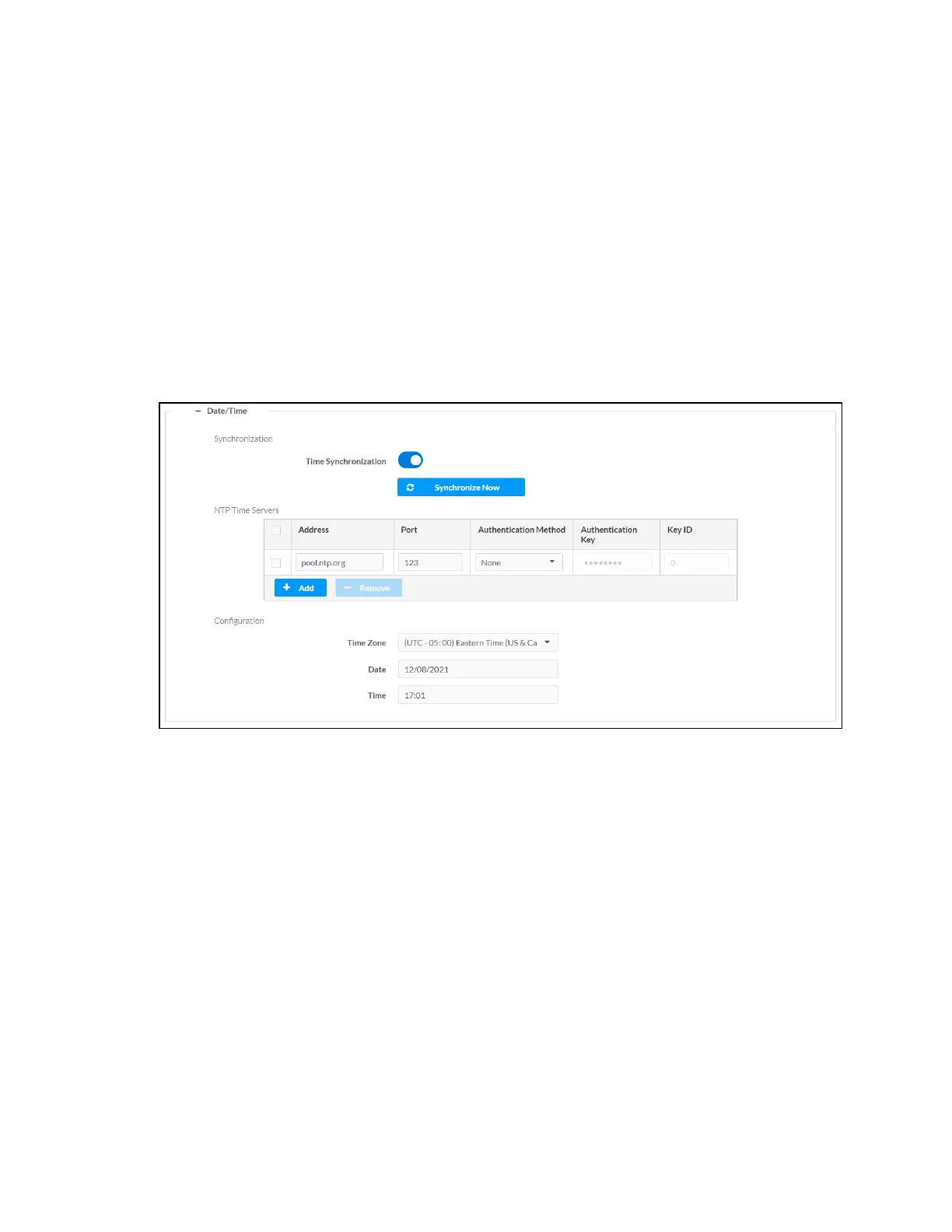
3. Expand the Date/Time subsection to display date and time settings.
Select the + (plus)icon next to Date/Time to display the following time and date settings.
Settings Tab - System Setup (Date/Time)
4. Select the time zone where the control system is used from the Time Zone drop-down
menu.
5. Select Save Changes on the top right of the screen.
Assign the RFChannel (MC4/MC4-I Only)
Set the RF channel of the control system prior to operation. The control system can operate on
channels 11 through 26. Crestron recommends using RF channel 15 or 20. The default RF channel
is 15.
For best performance when installing the control system in a Wi-Fi® network environment, do
not set the RF channel within a Wi-Fi channel band. Refer to the information below when
choosing the RF channel in a Wi-Fi environment:
l
Gateway channels 11 through 14 are within the Wi-Fi channel 1band.
l
Gateway channel 15 is adjacent to Wi-Fi channels 1 and 6.
l
Gateway channels 16 through 19 are within the Wi-Fi channel 6band.



 To Next Page