Pace Clock Mode Operation, Menus, & Settings
86
8 Pace Clock Mode Operation, Menus, & Settings
Reference Drawings:
Insert; LL-2581 Omni 2000, Pace Clock ............................................................ DWG-188395
The sport insert drawing is located in Appendix B: Sport Inserts (p.151). If an insert is lost
or damaged, a copy of the insert drawing may be used until a replacement is ordered.
Refer to Section 3: General Console Features & Operation (p.17) for information on how
to start up the timer and use the sport insert.
General Features
The pace clock mode serves as a workout manager. The pace clock can manage up
to ten different simultaneous workouts. Each workout will display consecutively on the
scoreboard’s lane 1-10. The pace clock also works with a downloaded workout from
Hy-Tek Workout Manager. The J6 RESULTS PORT is used to download the workout. The
OmniSport will accept 50 steps of the workout for each lane.
Getting Started
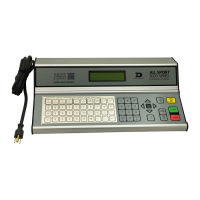
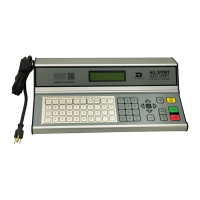
When starting the OmniSport 2000 console, set the console
to the pace clock mode. Refer to Startup (p.19) and press
[ENTER] when the right LCD shows 3-PACE CLOCK.
The three LCDs on the OmniSport 2000 keep the operator informed during the event.
Note the following layout of the LCDs shown in the pace clock mode:
1 2 3 4 5 6 7 8 9 10
3 1 2 1 1
* - * - -
The left and middle LCDs contain information for lanes 1-10, while the right LCD displays
detailed information for a specic lane plus editing information when in the editing
mode. The following table describes each symbol and function.
Function Location Denition
Lane # # above left & middle LCDs Clearly identies the lane.
Step #
Top row # in left and middle LCDs
[far left – ex. 3]
Displays which step a specic swimmer
is performing. Up to 50 steps for each
lane may be entered.
Lane Activity
Bottom row * and - in left and
middle LCDs
The - indicates the timer is stopped
and the ashing * indicates the timer
for that lane is running.
SELECT SPORT
3-PACE CLOCK
1 1 1 1 1
- - - - -
LANE 1 STEP 1
PACE 00:09 # 3



 To Next Page
 Loading...